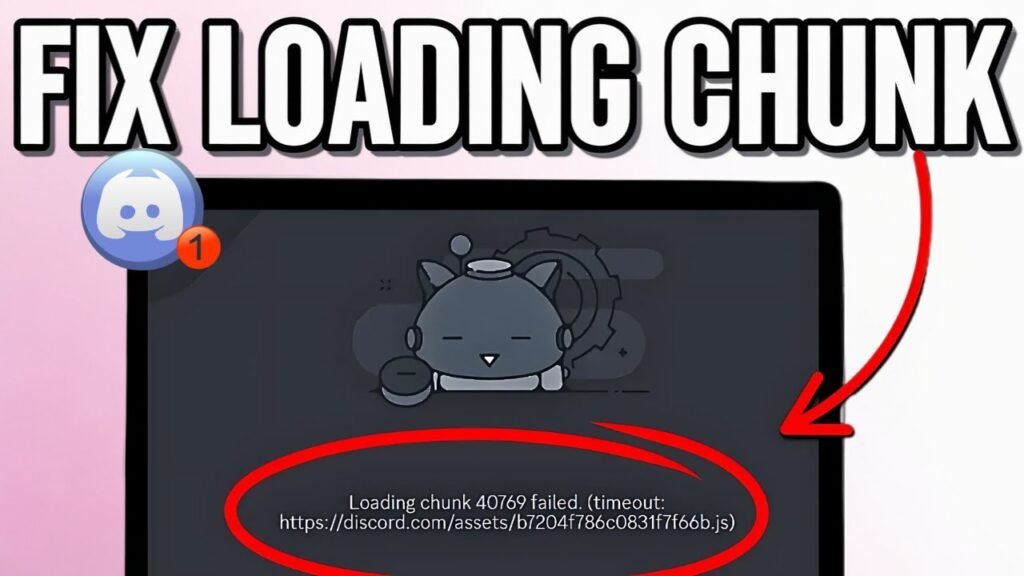
Is Discord giving you the dreaded “Loading Chunk Failed” error? Don’t worry, you’re not alone. It’s a pretty common issue, and luckily, it’s usually fixable. This guide will walk you through the steps to get your Discord back up and running.
If you’re running into error codes like 64163 or 40769, this guide is for you! So, let’s dive into how to fix discord loading chunk failed error and get you back to chatting with your friends.
Understanding the “Loading Chunk Failed” Error
Okay, so what exactly is a “chunk” in Discord? Think of it as a small piece of the program’s code or data. When Discord tries to load these chunks and fails, it can’t function properly. This might happen because of corrupted files, an issue with your internet connection, or an outdated version of Discord. Ultimately, if you’re having the Discord chunk-loading issue, Discord won’t load as it should, and that’s a problem.
Step-by-Step Guide to Fixing the Discord Error
Here’s how to fix discord loading chunk failed issue:
Step 1: Completely Remove Discord Files
We need to remove any potentially corrupted files that might be causing the problem.
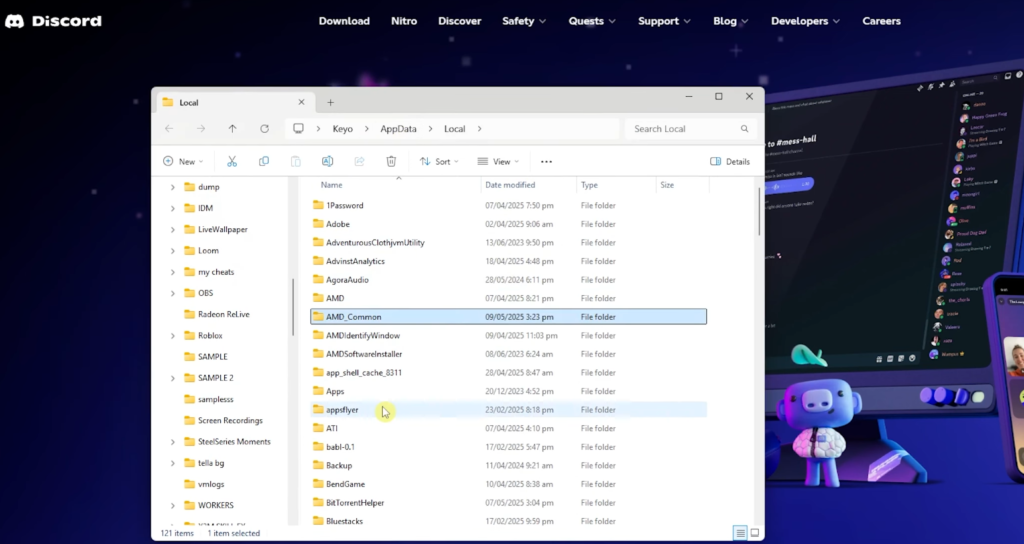
Part 1: Deleting Discord from AppData
- Press the Windows key + R on your keyboard. This opens the Run application.
- Type
%appdata%into the Run box and click “OK.” This will open your AppData Roaming folder. - Find the “Discord” folder in this directory.
- Right-click on the “Discord” folder and select “Delete.”
Deleting this folder removes Discord’s settings and some cached data.
Part 2: Deleting Discord from LocalAppData
- Press the Windows key + R again to open the Run application.
- This time, type
%localappdata%and click “OK.” This opens your LocalAppData folder. - Find the “Discord” folder in this directory.
- Right-click the “Discord” folder and select “Delete.”
This removes cached files that can often be the source of failed loading chunk error discord.
Step 2: Uninstall Discord
Next, we’ll completely uninstall Discord from your system.
- Go to “Add or Remove Programs” in Windows. (You can usually find this by searching for it in the Windows search bar.)
- In the list of installed apps, search for “Discord.”
- Click “Discord,” then click the “Uninstall” button.
- Follow the on-screen prompts to complete the uninstallation.
Uninstalling ensures we start with a clean slate when we reinstall.
Step 3: Reinstall Discord
Now, let’s get the latest version of Discord.
- Go to the official Discord website: discord.com.
- Click the “Download for Windows” button (or the appropriate download for your operating system).
- Once the installer is downloaded, open it and follow the on-screen instructions to reinstall Discord.
This ensures you have the newest version, which might include discord error fix.
Alternative Solution: Try Discord in Your Browser
Sometimes, the problem might be specific to the desktop application.
- Open your web browser and go to discord.com/login.
- Log in to your Discord account.
- Check if the “discord failed loading chunk error 64163 / loading chunk 64163 failed” error persists in the browser version.
If the error doesn’t appear in the browser, it suggests the issue is with your desktop application installation.
Troubleshooting Tips
If you’re still having trouble, here are a few more things to try:
Check Your Internet Connection
- Make sure your internet connection is stable.
- Try restarting your modem and router.
- A poor connection can definitely cause problems when Discord is downloading those chunks.
Clear Discord Cache (If Possible)
- If you can access Discord’s settings, look for an option to clear the cache.
- Corrupted cache files can lead to loading errors.
Update Your Graphics Drivers
- Outdated graphics drivers can sometimes interfere with application loading.
- Check for and install the latest drivers from the manufacturer’s website (NVIDIA, AMD, or Intel).
Run Discord as Administrator
- Right-click the Discord icon on your desktop or in the Start menu.
- Select “Run as administrator.”
- This gives Discord the necessary permissions to access files and resources.
Check for Conflicting Programs
- Sometimes, other programs can interfere with Discord. This could be antivirus software or VPNs.
- Try temporarily disabling these programs to see if it resolves the error.
Understanding Specific Error Codes
Seeing a specific error code? Here’s what it might mean:
Discord Failed Loading Chunk Error 64163 / Loading Chunk 64163 Failed:
This specific code indicates a problem with a particular chunk file. The steps outlined above (clearing cache, reinstalling) are usually effective in resolving this.
Discord Loading Chunk 40769 Failed:
Similar to the 64163 error, this indicates a problem with a specific chunk. Again, try clearing the cache and reinstalling Discord. If that doesn’t work, consider contacting Discord support: https://support.discord.com/
Preventing Future “Loading Chunk Failed” Errors
Want to avoid this problem in the future? Here are some tips:
- Keep Discord up to date with the latest version.
- Regularly clear your Discord cache.
- Maintain a stable internet connection.
- Avoid running too many resource-intensive programs at the same time.
- Restart your computer regularly to clear temporary files and processes.
By following these steps, you should be able to fix Discord: loading chunk failed and get back to enjoying Discord.
Prefer Visual Help? Watch the Step-by-Step Video Guide!
Struggling with how to fix “Loading Chunk Failed” error? Don’t worry—this video breaks it down step by step with clear, hands-on instructions. If you want the only working method that actually gets results, this video is for you!
▶ Watch Video TutorialFrequently Asked Questions (FAQs)
For more Discord Tutorials, Click Here