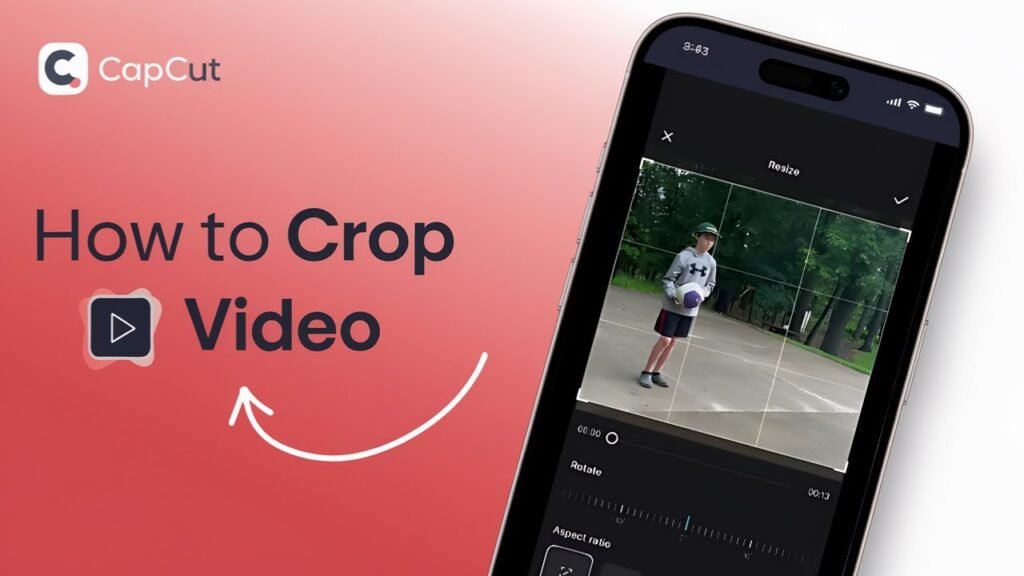
Ready to clean up your videos, trim out distractions, or get the perfect frame for your next TikTok? Learning how to crop videos on CapCut is easier than you think. Whether you’re editing on your phone, your PC, or prepping something unique for social media, this CapCut tutorial walks you through every step. You’ll find simple directions, practical tips, and answers to your biggest questions about CapCut video editing—no confusion or technical jargon. Let’s get started.
Why Crop Videos in CapCut?
Sometimes you get the perfect shot, but there’s a messy background or unwanted space. Cropping in CapCut lets you:
- Remove distractions or clutter.
- Change the aspect ratio for YouTube, Instagram, or TikTok.
- Focus on your main subject.
- Reframe for creative edits.
CapCut’s built-in crop tools are easy to use on both mobile and desktop. Let’s go through exactly how to crop video in CapCut, step by step.
Step-by-Step: How to Crop Video in CapCut (PC and Mobile)
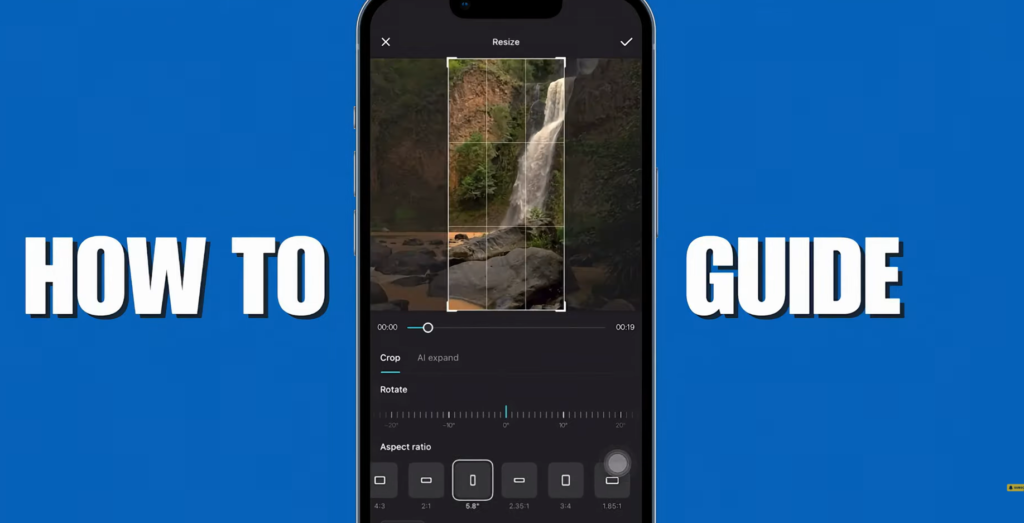
You don’t need any fancy skills to crop videos in CapCut. Follow these steps, and you’ll have a clean, professional-looking clip in minutes.
1. Open Your Project in CapCut
- Launch CapCut on your device.
- Tap “New Project” or open your existing project.
- Import or select the video you want to edit.
2. Select the Clip to Crop
- In your timeline, tap or click the video you want to crop.
- The selected clip will be highlighted.
3. Find the Transform Tool
- Look for the Transform option at the bottom of your screen.
- On desktop, this may be in a side or bottom menu.
- Tap on “Transform.”
4. Use the Resize Feature to Crop
- Inside Transform, you’ll see options like Mirror, Rotate, and Resize.
- Tap Resize.
- You’ll now see adjustable handles or edges around your video preview.
5. Crop Your Video
- Drag the corners or sides to crop the video as you like.
- Preview your changes in real-time.
- Need specific dimensions (say, for TikTok)? Use available presets for quick auto-crop.
- If you mess up, just tap Reset to revert to the original.
6. Explore Extra Crop Settings and Effects
- Looking to rotate your video after cropping? Use the Rotate tool for a quick flip.
- Try AI Expand to fill borders, but note: your clip must be less than 10 seconds for this to work.
7. Save Your Changes
- Once you’re happy with your crop, click or tap the checkmark (usually top right).
- Play your video to make sure it looks just right.
- Export or continue editing as needed.
Pro tip: You can always undo changes anytime if you’d like to try a different crop later.
Key CapCut Cropping Features at a Glance
How to Crop Video for TikTok, YouTube Shorts, and More
Want to post your cropped CapCut video on TikTok or Reels? Here’s how to get the size just right:
- In the Resize menu, check for Presets.
- Pick from options like 9:16 (TikTok/Reels), 16:9 (YouTube), 1:1 (Instagram).
- Your crop will snap to fit the chosen aspect ratio—no more guessing!
For more on getting the perfect video format for social media, check out CapCut’s in-app aspect ratio tips or browse other CapCut video editing resources.
Fixing Mistakes: Undo and Reset Options in CapCut
Made a cropping decision you don’t love? No worries:
- Use the Reset button in the Transform menu to undo all cropping and go back to the starting point.
- Or, hit “Undo” on the main editing bar to step back one move at a time.
Advanced Tips: Cropping Short Clips with AI Expand
CapCut now offers AI Expand for quick, smart edge-filling. There are just a couple things to remember:
- Only works on clips under 10 seconds.
- AI Expand stretches or fills the crop to avoid black borders.
It’s a neat way to make short, creative TikToks look even more polished. Try it out and see how your clips stand out.
Save and Export Your Cropped Video
Once you’re done with your crop (and any other edits, like filters or subtitles), tap the checkmark to confirm. Don’t forget to export your video at the highest possible resolution to keep quality sharp, especially if you’ll be uploading to social media.
Bonus: Cropping and Beyond—What Else Can You Do in CapCut?
While cropping gives you control over your video’s look, CapCut offers much more:
- Adjust brightness and color.
- Add text and stickers.
- Layer music and sound effects.
- Use filters for different moods.
You never have to settle for boring edits. Try exploring more CapCut tutorials to level up your videos, and take control of auto-updates so your editing never gets interrupted.
Final Thoughts: Master CapCut Video Editing with Cropping
Cropping lets your story shine by focusing the viewer’s attention where it matters most. With this easy CapCut tutorial, you know exactly how to crop videos on CapCut—on your PC, mobile, or tablet. You’ve learned every step, uncovered ways to fix mistakes, and picked up new tips for making your videos pop.
Give these tools a try and see how much your next TikTok, YouTube, or Instagram post improves. You don’t need fancy equipment or special skills—just CapCut, your creativity, and this guide. Happy editing!
Ready to explore more ways to tweak your visuals? If you want to fine-tune elements in your images (like font style), you might enjoy this guide on how to Identify Fonts from Images with Canva.
Now get out there and start creating amazing videos that get noticed. You’ve got this!
Prefer Visual Help? Watch the Step-by-Step Video Guide!
Struggling on how to crop videos on CapCut? Don’t worry—this video breaks it down step by step with clear, hands-on instructions. If you want the only working method that actually gets results, this video is for you!
▶ Watch TutorialCapCut Cropping Frequently Asked Questions
Got questions? We’ve got answers. Contact us anytime.
Want To Learn How to Download CapCut Pro for FREE. Here’s a Step-by-Step Guide Article on how to do so.