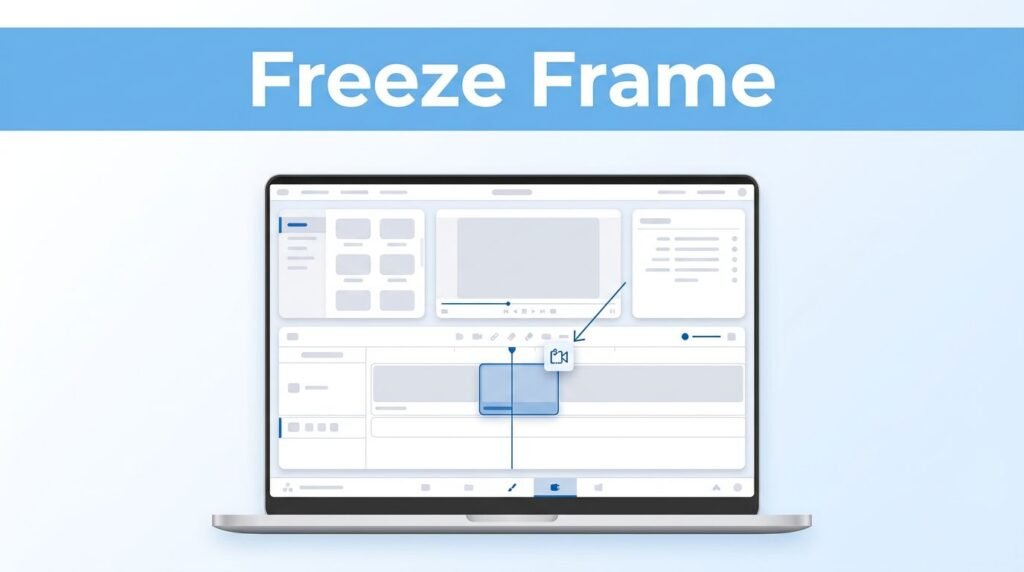
If you want to know how to freeze frame in DaVinci Resolve, the quick answer is simple: place your playhead on the frame you want, open Change Clip Speed, and turn on Freeze Frame. That works when you want the clip to stop on one moment and stay there.
If you want the action to pause and then continue, you need to isolate one frame first, freeze that tiny segment, and stretch it out. The steps below work well for DaVinci Resolve 18, 19, and what most people mean when they search for how to freeze frame in DaVinci Resolve 20.
Pick the right kind of freeze frame first
A freeze frame is one of those effects that looks easy, but the result depends on where you stop the clip. If you freeze a blurry frame, the pause will look sloppy. If you freeze a clean frame, it looks intentional.
Before you do anything, make sure your clip is already on the timeline and move the playhead to the exact moment you want to hold. This part matters more than people think. If you’re trying to figure out how to freeze a frame in DaVinci Resolve, the real first step is picking a frame that looks sharp.
Here is the difference between the two methods in this guide:
Pick a frame with as little motion blur as possible. A frozen blurry frame still works, but it usually doesn’t look clean.
This is also where a lot of people searching for “DaVinci Resolve how to freeze frame” get tripped up. The software part is easy. Choosing the right frame is what makes the effect look good.
Freeze the clip from one point forward
Use Change Clip Speed and Freeze Frame
If you want a basic DaVinci Resolve freeze frame, this is the fastest method.
- Move your playhead to the frame you want to freeze.
- Right-click the clip on the timeline.
- Click Change Clip Speed.
- Turn on Freeze Frame.
- Click Change.
Once you do that, play the clip back. It should move normally, hit the frame under the playhead, and then hold on that image. If you were wondering how to do a freeze frame in DaVinci Resolve without cutting anything first, this is it.

If you place the playhead near the end of the shot, this can also work as a DaVinci Resolve freeze last frame effect. That’s useful when you want a scene to stop on the final image instead of cutting away immediately.
This same method also answers a few similar searches people use, like how to freeze frame on DaVinci Resolve, how to freeze frame in DaVinci, and how to make a still frame in DaVinci Resolve. You are still using the same menu path. The only thing that changes is where you place the playhead.
Make the clip freeze, then continue playing
Cut out one frame with the Razor tool
If you want the video to pause and then keep going, don’t freeze the whole clip. Instead, isolate one frame and freeze only that section. This is the better answer for people looking up how to make a freeze frame in DaVinci Resolve that feels more like an effect than an ending.
Start by undoing the first method if you already tried it. Use Ctrl + Z on Windows or Command + Z on Mac.
Then do this:
- Move the playhead back to the frame you want to freeze.
- Select the Razor or blade tool.
- Cut the clip at the playhead.
- Press the Right Arrow key once to move forward by exactly one frame.
- Zoom in on the timeline if needed. Holding Alt while using the mouse scroll wheel makes this easier.
- Cut the clip again at the new playhead position.
After that, your clip should be split into three parts. The tiny middle piece is the one-frame segment you want to freeze.
Switch back to the Select tool, then right-click that one-frame segment and go to Change Clip Speed again. Turn on Freeze Frame, then click Change.
Now you can drag the end of that frozen segment to make it longer. This is the part people usually mean when they search for how to extend a freeze frame in DaVinci Resolve. You’re not creating extra frames by hand. You’re stretching that frozen one-frame section to however long you want.
When you play it back, the clip should move, pause on the frozen frame, and then return to motion. That is the cleanest way to get a freeze frame in DaVinci Resolve without losing the rest of the shot.
If you also want captions to stay readable during that held moment, this quick guide for importing SRTs can help you add subtitle files to your project after the edit is done.
Fix the common problems before you waste time re-cutting
If Freeze Frame is greyed out
If you run into a DaVinci Resolve freeze frame greyed out issue, check the obvious stuff first. Make sure you’re right-clicking the clip on the timeline, not an empty area. Also make sure the clip segment is actually selected.
Another easy miss is forgetting to click Change after checking the Freeze Frame option. If you close the window without confirming it, nothing happens.
This part can also confuse people when the cut is off by a frame. If the frozen image isn’t the one you wanted, undo it and move the playhead again. One frame can make a big difference, especially in fast motion.
The shortcuts that help most
If you were hoping for a single DaVinci Resolve freeze frame shortcut, this workflow is more about a few small shortcuts working together:
- Ctrl + Z or Command + Z to undo
- Right Arrow to move one frame forward
- Alt + scroll to zoom into the timeline for precise cuts
Those three keys save more time than people expect.
If you want to compare this with another community method, this Resolve frame hold discussion is a helpful reference. The idea is the same: stop on one frame, then decide whether the clip should end there or continue after the hold.
Prefer Visual Help? Watch the Step-by-Step Video Guide!
Struggling with How to Freeze Frame in DaVinci Resolve? This video visually walks you through the steps so you can follow along more easily.
Watch TutorialThe method to remember
If you only need the clip to stop and stay still, use Change Clip Speed > Freeze Frame on the full clip at the playhead. If you want the action to resume, cut out one frame first, freeze that small segment, and extend it.
That’s the whole trick behind a good DaVinci Resolve freeze frame. The sharper your chosen frame is, the better the effect looks when everything else stops.
Frequently Asked Questions
Here are a few common questions people ask when creating a freeze frame in DaVinci Resolve.
Want To Learn How to Fix Overexposed Video in DaVinci Resolve. Here’s a Step-by-Step Guide Article on how to do so.