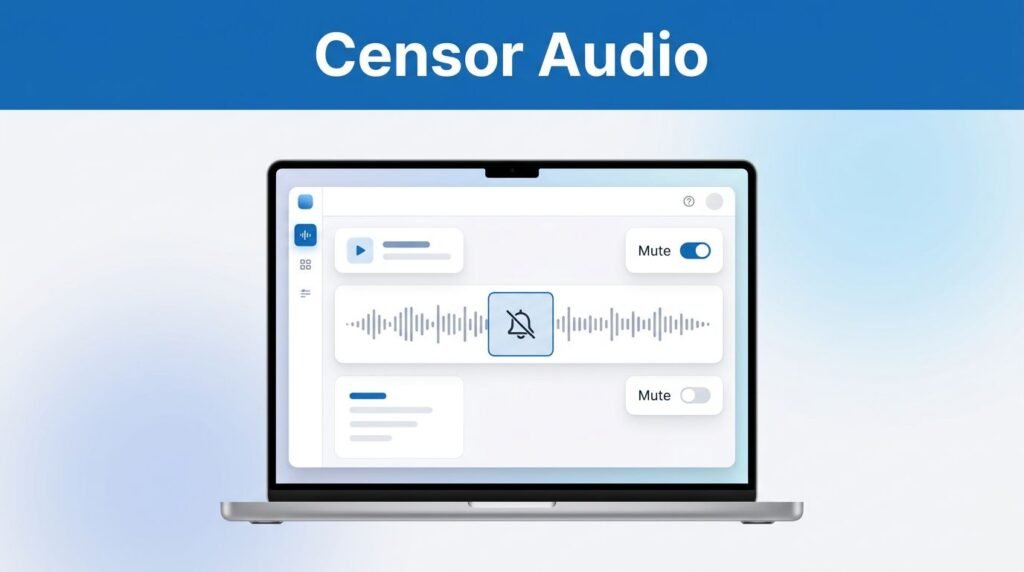
If you are wondering how to bleep or censor curse words on Descript, the process is straightforward: locate the specific word in your transcript, cut that segment of audio, mute it, and overlay a censor beep. While this requires manual effort for each instance, it remains the most reliable way to produce brand-safe content for your audience.
Many creators searching for how to bleep or censor curse words on Descript hope to find an automated censoring feature. However, as a professional video editor, Descript currently relies on this manual workflow to ensure high-quality, precise results. Taking the time to perform these edits correctly is a vital step for avoiding YouTube demonetization and ensuring your video meets specific platform guidelines. The good news is that once you master the technique, the process becomes much faster, allowing you to clean up your audio tracks with ease.
Key Takeaways
- Manual Workflow is Required: Descript currently does not offer an automated “censor all” button, so you must locate and mute curse words manually for the most reliable results.
- Use Transcript Shortcuts: Utilize the Ctrl + F search function to quickly identify specific words within your transcript, which allows you to jump directly to the relevant audio segments.
- Precision Editing: Use the Blade tool (B) to make precise cuts around the profanity, then mute the segment and overlay a pre-leveled bleep sound effect for a professional finish.
- Consistency Matters: Save time by copying and pasting a single, volume-leveled censor sound effect throughout your project rather than re-adjusting the volume for every individual instance.
What to know before you start
Start by opening your project and ensuring you upload footage that contains the audio or video you want to clean up. It is also smart to have your beep or bleep sound effect ready before you begin, because you will need to place it over the muted section after you cut the word out.
Descript uses smart audio analysis to generate a transcript of your project, which makes identifying specific words much easier. The platform’s text-based editing capabilities allow you to locate profanity in seconds, which is a major advantage for any video editor. If you searched for how to bleep out curse words in text or how to censor curse words in text, remember that the transcript is simply the tool you use to navigate the timeline faster.
While users have submitted a profanity filter button as a feature request, there is no built-in “censor all” button yet. If you want to replace bad language in Descript right now, the most effective method is to mute the original word and cover it with a censor sound.
This process also works for more than just spoken dialogue. If you are trying to remove curse words from songs, remove bad words from songs, remove cuss words from songs, or figure out how to edit out curse words in a song, the basic workflow remains the same once the audio is inside your project.
Descript makes the word easy to find, but you still have to censor each instance manually.
Find the words first so you aren’t hunting through the timeline
Start in the script view and press Ctrl + F. Use this function to find words you want to censor, and Descript will highlight each match so you can jump through them one by one instead of scrubbing across the timeline and guessing where the term lands.
That shortcut is the most efficient way to locate specific segments. If you have several different swear words to clean up, search them separately. It is much faster than replaying the whole project every time you need to locate the next instance.
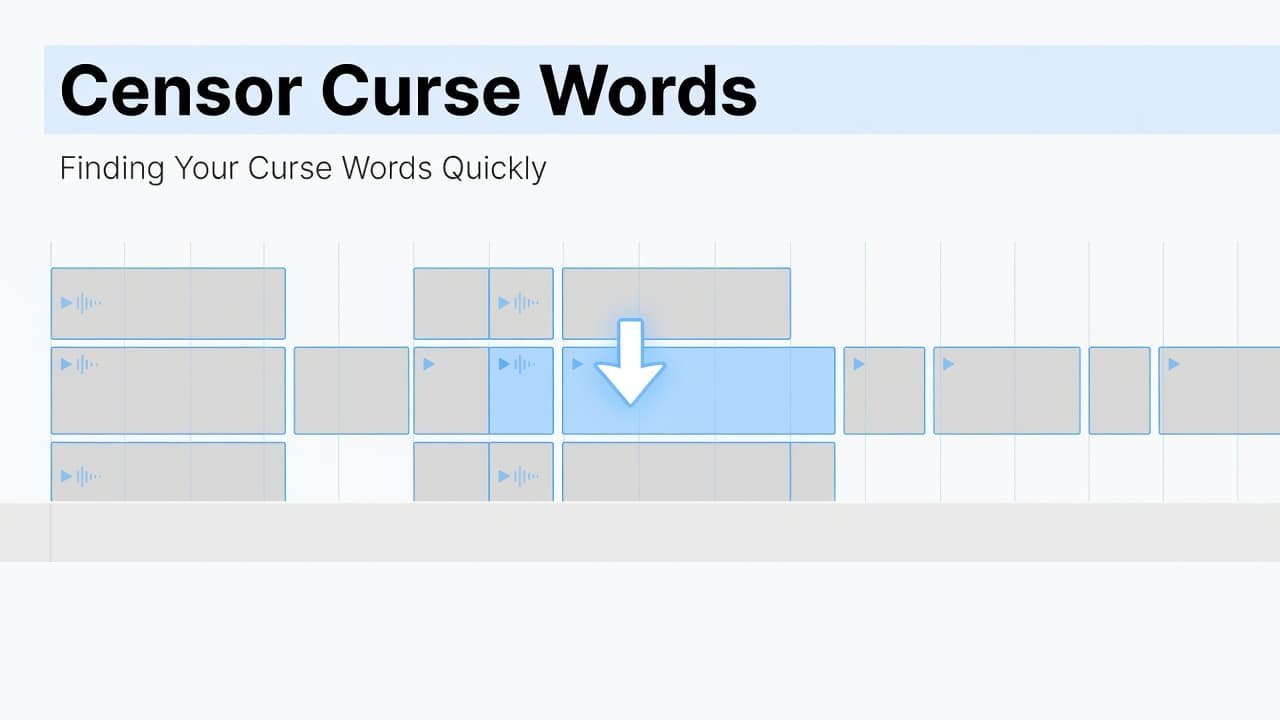
When you click the highlighted word in the transcript, Descript takes you to that exact spot in the audio or video. This tight integration between the text and the media is what makes manual editing a highly practical and reliable workflow. You can see the transcript, the playhead, and the waveform all lined up in one place.
If the waveform looks too small, zoom in before you start cutting. Hold Ctrl and use the mouse wheel to zoom. This step is more important than many users realize, because a tighter zoom makes it much easier to see exactly where the word starts and where it ends.
How to censor audio in Descript
Once the playhead is positioned over the word you want to remove, follow these steps to censor audio in Descript effectively. This process ensures your video captions remain professional and polished.
- Press B to switch to the blade tool. Make one cut at the beginning of the curse word and another at the end of it. Descript’s waveform usually shows the shape and length of the spoken word well enough that you can cut quite precisely.
- Press A to go back to the Select tool. Click the isolated audio clip, right-click it, and choose Add volume key frame. Drag that keyframe all the way down to mute audio so the original word is silenced.
- Right-click and add a new layer for the censoring effect. Open your Files and add your bleep sound effect if it is not already in the project. Once it is there, place the bleep sound effect on the new layer.
- Move the audio clip over the muted word. You can line it up by looking at the waveforms and the cut section below. If the clip is too long, trim it. If it is too short, copy and paste it until it covers the full word.
- Trim the last pasted segment so it ends exactly where the word ends. This part can get messy if you rush it, as even a tiny gap can let part of the original word slip through.
- Lower the volume of your bleep sound effect. Right-click each segment, add a volume key frame, and bring it down so it does not blast over the rest of your audio. Many sound effects come in much louder than normal speech, so adjusting the levels is essential.
After that, play the section back and listen closely. If you still hear part of the word, zoom in more and adjust the cuts. If the censor sound feels like three separate clips instead of one smooth one, use a longer source file next time instead of stacking short ones.
A common mistake is stopping after silencing the word. Simply using the mute function removes the original audio, but you still need to place and level the replacement sound so the edit does not feel awkward.
Small fixes that make the result sound better
To achieve professional audio cleanup that keeps your content compliant with social media guidelines, consistency is key. If you are masking several words, reuse the same bleep sound effect after you have adjusted it once. Copying and pasting an already sized, volume-leveled clip is much faster than building each censor from scratch, and it ensures the levels remain uniform throughout your project.
You will usually get a cleaner result with one longer beep than with several short, stuttering ones. Repeated tiny bleeps can sound choppy, which becomes particularly obvious if you are working with music. While you might be tempted to search for an automated AI bleeping tool, these often struggle with the timing required to properly edit bad words out of songs. Whether you are learning how to remove curse words from songs or how to censor a song for a podcast background, manual control is the only way to ensure the audio aligns perfectly with the beat.
If you were wondering how to remove swear words from songs or how to remove bad words from songs, remember that while Descript is powerful, it does not automatically remove curse words from songs online for you. You must mute the original audio and manually place your bleep sound effect to match the exact duration of the word.
If a menu or right-click option looks slightly different on your screen, do not worry, as the core workflow remains the same. Search in the transcript, cut the word, mute the track, and place your beep over the gap. If you were searching for the most reliable way to censor curse words, this manual approach provides the professional finish that automated software often lacks.
Frequently Asked Questions
Is there an automatic way to bleep out curse words in Descript?
Currently, there is no built-in automatic profanity filter in Descript. You must manually identify the words using the transcript and perform the cuts and audio replacement yourself to ensure professional and accurate results.
Can I use this method to remove swear words from music?
Yes, the process for cleaning up songs is identical to editing dialogue. You simply need to identify the timing of the lyrics, mute the original audio segment, and layer your bleep sound effect over it to match the rhythm of the track.
How can I make my censor edits sound natural?
Avoid using multiple short, “stuttering” clips to cover a single word, as this often sounds choppy. Instead, use a single, properly sized audio file and ensure you adjust the volume levels of your bleep effect so it matches the intensity of your primary audio track.
Prefer Visual Help? Watch the Step-by-Step Video Guide!
Struggling with How to Bleep or Censor Curse Words on Descript? This video visually walks you through the steps so you can follow along more easily.
Watch TutorialThe manual method is the one that works
If you want clean censorship in Descript, the fastest path is still using the Ctrl + F shortcut, cutting with B, switching back with A, muting the clip, and laying a beep over it. While there is no one-click profanity filter to handle the entire process automatically, this workflow remains the most reliable option for creators.
Once you handle the first word, the rest is mostly a matter of repetition. The upside is that Descript displays enough of the transcript and waveform to help you censor curse words with high accuracy and minimal guesswork. Once you have finished your edits and polished the audio, you can export video projects with total confidence, knowing you have achieved a professional and clean result.