Discord is more than just chat rooms and game nights. If you want your profile to pop or show off your skills, earning badges is the way to go. The Discord developer badge—especially the shiny active developer badge—says you’re not just hanging out, but actually shaping the Discord experience. This guide will walk you through every step of how to get active developer badge Discord, spotlight tips, and answer your burning questions about the entire process in clear, simple terms.
Looking to boost your status? You’re in the right place. Let’s break down how to get Discord badges and become one of those members with a Discord badge people actually ask about.
What Is the Active Developer Badge on Discord?
The active developer badge is a special profile badge awarded by Discord to those who actively maintain or contribute to Discord bots. It’s a mark that shows you’re invested in the platform—not just as a user, but as a creator or builder. If you’ve wondered how users get that little “active developer” ribbon next to their name, this is how.
Discord offers various badges, like HypeSquad, Discord Partner, and Moderator. However, the active developer Discord badge stands out because it directly recognizes technical contribution. It rewards anyone who runs a qualifying app (bot) and keeps it active by processing commands monthly.
Why Get the Discord Developer Badge?
- Instant Credibility: Let people know you’re not just another member.
- Community Respect: Fellow developers respect and recognize the badge.
- Better Opportunities: If you’re building bots for clients or businesses, this badge proves you’re legit.
What You Need to Qualify for the Active Developer Badge
Before you get started, make sure you meet these Discord requirements:
- Active Discord account: Your account must be verified.
- Ownership of a Discord bot: Don’t worry—coding knowledge isn’t essential; no-code options are available.
- The bot must be in at least one server: It must process a command at least once in the last 30 days.
Quick tip: Even if you’re not a coder, there are simple tools to help you create and host a bot that qualifies. Stay tuned for those details.
Step-by-Step: How to Get the Active Developer Badge Discord
Let’s jump in. Here’s the fastest way to earn your Discord active developer badge, even if you’re starting from scratch.
1. Enable Community Features on Your Discord Server
Discord’s active developer badge unlock requires your server to have “Community” features enabled:
- Go to your server and click the server name in the top-left corner.
- Open Server Settings and look for “Enable Community.”
- Click “Get Started” and follow the on-screen instructions.
- Verify your email, set basic rules, and agree to Discord’s community guidelines.
- Finish setup by following the prompts. Your server is now community-enabled.
2. Create a Developer Application and Your Discord Bot
Next, go to Discord’s developer portal, where you’ll create the app and bot needed for the badge.
- Sign in to discord.com/developers/applications using your Discord account.
- Click “New Application” and name your project (for example, “Sample Dev Badge”).
- Check the relevant box and click “Create.”
- Discord might ask you to prove you’re human—complete that step.
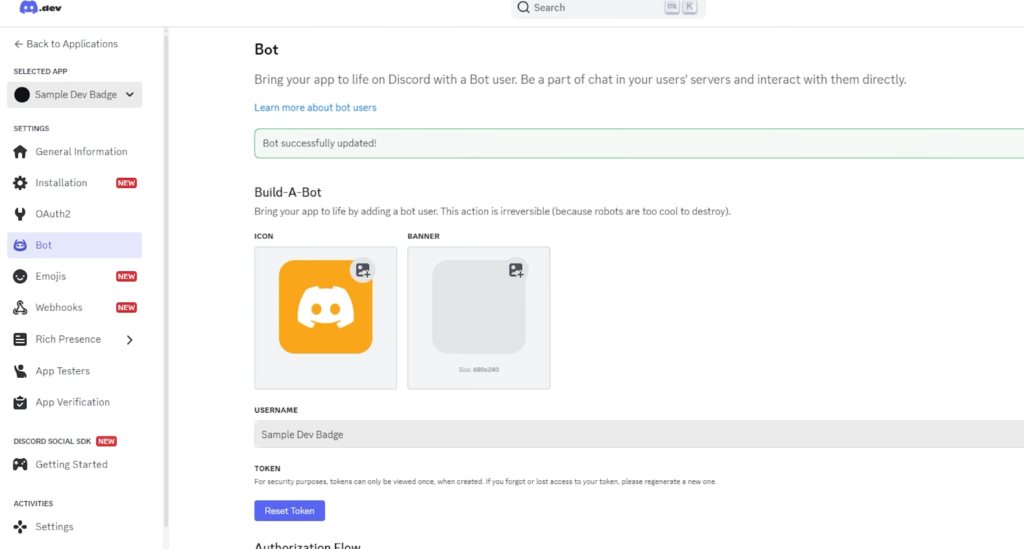
- Go to the Bot section on the left and create a bot user.
3. Configure Bot Permissions and Settings
You’ll need to enable some settings for your bot to work properly and meet the requirements:
- Scroll to the Privileged Gateway Intents section.
- Enable all three options (Presence Intent, Server Members Intent, and Message Content Intent).
- Click Save Changes.
- Click the Reset Token button, confirm, and enter your password if prompted.
- Copy the new token—it’s important for the next phase.
4. Set Up the Bot with a No-Code Tool
You don’t have to be a developer wizard to get the badge. Tools like BotGhost, BotGo, or similar platforms let you host a simple bot without touching code. Here’s how it typically works:
- Go to a no-code Discord bot platform (e.g., BotGo).
- Authorize the app to access your Discord account.
- Paste the bot token you copied from the developer portal.
- Create your bot and follow the steps to get it up and running.
- Click through prompts like Next and Get Started.
5. Add Your Bot to Your Discord Server
Now it’s time to add your bot to the server where you want the badge:
- Invite the bot to your server when prompted.
- Select the server from the list.
- Click Continue and Authorize.
- Wait for the success notification.
6. Enable the Active Developer Badge in the Bot Platform
Some no-code tools will have a section labeled “Active Developer Batch” or similar:
- Navigate to the “Active Developer Badge” menu.
- Click Enable and then Save Changes.
7. Claim and Verify Your Active Developer Discord Badge
The final stretch:
- Go to your Discord server.
- In a server text channel, type /active dev badge (Discord will autofill it for you).
- Run the command.
- Discord may take up to 24 hours to review and approve your eligibility.
You can check your badge status periodically by running the command again. Once Discord approves it, the badge is yours to keep as long as your bot stays active.
Common Questions About the Active Developer Badge
Here are answers to the most common concerns about the Discord active developer badge:
- How long does it take?
Usually, under 24 hours after you’ve run the command. - Do I need to know how to code?
No! No-code tools make it easy. - Will my badge disappear if my bot is inactive?
Yes, Discord checks if your bot is still responding to commands monthly. - Does this work on mobile?
You can manage most steps on a browser, even on your phone.
Other Discord Badges You Might Want
Discord offers more than just the active developer badge:
- Discord Partner Badge: For active, large communities.
- HypeSquad House Badges: Join HypeSquad and complete challenges.
- Bug Hunter Badge: Report valid Discord bugs.
- Moderator Badge: For members moderating large, active servers.
If you’re going for a well-decorated profile, consider earning as many badges as you can. Each shows off a different aspect of what you bring to the Discord community.
Troubleshooting and Pro Tips for Badges
Ran into trouble? Here’s what to check:
- Double-check your bot’s token and make sure it hasn’t been reset again.
- Confirm that your server has “Community” features enabled.
- Make sure your bot responded to at least one command in your server.
- Wait a little—approval really can take a full day.
Bonus Tips:
- Stay active! Keep your bot running and processing commands so you don’t lose the badge.
- Rotate server roles when running multiple projects. Each bot can count toward your eligibility.
- If you want to show off your badge, head to your profile settings and enable badge display.
Conclusion
Now you know exactly how to get the active developer badge Discord users talk about, even if you’re not a developer by trade. The process might seem long, but once you break it down, it’s just a series of simple steps. With this Discord badge tutorial, you have everything you need to claim your spot as a recognized developer on Discord.
Badge up, show the community your skills, and keep your bot alive so you stay visible. Discord’s developer badge isn’t just for hardcore coders anymore—it’s open to all who keep the platform running and fun. Now is the best time to stand out.
Ready to see that Discord developer badge next to your name? It’s your turn. Set up your bot, follow the steps, and get your badge. Your profile—and your reputation—will thank you.
Prefer Visual Help? Watch the Step-by-Step Video Guide!
Struggling on how to get Active Developer Badge on Discord? Don’t worry—this video breaks it down step by step with clear, hands-on instructions. If you want the only working method that actually gets results, this video is for you!
▶ Watch TutorialFrequently Asked Questions
Want to learn how to find your Discord ID? Here’s a Step-by-Step Guide Article on how to do so.
![How To Apply For A Paypal Credit Card Getting A Paypal Credit Card Isn'T Hard. What Trips Most People Up Is Knowing Where To Find The Application, What Details To Enter, And What Happens After You Submit It. If You'Re Trying To Figure Out How To Apply For A Paypal Credit Card Online, The Whole Process Starts Inside Your Existing Paypal Account. Once You Know Where To Look, It Feels A Lot More Straightforward. Start Inside Your Paypal Account You Need An Active Paypal Account Before You Can Start A Paypal Credit Card Sign Up. Open The Paypal App Or Log In On The Website, Then Look For The Credit Or Card Section In Your Dashboard. That'S Where The Application Starts. If You'Re Checking Out The Paypal Credit Card In 2025, There'S One Detail Worth Catching Early Paypal Has More Than One Credit Product. The Card Option And The Paypal Credit Digital Line Are Different, And Paypal Explains That On Its Credit Card Vs. Paypal Credit Help Page [Httpswww.paypal.comuscshelparticlewhat-Is-The-Difference-Between-Paypal-Credit-Card-And-Paypal-Credit-Digital-Line-Help472]. Where To Find The Application The Path Is Usually Short On The Website, Sign In And Look For Paypal Credit, Wallet, Or A Card-Related Section. In The App, Sign In And Check The Area Where Paypal Shows Cards, Credit, Or Other Financial Products. When You See Apply Now, You'Re In The Right Place. If Your Account Shows An Option To Apply For Paypal Mastercard, The Paypal Mastercard Application Follows The Same Basic Path Log In, Open The Offer, And Start The Form. Fill Out The Paypal Credit Card Application Carefully Once You Click Or Tap Apply Now, You'Ll Be Taken To The Official Form. This Is The Part Where The Paypal Credit Card Requirements Matter Most. Have These Details Ready Before You Begin Your Full Legal Name Your Current Residential Address Your Social Security Number Your Income Details Paypal'S Own Cashback Mastercard Application Help Page [Httpswww.paypal.comuscshelparticlehow-Do-I-Apply-For-A-Paypal-Cashback-Mastercard-Help753] Says You May Be Asked To Confirm Personal Details And Income In The App Or On The Website. So Don'T Rush Through It. A Typo In Your Address, Name, Or Income Can Slow Down Your Paypal Credit Card Approval Or Lead To A Follow-Up Request. Before You Submit, Read The Terms And Conditions Carefully. Look At The Interest Rate, Any Annual Or Late Fees, And The Rewards Or Financing Details Attached To The Offer. If You'Re Wondering Whether It'S Worth It, This Is The Part That Gives You The Real Answer. What Happens After You Submit After You Send In The Paypal Credit Card Application, Paypal Performs A Credit Review. That'S Normal When You Apply For A Paypal Credit Card Online. You May Get One Of Three Outcomes Almost Right Away Approved, Declined, Or Asked To Provide More Information. If More Details Are Requested, Keep Everything Inside The Official Paypal App Or Site. That'S The Safest Way To Continue. A Fast Decision Is Possible, But Quick Paypal Credit Approval Isn'T The Same Thing As Automatic Approval. If You'Re Searching For A Magic Paypal Credit Card Credit Score Number, There Isn'T A Public Cutoff Listed In The Materials Here. So There Isn'T A Guaranteed Score That Leads To Paypal Credit Card Approval. Your Paypal Credit Approval Depends On The Lender'S Review Of The Information You Submit. This Is Also Where People Mix Up Products. A Paypal Debit Card Is Different From A Paypal Credit Card, And Moving Balance Between Gcash And Paypal [Httpshowtoishtutorial.comsend-Money-From-Gcash-To-Paypal] Is A Money-Transfer Process, Not Part Of A Card Application. What Happens Once You'Re Approved Once Approved, Your Account Is Linked So You Can Manage It From Paypal. If A Physical Card Is Part Of Your Approval, It Will Be Sent By Mail. After That, You Can Use It For Online Purchases, In-Store Transactions, And Any Financing Options Attached To The Account. That'S The Biggest Convenience Here. You Can Track Spending, View The Card, And Manage Payments From The Same Paypal Account You Already Use. No Extra Guesswork, No Hunting Around For A Separate Setup. For Online Checkout, The Benefit Is Obvious. The Card Works With Paypal'S Payment Flow, Which Makes It Easy To Use. In Stores, It Works Like A Regular Card. If Your Offer Includes Payment Flexibility, You Can Keep An Eye On That From Your Existing Dashboard. Final Thoughts Applying For A Paypal Credit Card Comes Down To A Few Simple Moves Log In, Find The Credit Section, Complete The Form, Review The Terms, And Wait For The Decision. If You Want The Process To Go Smoothly, Accuracy Matters More Than Speed. Get Your Details Right The First Time, And The Whole Thing Feels A Lot Less Intimidating.](https://howtoishtutorial.com/wp-content/uploads/2026/05/How-to-Apply-for-a-PayPal-Credit-Card-720x471.jpg "How To Apply For A Paypal Credit Card 6")