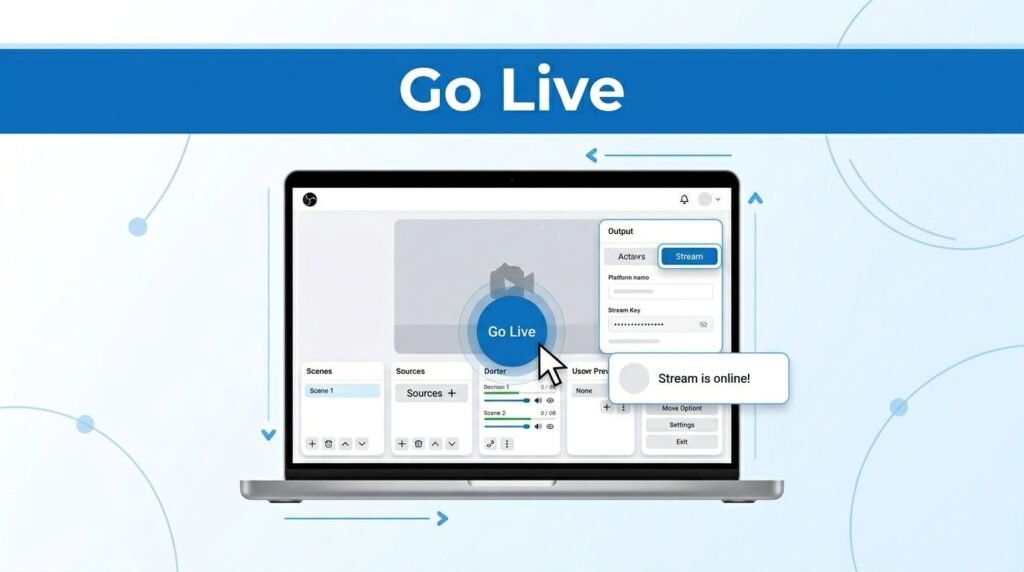
If you’re trying to figure out how to find TikTok stream key access fast, the main thing to know is that the key only matters if your account can go live in the first place. This method skips TikTok Live Studio and uses a desktop tool so you can set up a TikTok live stream key for OBS.
Once you’re in, the process is pretty straightforward. The part that usually slows you down is not OBS, it’s getting TikTok live access and loading the right account inside the tool.
What you need before you start
If you want to find a TikTok stream key, you’re not looking for a hidden setting inside the normal mobile app menus. The method shown here uses an external desktop tool hosted on GitHub, not the standard TikTok Live Studio stream key flow.
That matters because a lot of people search for a TikTok stream key tutorial, open OBS, and expect the key to appear out of nowhere. It won’t. You need a desktop setup, the GitHub tool, and a TikTok account that is eligible for LIVE.
The transcript makes one requirement clear: your account needs to meet TikTok’s live eligibility rules, including 1,000 followers. A dummy account without live access won’t be able to finish the process, even if the app opens and you log in successfully.
If the tool loads your account but you never see “Go Live”, the issue is usually your TikTok account status, not your OBS settings.
This is also why this TikTok live setup feels confusing at first. You’re doing two jobs at once. First, you’re trying to get the TikTok live stream key. Second, you’re building the TikTok OBS setup that will use that key. Once you treat those as two separate steps, the whole process gets a lot easier to follow.
Download and open the GitHub tool
The fastest way shown here starts on the tool’s GitHub page. Since the repo link itself was provided with the video and not spelled out in the walkthrough, the key part is what you do after you land there: open the Releases section and download the file that matches your system.
Pick the right release for your computer
On the release page, choose the version for your operating system. The options shown include macOS, Linux, and Windows. Picking the right one matters, because this is the file you’ll use to start the app that pulls your TikTok live key.
On Windows, the flow looks like this:
- Open the release you want.
- Click the file for Windows and let it download.
- Open your downloads folder.
- Right-click the downloaded compressed folder.
- Choose Extract All.
- Click Extract and wait for it to finish.
Once extraction is done, open the new folder and scroll until you find the .exe file. That’s the app you need to launch.
### Extract the files and launch the app
After you double-click the app, Windows may show a warning. In the walkthrough, the next step is to click Run anyway. You may also see a message you can dismiss with Never show this message again and OK.
That doesn’t mean something is wrong. It only means Windows wants confirmation before opening the app. From here, your TikTok live streaming setup moves out of download mode and into account login mode.
If you’re on Mac or Linux, the exact file type will be different, but the idea is the same. Download the correct release, extract it if needed, then open the app for your system.
Log in and load your TikTok live dashboard
When the app opens, you’ll be asked to authenticate your TikTok account. The tool shows two paths: you can paste a token, or you can load your account another way. For most people, the easier route is Load from Web.
Use “Load from Web” instead of pasting a token
If your goal is to find TikTok stream key OBS details without extra friction, the web login is the cleaner option. It opens a TikTok login window and lets you connect your account through the browser flow instead of hunting for tokens manually.
A lot of people get stuck here because TikTok can throw extra verification steps at you. That’s why the walkthrough recommends the QR method instead of trying the other sign-in options.
If you want a second reference for the overall flow, Streamlabs’ TikTok stream key walkthrough covers the same basic idea from another angle.
Scan the QR code with your phone
Once the login window appears, scan the QR code using the TikTok app on your phone. This is the smoothest part of the process, especially if you mostly use TikTok on mobile already.
After the scan works, the app should show a message like “QR scan now logged in.” That’s your confirmation that the authorization worked. Then you can click Continue and wait while the app finishes connecting to your account.
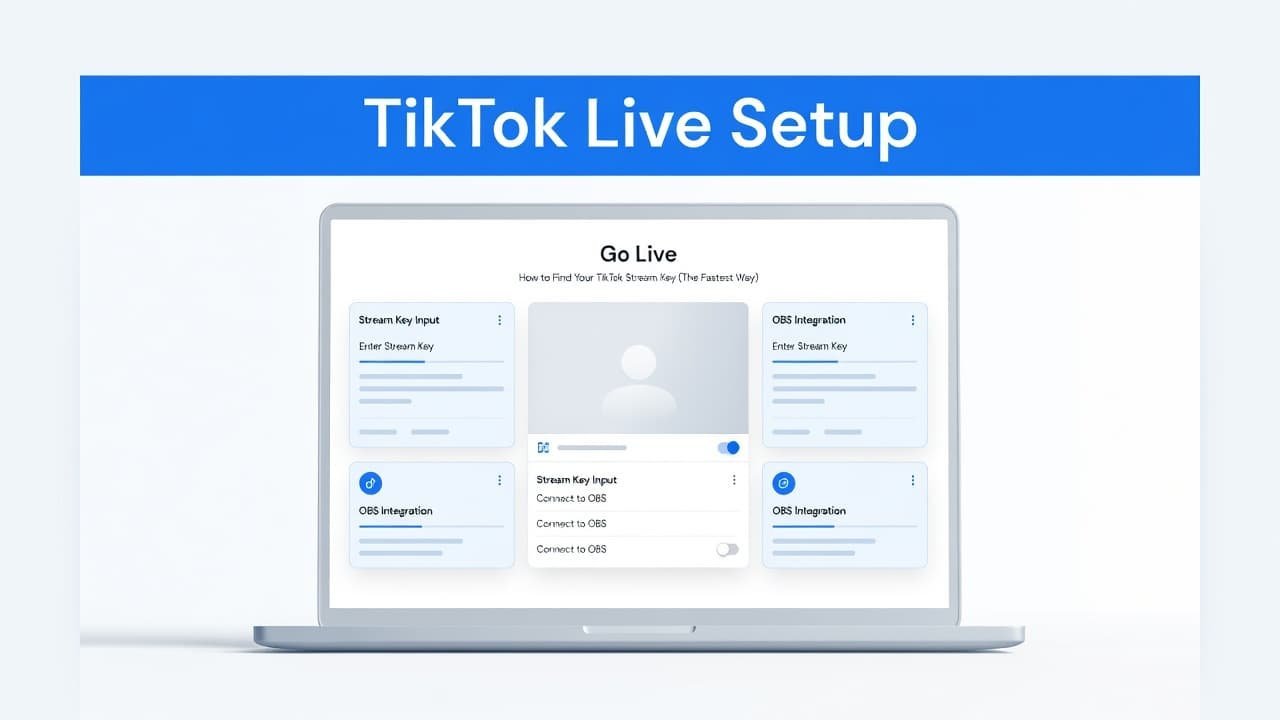
Give it a minute to load your account data. When everything goes through, the tool should show the live dashboard and the Go Live option. That’s the point where you can move forward with your TikTok live stream key and stream URL.
If you were searching for how to find stream key on TikTok LIVE and the button never appears, stop there and check eligibility first. No live access means no key.
Add the TikTok stream key to OBS
Once you get the stream URL and stream key from the tool, the rest of the TikTok live OBS setup happens inside OBS. This is the handoff that connects your TikTok account to your desktop broadcast.
Paste the stream URL and key in OBS
Open OBS and go to Settings. Then open the Stream section. This is where your TikTok OBS stream key belongs.
Use this order:
- Copy the stream URL from the tool.
- Copy the stream key from the same place.
- Paste both into the matching fields in OBS > Settings > Stream.
- Click Apply to save the connection.
Keep that key private. If someone else gets it, they may be able to broadcast to your account.
This is the core of how to go live on TikTok with OBS. If you were looking for a TikTok stream key guide, this is the moment where the TikTok side and the OBS side finally meet. For a broader look at the OBS half of the process, OBSBOT’s guide to streaming on TikTok with OBS shows the standard connection path.
If OBS won’t connect
If the connection fails the first time, check the obvious stuff before changing anything major:
- Make sure you copied the right key and right URL.
- Confirm your TikTok account still has live access.
- Check that your internet connection is stable.
- Re-open the tool if the dashboard didn’t finish loading.
- Make sure you clicked Apply in OBS after pasting the details.
A bad copy-paste job causes more problems than people expect. One missing character is enough to break the connection.
Prefer Visual Help? Watch the Step-by-Step Video Guide!
Struggling with How to Find TikTok Stream Key? Don’t worry—this video breaks it down step by step with clear, hands-on instructions. If you want the only working method that actually gets results, this video is for you!
Watch TutorialYour stream key is only useful if the account is ready
The fastest way to get a TikTok stream key is to use the GitHub tool, sign in with Load from Web, and scan the QR code from your phone. After that, your TikTok live key and stream URL can be dropped straight into OBS.
If you also stream on Twitch, add your Twitch link to your TikTok bio so viewers can find your other live channel from your profile.
If you get stuck, look at the Go Live step first. When that part is missing, the problem usually isn’t your TikTok OBS setup. It’s that your account still doesn’t have live access yet.
Frequently Asked Questions
Here are a few common questions people ask when trying to find a TikTok stream key for OBS.