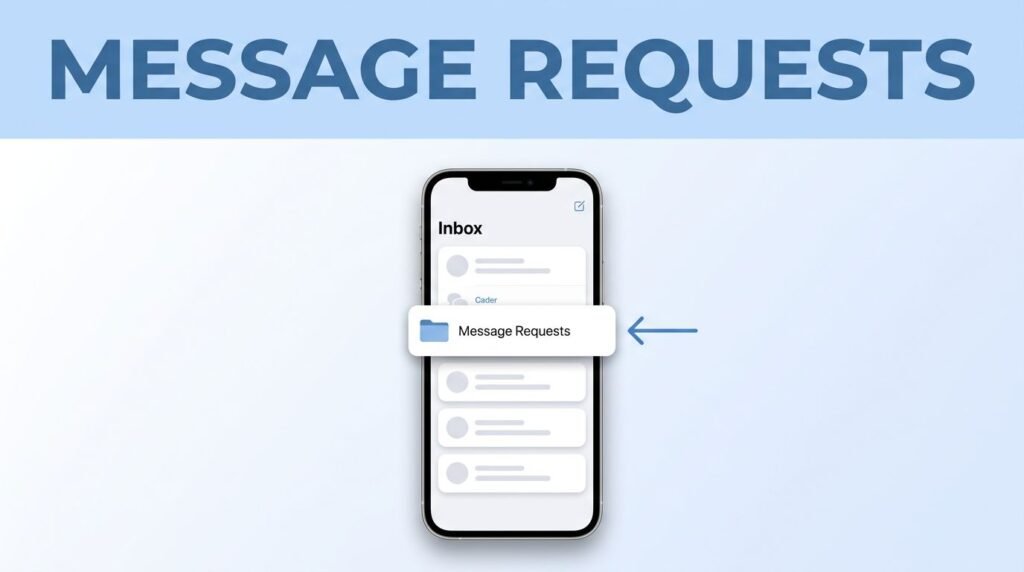
If you need a TikTok message requests guide, the path is short. Open TikTok, tap Inbox, then tap Message requests if that folder appears.
The part that throws people off is simple: TikTok usually only shows that folder when you have a pending request. So if you’re wondering where message requests on TikTok are and you can’t find them, the missing option often means there’s nothing waiting.
Once you know that one rule, the rest is easy.
What you need to know before you start
If you’re learning how to see message requests on TikTok, don’t start by digging through every menu. Message requests on TikTok live inside Inbox, not in your profile settings, not under comments, and not somewhere hidden in your account page.
A TikTok message request is separate from your normal chats. In plain English, it’s usually a message from someone you don’t follow back, or someone who isn’t connected to you the same way your regular contacts are. That’s why TikTok direct messages and request messages don’t always land in one combined list.
You also need to be in the right account. If you switch between personal, creator, or backup profiles, check that first. A lot of people think the feature is missing when they’re simply looking at the wrong inbox.
If you’re only trying to figure out how to find messages on TikTok, or how to see TikTok messages in general, remember this: your normal chats and your request folder both start from the same Inbox tab.
How to find message requests on TikTok
If you want to know how to check message requests on TikTok, how to find message requests on TikTok, or where to find message requests on TikTok, this is the path you need.
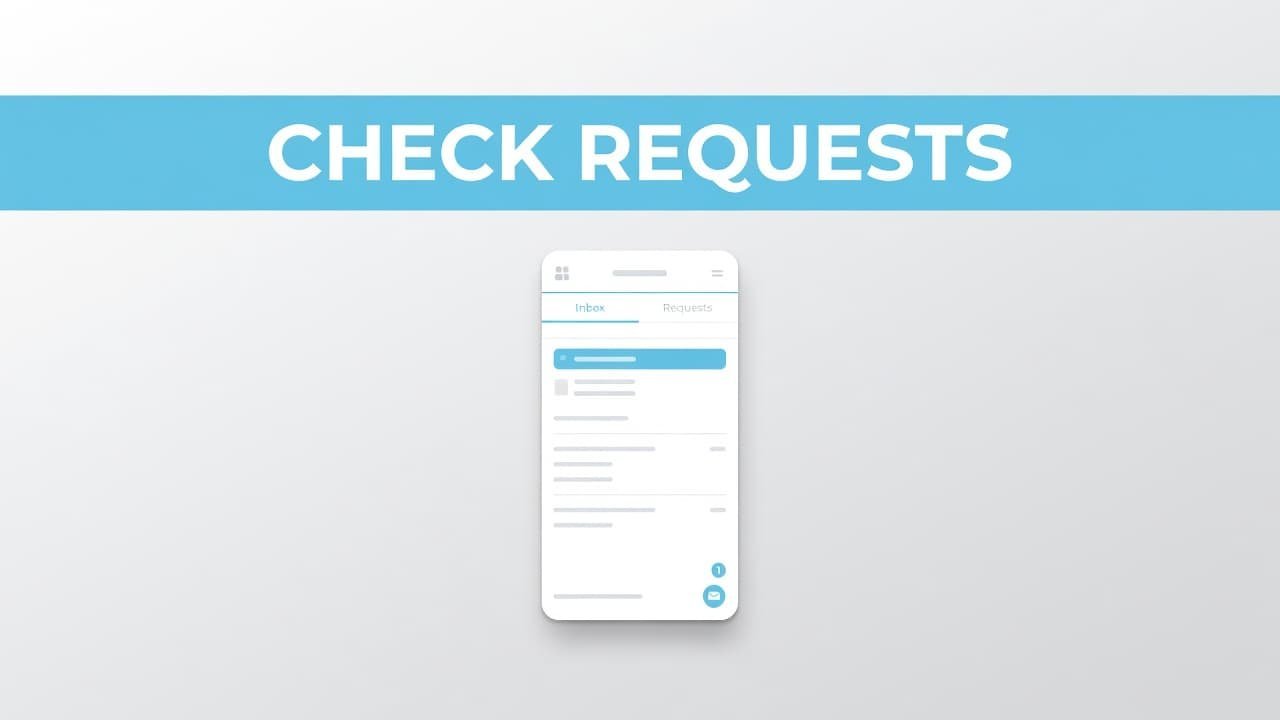
1. Open TikTok and sign in to the account you want to check. If you use more than one account, switch before you do anything else. There’s no point checking the wrong profile and assuming your TikTok DMs are gone. 2. Tap Inbox on the bottom menu. This is the main place for notifications, conversations, and message activity. If you’re asking where are messages on TikTok, Inbox is the answer every time. 3. Look for Message requests near the top of the inbox screen. Tap it when you see it. This is where TikTok keeps incoming messages that haven’t joined your normal conversation list yet. 4. Review the requests in that folder. Once it opens, you should see any pending messages there. That’s how to view message requests on TikTok and how to see TikTok message requests without guessing through unrelated settings.
In some versions of the app, you may also see filtered requests inside the same area. If TikTok changes the wording or layout later, the core path still stays close to Inbox. For current menu details, TikTok also explains its message controls on TikTok’s direct message support page.
That’s the full answer to how to find TikTok messages that are still waiting as requests. If the folder is there, open it. If it isn’t, the next section is the part you need.
What happens after you open a request
Once you tap a request, you can read that TikTok message and decide what to do with it. If you’re looking for how to accept a message request on TikTok, that choice happens from the request itself, not from a separate settings page.
This is where people often mix up requests with regular TikTok direct messages. A request is still waiting to be let in. A normal chat is already part of your inbox. After you accept or reply, the conversation may move into your regular messages, depending on how your version of TikTok displays it.
If you’re only trying to see whether someone sent something, the request folder is enough to confirm it. If you want to know how to find TikTok messages after that, go back to Inbox and look for the conversation in your normal chat list instead of the request folder.
You also don’t have to reply. A request can stay a request until you deal with it.
Treat message requests from strangers the same way you’d treat a random text from an unknown number. If it looks suspicious, pushy, or full of links, leave it alone.
Why the Message requests option might not show
Most of the time, the answer is less dramatic than people expect: you don’t have any pending requests. TikTok usually won’t show the Message requests folder unless there is at least one request waiting.
That’s why this feels confusing. You search how to see message requests on TikTok, follow the steps, open Inbox, and the label isn’t there. That doesn’t always mean the feature is broken. It usually means there’s nothing in that folder right now.
A few common issues can also make it seem missing:
- You’re signed into the wrong account.
- Your app version is old and the layout looks different.
- The inbox hasn’t refreshed yet after a new login or app reopen.
- You’re looking at regular chats and expecting requests to appear in the same list.
If the direct message area itself looks off, close TikTok and open it again. If it still looks wrong, update the app from the App Store or Google Play and re-check Inbox. On iPhone and Android, the path is usually the same, even if the spacing or labels look a little different.
Keeping your TikTok inbox easy to manage
If you only wanted the quick answer to how to check DMs on TikTok, you already have it: start with Inbox. That’s also the answer to how to find messages on TikTok once a request becomes a normal chat.
It helps to keep one distinction in your head. Comments are public and attached to videos. Direct messages are private conversations inside your inbox. So if you’re hunting for a missing reply, make sure you’re looking in the right place before assuming TikTok lost it.
You don’t need to obsess over the request folder, but checking it once in a while makes sense. That’s the easiest way to avoid missing a message from someone you meant to answer later.
If your app shows options to delete, report, or block a request you don’t want, use those instead of replying. That’s the cleanest way to remove clutter and avoid turning a random request into an active conversation.
Prefer Visual Help? Watch the Step-by-Step Video Guide!
Struggling with How to Check Message Requests on TikTok? Don’t worry—this video breaks it down step by step with clear, hands-on instructions. If you want the only working method that actually gets results, this video is for you!
Watch TutorialThe quickest way to check again later
When you want to check message requests on TikTok again, don’t overthink it. Open Inbox and look for Message requests. If it’s there, tap it. If it isn’t, you likely have nothing pending.
That’s the easiest way to remember where to find message requests on TikTok going forward. Your inbox is the starting point for regular chats, request messages, and most questions about TikTok messages in general.
Frequently Asked Questions
Here are a few common questions people ask when checking TikTok message requests.