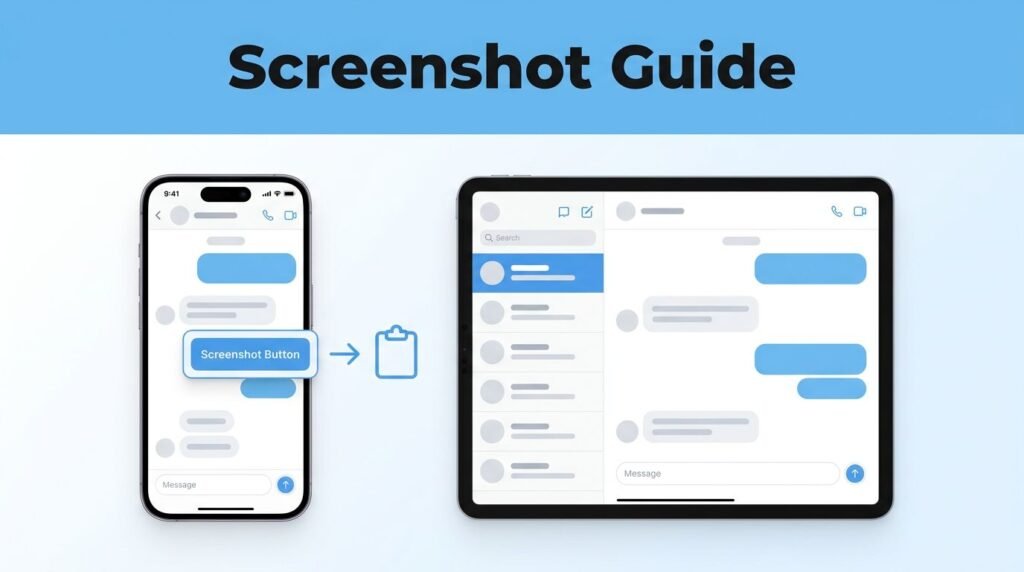
If you want to know how to take screenshot in Telegram private channel, the first thing to know is simple, the normal screenshot buttons still work unless that channel blocks them. That’s why one person can take a Telegram screenshot in seconds, while another gets nothing but a black screen or a failed capture.
If you’ve been searching for how to screenshot on Telegram, how to screenshot Telegram private channel content, or why your Telegram channel screenshot won’t save, the answer usually comes down to the channel’s privacy settings. Start with the standard method first, then move to a workaround only if you have to.
Before you try any Telegram channel screenshot
Open Telegram first, then go straight to the private channel you want to capture. Make sure the message, image, or post is fully visible on your screen before you try to take the shot. If you’re rushing, you’ll often end up with the wrong part of the chat or a partial image.
This is where people get tripped up. They assume every Telegram screen shot works the same way across every chat, but private spaces can be different. Some channels allow standard screenshots. Others block them on purpose to protect private or sensitive content.
If your first attempt fails, don’t keep hammering the buttons and hoping it’ll suddenly work. That’s usually a sign the restriction is active. The important thing to know is that the block is about privacy, not a broken phone.
How to take screenshot in Telegram private channel on Android and iPhone
On Android
If you need to know how to take screenshot in Telegram private channel Android style, open the channel, line up the content, then press Power + Volume Down at the same time. On most phones, the screen flashes, shrinks, or shows a quick preview when the capture works.
If nothing happens, or you get a blank image, the channel may be blocking the screenshot. That’s the most common reason a screenshot on Telegram fails even when the button combo is correct.
Some Android phones also have gesture screenshots, quick settings shortcuts, or accessibility tools. If your usual buttons don’t work on your model, check your phone’s own screenshot method before assuming Telegram is the problem.
On iPhone
If you’re trying to figure out how to take screenshot in Telegram private channel iPhone style, the normal shortcut is Side button + Volume Up. Press both at the same time, then let go quickly. Timing matters here. If you hold too long, you may trigger something else instead of a capture.
For anyone looking up how to screenshot Telegram iOS, the rule is the same: if the screenshot saves, you’re done. If it doesn’t, the content is probably protected.
A regular Telegram screenshot should appear in your Photos app right away. If it doesn’t, move on to a workaround instead of repeating the same failed attempt.
In that case, your best fallback is usually a second device or screen recording, if recording is allowed. If you can’t even open the private channel in the first place, this fix for broken Telegram private channel invites can help before you try anything else.
What to do if screenshot on Telegram is blocked
When a screenshot Telegram attempt is blocked, you need a backup plan. Here are the practical options:
The safest takeaway is this: start simple, then use the least invasive workaround that still gets the job done.
Use another device to take a photo
The old-school fix still works. Open the private channel on one phone, then use another phone or camera to take a photo of the screen. It isn’t elegant, but it gets around software-level screenshot blocking because you’re not using the blocked capture feature at all.
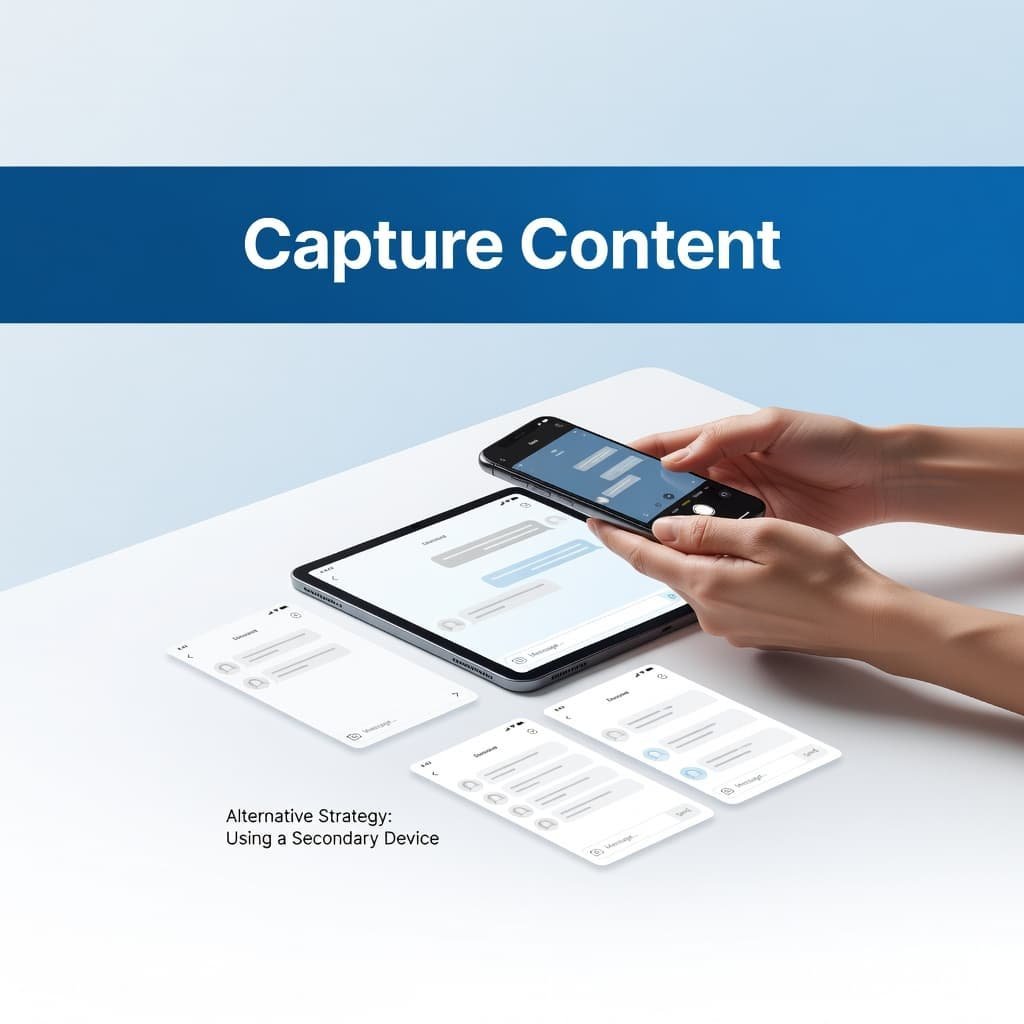
For better results, raise your screen brightness, clean the display, and angle the camera to reduce glare. If the image still looks bad, step back slightly and tap to focus before taking the photo.
Try screen recording, then grab a frame
If direct capture fails, screen recording can be worth trying, but only if it’s allowed on your device and in that chat. Start your phone’s built-in screen recorder, keep the private channel open, and record the exact part you want.
After that, play the video back, pause on the frame you need, and take a normal screenshot of that frame. This can work when a direct Telegram channel screenshot does not.
Keep in mind that screen recording may also be blocked, and some recordings can still come out black. Also, video files take up more storage than screenshots, so delete the clip after you’ve saved the frame you want. If you’d rather keep the whole clip instead of a single frame, save a Telegram video to your iPhone gallery instead of relying on a recording.
Assistant menu and third-party tools
If your phone has an assistant menu, accessibility shortcut, or floating screenshot button, you can try that next. On some phones, this gives you another way to trigger a capture when the normal hardware shortcut fails.
You can also find third-party apps that claim to help with how to take screenshot on Telegram or how to take screenshots on Telegram when they’re blocked. Be careful. Some of these tools ask for broad permissions, and some methods may go against Telegram rules or the private channel’s privacy policy. If the content is private for a reason, treat it that way.
Where to find, edit, and share your capture
Once you successfully capture the image, check your phone’s photo app. On Android, that’s usually Gallery or Google Photos. On iPhone, look in Photos, often inside the Screenshots album if it was taken normally. If you need a complete copy of a conversation or channel history rather than one image, learn how to export chat from Telegram on desktop.
Before you share anything, crop out anything you don’t need. That could be usernames, timestamps, notification bars, or other details that don’t belong in the final image. Your phone’s built-in editor is usually enough for a quick trim or highlight.
Sharing is easy. Safe sharing takes more thought. If the content came from a private channel, think about what you’re sending and who you’re sending it to. A saved screenshot is easy to forward, but that doesn’t mean it should be.
Does Telegram notify when you screenshot?
A lot of people ask, “does Telegram notify screenshots?” or “does Telegram notify when you screenshot?” In private channels, the issue you’ll usually notice first is blocking, not a clear Telegram screenshot notification.
What people call a Telegram screenshot alert can depend on the chat type, app version, and device behavior. That’s why you shouldn’t assume one result applies everywhere. Reports in Telegram user discussions about secret chat screenshots show that screenshot behavior can vary, especially in more privacy-focused chats.
So if you’re wondering about a Telegram screenshot notification or Telegram screenshot alert, play it safe. Don’t assume the app will stay silent, and don’t assume every workaround is invisible.
If your Telegram screenshot still won’t work
If you’ve tried the standard method and a workaround and still can’t get it done, keep the troubleshooting simple:
- Restart Telegram and try again.
- Check for a Telegram app update.
- Make sure your phone’s screenshot permission or shortcut isn’t disabled.
- Clean the screen and reduce reflections if you’re using a second device.
- Check your phone model’s screenshot method if the buttons don’t match the usual combo.
A common mistake is blaming Telegram when the real issue is the phone shortcut, low storage, or a recording permission problem. Another common one is forgetting that updates can change what works. A method that worked last month might stop after an app or OS update.
Prefer Visual Help? Watch the Step-by-Step Video Guide!
Struggling with How to Take Screenshot in Telegram Private Channel? Don’t worry—this video breaks it down step by step with clear, hands-on instructions. If you want the only working method that actually gets results, this video is for you!
Watch TutorialThe method that usually makes the most sense
If the channel allows it, the normal screenshot shortcut is still the fastest answer. If it doesn’t, your next best move is usually a second device, then screen recording if that option is available.
The main thing to remember is that private channels often block captures on purpose. You can try workarounds, but you should also respect why that protection is there. That’s the part most people skip, and it’s usually the part that matters most.
Frequently Asked Questions
Here are a few common questions people ask when taking screenshots in Telegram private channels.
Want to learn how to get a Telegram chat ID? Here’s a step-by-step guide on how to do so.