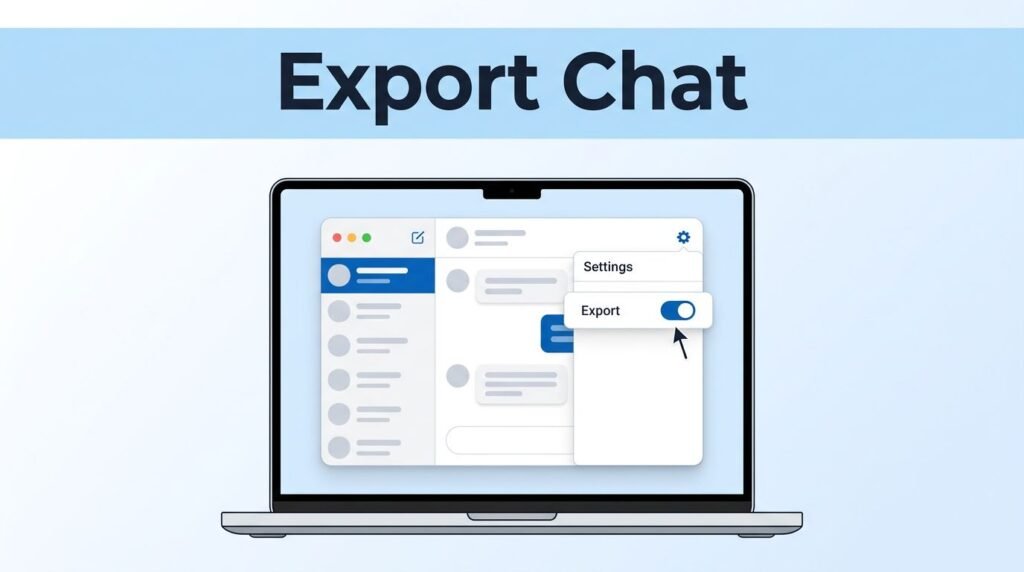
If you’re trying to figure out how to export chat from Telegram, the part that trips most people up is simple: this feature is in Telegram Desktop, not the mobile app. You can export one conversation or do a bigger Telegram chat backup for your account, but you need to start on a computer.
That’s why searching for a Telegram chat exporter, a Telegram chat export bot, or some hidden option on iPhone usually goes nowhere. Telegram already has a built-in export tool, and once you know where it lives, the process is pretty easy.
What you need before you export Telegram chats
If you want to know how to export Telegram chat, how to export chats from Telegram, or how to export chat data from Telegram, the answer starts in the same place: install and open Telegram Desktop. This is the built-in Telegram chat export tool, and it’s the cleanest way to save your history locally.
The export option is a desktop feature. If you’re trying a Telegram chat export on iPhone, Android, or Telegram Web, you probably won’t see it.
The same general path should work whether you’re on Windows or doing a Telegram chat export on Mac. Menu names can shift a little between versions, so if something looks off, update the app first.
This quick comparison makes the two export options easier to choose:
How to export one chat from Telegram
If your goal is how to export one chat from Telegram, this is the faster method. It’s good when you only need one person’s conversation, one support thread, or one record you want to keep outside the app. If you only need to preserve one visible message or image, it may be faster to take a screenshot in a Telegram private channel instead.
Open the conversation and set the export options
- Open Telegram Desktop and click the exact chat you want to save.
- In the top-right corner of that conversation, click the three dots.
- Choose Export chat history.
That opens the export window for that single conversation. From there, you can choose what gets included. Telegram lets you export message history along with media such as photos, videos, voice messages, video messages, stickers, GIFs, and files. If you only need to save one received video straight to your phone, it can be faster to save the Telegram video to your iPhone gallery instead of running a full chat export.
You can also set a file size limit. That’s useful if the chat has a lot of media and you don’t want one export eating up all your storage. If you’re only after the text and a few attachments, this setting helps keep the folder manageable.
Choose the format, save location, and message order
Telegram gives you two format choices, HTML and JSON. For most people, Telegram chat export HTML is the better pick because it’s easier to open and read in a browser. JSON is more for structured data, automation, or developer use.
You’ll also see the download path, which is the folder where Telegram will save the export. If you want the files somewhere easier to find, change that path before you start.
There is also a sorting option so you can export from the oldest message to the present. If you want the chat history to read in proper timeline order, use that setting.
Start the export and find the files
When everything looks right, click Export. Telegram will start initializing the export, then process the files.
After it’s done, use Show my Data to jump to the folder. That’s where your exported Telegram chat history will be stored on your device. If you’re trying to export Telegram chat for record-keeping, this is the folder you want to keep, move, or back up.
How to export all chat from Telegram at once
If you’re looking for how to export all chat from Telegram, how to export entire chat from Telegram, or how to backup Telegram without opening each conversation one by one, use the full account export instead. This is the better route for a full Telegram chat backup.
- In Telegram Desktop, click the three horizontal bars in the top-left corner.
- Open Settings.
- Go to Advanced.
- Scroll down and click Export Telegram Data.
That opens the broader export window. You’ll be able to choose the types of chats and media you want to include in bulk.
This is where you can select items such as:
- private channels
- public groups
- photos, videos, and other media
If you’re trying to figure out how to export chat from a Telegram group or how to export chat from a Telegram channel, this full export path is often the one you want. It gives you more control over categories instead of making you open every chat manually.
At the bottom of the same export screen, you’ll again choose the format, usually HTML or JSON, plus the download path. After that, click Export and wait for it to finish.
For bigger exports, give it a little time. A full backup Telegram chat job with media can take longer than a single conversation, especially if you have lots of videos and files.
What to know about formats, storage, and missing buttons
The format choice matters more than people expect. If you want something easy to open offline, go with HTML. Those files are made to open in a web browser, so they’re easier to read like an archive. If you’re wondering about Telegram chat export to PDF, that isn’t one of the built-in options shown in the export menu. The export window gives you HTML and JSON.
JSON is there if you need structured data. Most regular users won’t need it. If you only want a readable backup, stick with HTML.
A common mistake is exporting every media type without checking available space first. Photos, videos, voice notes, and files add up fast. If your main goal is to export Telegram chat, not every attachment ever sent, trim the media options or use the file limit setting.
If you can’t find Export chat history or Export Telegram Data, go back to the biggest limitation: you need the desktop app. If you’re using Telegram Web and searching for how to export chat from Telegram Web, or trying a Telegram chat export on Android or iPhone, the export button may simply not be there. Updating Telegram Desktop can also help if the menus look different. Telegram has also documented the feature in its chat export tool update.
These export folders can contain sensitive data. Store them somewhere safe, especially if the chat includes personal messages or files.
One small habit helps a lot here: rename your export folder with a date. If you back up Telegram chat more than once, clear folder names make future archives much easier to sort.
Prefer Visual Help? Watch the Step-by-Step Video Guide!
Struggling with How to Export Chat From Telegram? Don’t worry—this video breaks it down step by step with clear, hands-on instructions. If you want the only working method that actually gets results, this video is for you!
Watch TutorialKeep your Telegram export somewhere safe
The easiest way to export Telegram chat is still the desktop route: use the three-dot menu for one conversation, or go to Settings > Advanced for a full account export. That’s the part most people miss while checking phones, tablets, or the web version.
Once the export finishes, your files are on your device, ready to open from the folder you chose. Pick the format you’ll actually use, watch your storage space, and treat that backup like private data.
Want to learn how to get a Telegram chat ID? Here’s a step-by-step guide article on how to do so.