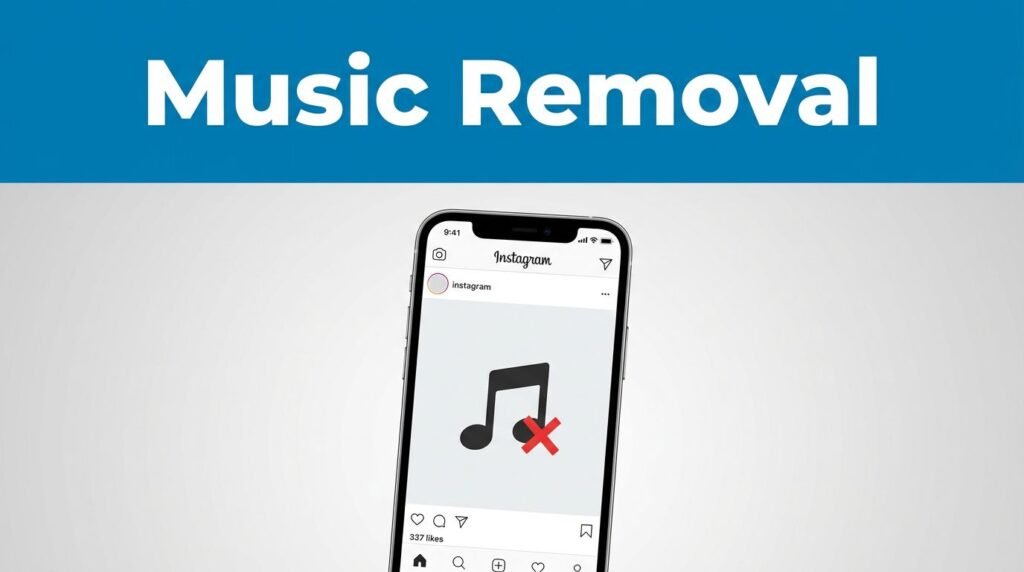
Posted an Instagram post with the wrong track, or decided the music doesn’t fit anymore? You’re not the only one. Instagram doesn’t always put the option to remove music from an Instagram post right in front of you.
The method here uses Instagram’s paid partnership tools to get the song off the post after it’s already live. It works if you’re trying to figure out how to remove song from Instagram post on iPhone or on Android, and it can even work on a picture post with added music. Perfect for cleaning up a post fast.
The trick Instagram hides in account tools
If you’re wondering how to remove songs from Instagram post content after posting, the key step isn’t inside the normal edit screen. It’s tied to branded content settings and a professional account.
That means you won’t start on the post itself. First, you need to turn on the tools that unlock the “paid partnership” label. In the flow shown here, adding that label removes the Instagram-added music from the post.
The paid partnership option is the part that matters. If you don’t turn on the account tools first, you may never see it.
Turn on branded content and professional mode
Open Instagram, then tap your profile icon in the bottom-right corner. From there, tap the three horizontal lines in the top-right corner of your profile.
Now go through these steps:
- Scroll down to Account type and tools.
- Tap Branded content.
- Tap Set up branded content tools.
- Tap Enable, then tap Done.
After that, Instagram may show a prompt to switch for free. If it does, continue into the professional account setup. Tap Next when prompted, finish the process, then close any pop-ups that appear.
What to look for after switching
Once the setup finishes, you should see that the account is eligible. In the flow shown, that also unlocks monetization-related options, including request approval from brand partners as needed.
You don’t have to spend time on every extra option here. The main point is getting your account into the state where branded content tools are active. That’s what opens the path to remove audio from an Instagram post later.
If Instagram’s menus look different on your phone, check Instagram’s post editing and deletion help, since app layouts can change by version, account type, or location.
Add the paid partnership label to the post
Once your account tools are ready, head back to your profile and open the post that has the song you want gone. This is the part that handles remove song from Instagram post after posting, not before publishing.
Tap the three dots in the top-right corner of that post. A menu should appear. From there:
- Tap Partnership label and ads.
- Tap Add paid partnership label.
- Add any partner or audience restriction settings if you need them.
- Tap Done in the top-right corner.
What happens after you save
After you save it, the post should show the Paid partnership label. In the method shown here, that change removes the Instagram music from the post.
So if your goal was to delete the song from an Instagram post, that’s the result you’re looking for. Play the post again and the added music should be gone. The same approach can apply even if the post is a photo post with music attached, not only video.
If you’re trying to remove a song from an Instagram Reel, that’s a different edit flow. These steps are for regular Instagram posts where the music was added through Instagram.
A few things worth knowing before you try it
This method is useful if you’ve been searching for how to remove music from Instagram, or looking for some hidden “Instagram remove audio from post” button and not finding one. There isn’t a simple one-tap remove option in the normal post menu here. The workaround is the partnership label route.
It also means your account setup matters. If you don’t see Branded content, Partnership label and ads, or the eligible status, go back through the professional account setup and check whether the switch completed.
Final thoughts
The fastest path here is simple, even if Instagram hides it. Turn on branded content tools, switch to a professional account if prompted, then add the paid partnership label to the post.
If you wanted to remove music from an Instagram post after it’s already published, that’s the method shown in this flow. When it works, the post keeps its place on your profile, but the song doesn’t.
Prefer Visual Help? Watch the Step-by-Step Video Guide!
Struggling with How To Remove Songs From Instagram Post? Don’t worry—this video breaks it down step by step with clear, hands-on instructions. If you want the only working method that actually gets results, this video is for you!
▶ Watch TutorialFrequently Asked Questions
If you also manage your content from a computer, this guide on how to schedule Instagram posts on PC pairs well with this fix.