If you’re trying to figure out how to add Twitch link to TikTok, the short answer is this: you usually need a business account, then you add your Twitch URL through the Website field in your profile settings.
This is where people get stuck. TikTok doesn’t give you a big obvious “Twitch” button, so adding a Twitch link on TikTok is really about finding the right account setting and using the profile link field the way TikTok expects.
The one thing you need before the link option appears
If you want to add a link to your TikTok bio, the important part is your account type. In the app flow shown here, the website link option is tied to a business account. If you’re on a personal account, you may not see the field you need.
Open TikTok, go to your Profile tab in the bottom-right corner, tap the three horizontal lines in the top-right corner, then open Settings and privacy. From there, go to Account. If you’re on a personal account, you should see an option that says Switch to Business Account.
If you tap that and go through the prompts, TikTok will ask you to choose a category. Pick the one that fits what you do. If you’re a streamer, Gaming is the obvious choice. You may also get the option to add an email address and update your bio. The email can be skipped, but it’s worth adding if you’re using the account seriously.
A small point that trips people up, if your screen says Switch to Personal Account, that usually means you’re already on a business account. In other words, you’re past the part that matters.
TikTok can change how these menus look, so if your app looks a little different, check TikTok’s own profile linking help page. The path is usually the same on iPhone and Android, even if a label shifts a bit.
If you’re looking for a Twitch-specific button, you won’t find one. TikTok uses the Website field for this.
How to put your Twitch link in your TikTok bio
Once your account is set up the right way, adding your Twitch URL to TikTok is quick.
- Open TikTok and tap Profile.
- Tap Edit profile on your profile page.
- Look for a Links section.
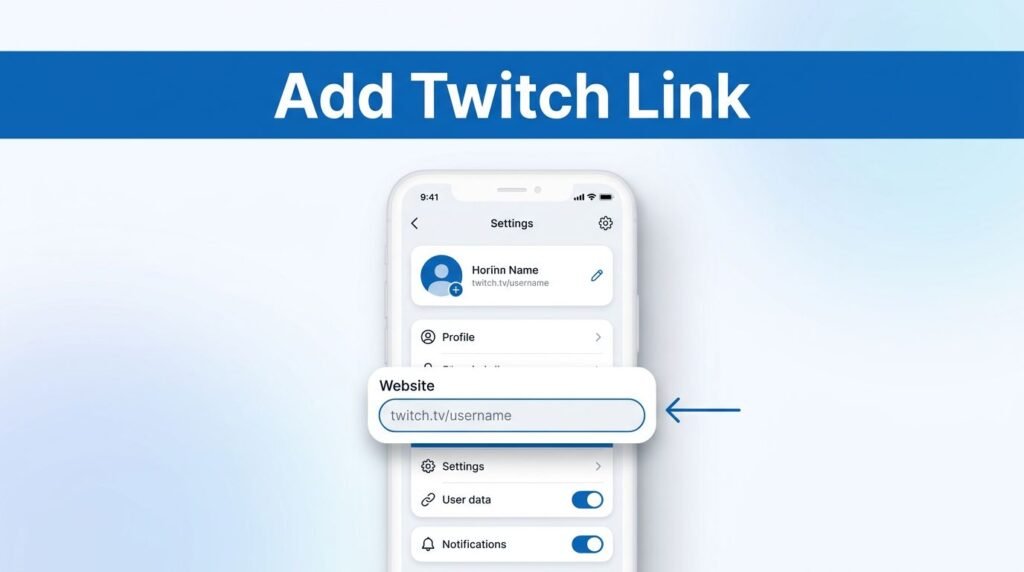
- Tap Website.
- Paste your full Twitch channel URL.
- Tap Save.
- Go back to your profile and check that the link appears.
That’s the whole path for how to add Twitch to TikTok bio. If you’re wondering how to add website to TikTok bio, or how to add a link to your TikTok bio in general, it’s the same method.
If you want that one website field to lead to Twitch and other pages, you can add Linktree to your TikTok bio instead.
Use your full channel address, not a shortened or half-finished version. A clean example would look like https://www.twitch.tv/yourusername. The app may still accept other versions, but the full address gives you fewer chances to run into a broken TikTok bio link later.
After you save it, your TikTok bio Twitch link should show on your public profile as a clickable website link. Tap it once yourself to test it. If it opens your Twitch page, you’re done.
This also answers a common phrasing people use when they search, like how to put Twitch link in TikTok bio, how to link Twitch on TikTok, or how to embed Twitch link in TikTok profile. TikTok doesn’t create an embed card for Twitch. It simply places your Twitch URL on TikTok as a standard clickable profile link.
What to do if the website field is missing or the link won’t show
If the link option isn’t there, don’t panic. Most of the time, it’s one of a few simple issues.
First, double-check the account type. If you’re still on a personal account, the website field may not appear. Go back to Settings and privacy > Account and see whether the switch to business option is still there.
Next, check the URL itself. A common mistake is pasting an incomplete address, the wrong channel link, or a username without the full web address. If you want a Twitch TikTok link that works the first time, paste the full channel URL.
If the field is there but the TikTok profile link doesn’t appear right away, try these quick fixes:
- Save the profile again, then return to your main profile page.
- Refresh the app or close and reopen TikTok.
- Update TikTok if you’re using an older app version.
- Recheck that you pasted your Twitch URL into Website, not your plain text bio.
If you’re trying to add a Twitch link to TikTok profile settings and you still can’t find Links or Website, TikTok may be testing a different layout on your account. That’s where the official support page helps most, because it reflects TikTok’s latest menu wording better than guesswork.
Make the link work harder for your Twitch growth
Adding the link is the setup part. Getting people to tap it is the part that matters.
Your TikTok link in bio should make sense the second someone lands on your profile. If your videos are about clips, reactions, or live moments, your bio should match that. Keep it short, and make it obvious that the website link leads to your stream.
You can also mention it naturally in your videos. A simple “full stream is in my bio” is enough. That turns your TikTok bio link into a bridge instead of a decoration. Casual viewers scroll fast, so clarity beats cleverness here.
If you change account types later, check the profile again. Link settings can change when account features change. It takes ten seconds to confirm your Twitch URL on TikTok is still live, and that check is worth it.
If you’re also setting up TikTok for streaming on desktop, you may want this guide on getting your TikTok stream key for OBS. It pairs well with a profile link because one helps people find you, and the other helps you go live.
Prefer Visual Help? Watch the Step-by-Step Video Guide!
Struggling with How to Add Twitch Link to TikTok? This video visually walks you through each step so you can follow along more easily.
Watch TutorialKeep it simple and test the result
The cleanest way to connect Twitch to TikTok is still the same one, switch to a business account, add your channel in the Website field, then test the link on your profile.
Once your Twitch link on TikTok is visible and clickable, your profile starts doing its job. Someone watches a clip, checks your page, taps once, and lands on your stream. That’s the whole point.