If you want to accept PayPal payments in Stripe, the setup is pretty simple, but only if your Stripe account is in a supported region.
That last part matters more than most people expect. You can follow every step in your Stripe dashboard and still not see PayPal at all, not because you missed something, but because the option depends on where your account is based. Here’s how to set it up, what to look for, and how to confirm it’s working.
Start in your Stripe payment settings
To set this up, sign in to your Stripe account and look at the top-right corner of the dashboard. You want the gear icon, because that’s where your account settings live.
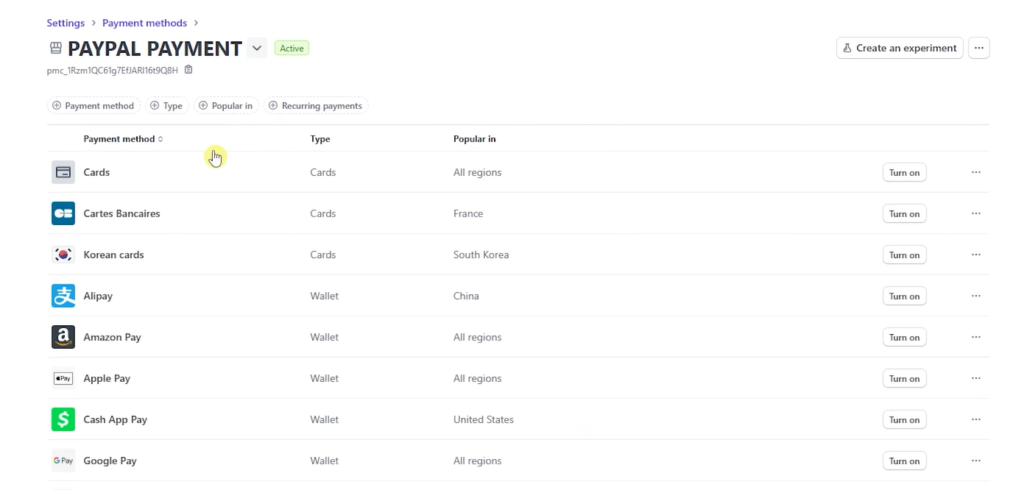
Once you’re in settings, go to Payments, then Payment methods. This is the section where you control which payment options show up when customers pay you. If you’re comparing Stripe vs PayPal, this is also where the two can work together instead of feeling like an either-or choice.
Understanding how to accept paypal payments in stripe can enhance your payment processing options and provide flexibility for your customers.
For a business that wants to accept payments online, offering more than one payment method can help. Some customers prefer cards. Others trust PayPal and won’t finish checkout without it. If you’re figuring out how to accept payments on your website, adding PayPal to your existing Stripe setup gives you more flexibility without changing platforms.
Create a new payment method configuration
Inside Payment methods, click Create configuration.
You’ll be asked to give the configuration a name. Keep it simple and clear, something like “PayPal payment” or “PayPal for checkout.” That sounds minor, but it helps later if you manage more than one stripe payment setup.
After that, save the configuration. Stripe will then show the payment providers available for your account.
If you don’t see PayPal in the list, the problem usually isn’t the setup. It’s usually your account location.
This part trips people up. The list of providers you see is based on your location, so your dashboard may not match someone else’s.
Check whether PayPal is available in your region
PayPal inside Stripe isn’t available everywhere. In the walkthrough, availability was tied to Europe, the UK, the EEA, and some other supported regions.
So if PayPal doesn’t appear, that usually means your Stripe account isn’t in an eligible country. You’re not missing a hidden toggle. The option simply isn’t available for that account.
If you want to verify Stripe’s current country support, Stripe keeps a live reference in its PayPal payments documentation. That’s worth checking because payment method availability can change over time.
This is one of those cases where stripe integration depends less on what you click and more on where your business is registered.
Turn on PayPal and finish the setup
If your account is eligible, you’ll see PayPal in the list of providers. From there, click Turn on next to PayPal.
Once you do that, Stripe will walk you through the remaining setup. You may see a message like Additional information required. That’s normal. The exact prompts can vary depending on the payment provider and your account details, so pay attention to each screen and complete what’s asked.
A big part of this process is connecting your actual PayPal account. That means logging in with your PayPal credentials so Stripe can link the two properly. Without that login step, the integration isn’t complete.
If you want Stripe’s official version of the setup flow, including how PayPal works in Checkout and Elements, Stripe also has a guide on accepting a PayPal payment. That’s more technical than this Stripe tutorial, but useful if you want the extra detail.
Go back and confirm that PayPal is active
After you’ve finished the prompts, go back to:
Settings -> Payments -> Payment methods
Look for your PayPal configuration and check its status. You want to see it marked as Active.
That status matters. If PayPal is connected but not active, customers still may not see it during checkout. When you’re working with a payment gateway, the setup isn’t really done until the payment method is live in your dashboard.
This is also the right time to make sure the configuration name still makes sense. If you use several Stripe payments or test different checkout setups, clear labels make life easier.
What to do if it isn’t working
If the setup stalls or PayPal won’t appear, keep it simple and check the obvious things first.
- Confirm your Stripe account is in a supported region.
- Make sure you completed the PayPal login step.
- Revisit the Payment methods screen and look for missing information.
- Check whether the status shows Active after setup.
If you’re trying to figure out how to accept PayPal payments in Stripe and the option never shows up, region support is the first thing to check, not the last.
Final thoughts
Adding PayPal to Stripe is quick once the option appears in your dashboard. The real gatekeeper is availability, not complexity.
If PayPal is supported for your Stripe account, the process is mostly a matter of creating a configuration, turning it on, logging into PayPal, and checking that the status changes to Active. If it isn’t supported in your region, Stripe won’t show the option, and that’s your answer right there. Once PayPal is active, you should also connect your bank account to Stripe for payouts so your funds can be deposited.
Prefer Visual Help? Watch the Step-by-Step Video Guide!
Struggling with how to accept PayPal payments in Stripe? This video breaks it down step by step with clear, hands-on instructions. If you want the working method shown visually, this guide is for you.
Watch TutorialFrequently Asked Questions
Want to learn How to Send Money From GCash to PayPal? Here’s a Step-by-Step Guide Article on how to do so.