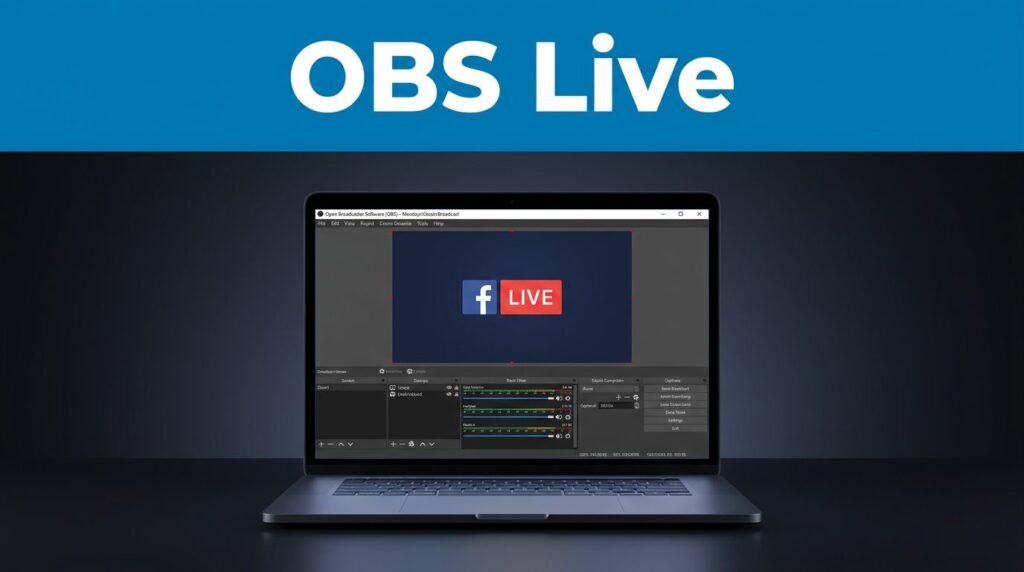
Trying to figure out how to stream on Facebook with OBS usually comes down to one thing, getting Facebook Live and OBS to talk to each other the right way. If you’re asking, “can I stream to Facebook with OBS?” the answer is yes, but your account has to be allowed to go live, and you need the right stream key.
Once those two pieces are in place, the rest is pretty simple. Here’s how to connect OBS to Facebook Live, see the preview, and publish the stream without getting stuck on the last step.
Get your OBS setup ready before you touch Facebook
Before you start any live Facebook OBS setup, open OBS and make sure your scene is already built. This part matters more than people think.
If your Scenes and Sources aren’t ready first, you’ll end up fixing audio, screen capture, or camera placement while Facebook is already waiting for a signal. That’s a messy way to start a stream.
A clean setup in OBS makes the Facebook side much easier.
Take a quick look at these basics before you move on:
- Your main scene is selected
- Your camera, screen, or window capture is visible
- Your mic is picking up audio
- Your desktop audio is active if you need system sound
- Your source order looks right in the preview
This OBS setup for Facebook Live assumes OBS Studio is already installed and you have at least one scene created. If you’re looking for deeper Facebook Live OBS settings, like resolution, bitrate, or 1080p 60fps tuning, that’s a separate part of the job. This post is about the connection itself, the part that trips people up when they want to stream to Facebook with OBS for the first time.
Open Facebook Live and check that your account can go live
Now head over to Facebook and open the Live Video or Go Live area on the account, page, or profile you want to use. Menu names can shift a little over time, but you’re looking for Facebook’s live setup screen, not a normal post box.
This is where some people hit the wall. Facebook may show a notice that your account needs to meet certain criteria before you can go live. If that happens, the problem is on the Facebook side, not the OBS side.
If you don’t see the live option on one account, try the page or account you actually plan to stream from. Not every profile has the same live access.
That’s why this part of an OBS Facebook Live setup guide matters. In practice, you might find one account can go live while another one can’t. If Facebook is blocking the stream setup screen, sort that out before you keep going. If you need help with account-side issues, this guide on contacting Facebook customer support is a useful next step.
Once Facebook lets you in, click Go Live to enter the live dashboard. This is the screen where your Facebook Live streaming OBS connection gets built.
Choose the streaming software option and copy the stream key
Inside the live dashboard, pick the option for Streaming Software. Don’t use the simple webcam option if you’re trying to use OBS Studio Facebook Live features. OBS needs the software connection path.
This is the center of the whole OBS Facebook streaming guide: your stream key.
The stream key is what tells Facebook exactly where your video feed belongs. Think of it like a one-time address for that live post. Your OBS stream to Facebook connection won’t work without it.
Never share your stream key with anyone. If somebody else has it, they can send a stream to your destination.
On Facebook’s live setup screen, look for the button that copies the key. Once you copy it, keep that tab open. If Facebook’s layout looks a little different on your end, Meta’s own streaming software help page follows the same basic path.
If you’ve ever searched for “Facebook Live stream key OBS” or “OBS Facebook stream key,” this is the exact part people mean. It’s also the reason a Facebook Live OBS not working problem often turns out to be a bad paste, an old key, or the wrong Facebook destination.
Connect OBS to Facebook Live and start sending the feed
Go back to OBS. Open Settings, then Stream.
If your version of OBS shows a service menu, choose Facebook Live when it’s available. Then paste the stream key into the stream key field. If your version looks a little different, you’re still doing the same thing, adding the key Facebook gave you.
After that, click Apply, then OK.
Now hit Start Streaming in OBS.
That’s the moment your OBS Facebook Live tutorial becomes real, but you’re still not public yet. OBS is now sending the feed to Facebook, and Facebook needs a few seconds to detect it.
Here’s what you should see next:
- OBS starts streaming from your side.
- Facebook begins loading the incoming video feed.
- A preview or countdown appears in the live dashboard.
- Your video shows up inside Facebook’s preview area.
If it takes a moment, that’s normal. The live stream OBS Facebook connection often needs a short delay before the preview appears. Don’t panic and start clicking random buttons right away. Wait for the feed to show up.
This step is the core of any Facebook Live with OBS Studio workflow. Once Facebook sees the feed, you’re past the hardest part of the setup.
Add your live details, then hit the final Go Live button
Here’s the part that catches a lot of people: Facebook uses “Go Live” in more than one place. Opening the live dashboard is not the same thing as publishing the stream.
Once your preview appears, you can fill in the title and description for the live post. In some cases, Facebook may treat the title as optional, but you may still see prompts asking for one. If you can add a clear title, do it. It helps people know what they’re watching before they join.
This quick table keeps the stages straight:
So yes, your OBS Facebook Live setup can be connected while your stream is still private on the Facebook side.
Once everything looks good, click the final Go Live button in Facebook. That publishes the stream.
Give it a few seconds. You may still see some loading while Facebook finishes the switch. When the screen shows that the video is live, you’re done. That’s your Facebook Live OBS setup tutorial in its simplest form.
If you’re searching for a Facebook Live OBS tutorial 2026 version of this process, the layout may shift a bit over time, but the flow usually stays the same: open Live, choose streaming software, copy key, paste into OBS, start streaming, then publish.
If your Facebook Live OBS setup isn’t working
When a live Facebook OBS setup fails, the fix is usually small.
First, check the stream key again. A wrong or outdated key is one of the most common reasons a Facebook Live OBS setup won’t connect. Copy it fresh from Facebook and paste it again into OBS.
Next, make sure you picked Streaming Software on Facebook, not a different live option. If the preview never shows up, go back and confirm you’re on the right live dashboard for the right account or page.
Also, don’t skip the order:
- Open the Facebook live dashboard
- Copy the stream key
- Paste it into OBS
- Click Start Streaming in OBS
- Wait for the Facebook preview
- Click the final Go Live button on Facebook
If you start from the wrong account, use an old stream key, or expect the public stream to start the second OBS begins sending, the process feels broken when it isn’t. Most Facebook OBS streaming settings problems at this stage come down to account access, the stream key, or publishing from the wrong screen.
You’re ready to stream to Facebook with OBS
Once you know where the stream key goes, the whole thing gets a lot less confusing. Your OBS Facebook Live setup is really two separate actions, sending the feed from OBS, then publishing it on Facebook.
If something goes wrong, check the Facebook account first and the stream key second. Get those right, and you can go live on Facebook with OBS without fighting the setup every single time.
Prefer Visual Help? Watch the Step-by-Step Video Guide!
Struggling with How to Stream on Facebook with OBS? Don’t worry—this video breaks it down step by step with clear, hands-on instructions. If you want the only working method that actually gets results, this video is for you!
▶ Watch TutorialFrequently Asked Questions
Quick answers to common questions people ask before streaming on Facebook with OBS.
Want To Learn How to Delete a Business Portfolio on Facebook? Here’s a Step-by-Step Guide Article on how to do so.