If you’re trying to figure out how to contact Facebook customer service, the annoying truth is there isn’t one clean button that works for everyone. Most people won’t find a normal Facebook support phone number, a public Facebook support email, or a visible Facebook customer service chat sitting inside the app.
Still, you do have two paths that can work. One is the built-in Facebook Help & Support reporting tool. The other, and often the faster one, is the Meta Pro Team route for eligible users.
Your real Facebook support options
If you’ve been asking, “How do I contact Facebook support?” or “How do I reach Facebook support directly?”, this is where things get messy. The Facebook Help Center is useful for basic reading, but when your problem is tied to your account, page, Marketplace access, or a broken feature, you usually need to send a Facebook support request from inside your account or try Meta Business support if your profile qualifies.
If you’re hunting for Facebook live chat support, a Facebook help chat button, or full Facebook customer support on demand, lower your expectations a bit. For most personal accounts, there is no open door to Facebook customer service chat, no reliable Facebook support inbox, and no public hotline waiting for you.
This quick comparison makes the two working options easier to pick.
The short version is this: use the in-app report when you need a direct record inside Facebook. Use the Meta Pro Team when you want the closest thing to Facebook business support or a live back-and-forth with a human.
Method 1: Report a problem inside Facebook
Open the Help & Support menu
Start by signing in to your Facebook account. On desktop, click your profile icon and open “Help & Support.” On mobile, the wording can look a little different, but the same path is usually there.
Then choose “Report a Problem,” followed by “Something went wrong.” If Facebook asks whether to include logs and diagnostics, keep that option on. That’s the part that gives Facebook technical support more context about what broke.
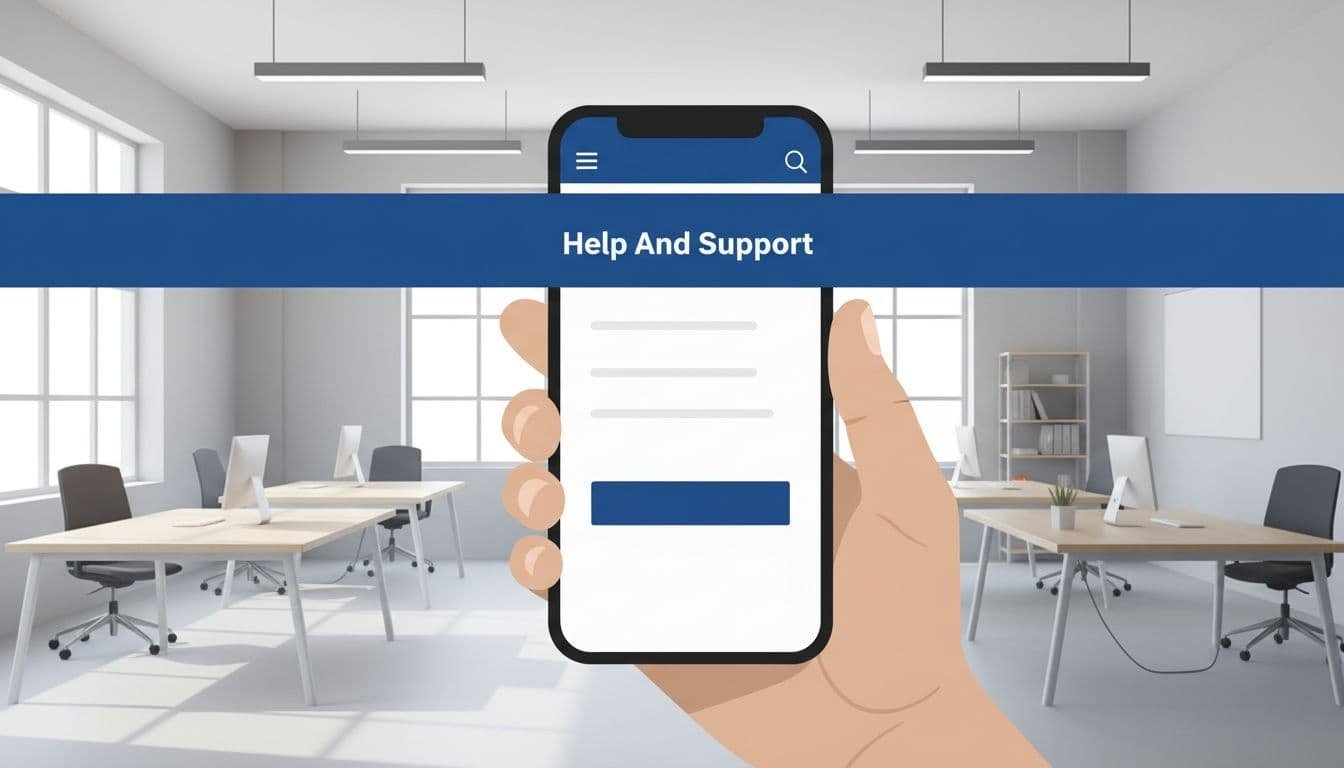
If a screenshot prompt appears, allowing it usually helps. A good screenshot can explain the problem faster than a long paragraph. If the screenshot is messy or shows the wrong screen, remove it and attach a better one later.
Next, choose the area tied to your issue. If your Marketplace access is suspended, pick Marketplace. If the problem is tied to a page, feature, or account setting, choose the closest match you see. Getting the category right gives your Facebook support contact a better shot at landing in the right place.
Write a report Facebook can understand
This part matters more than people expect. Don’t send a wall of text. Write like you’re leaving a clear note for a busy support person.
A good report usually includes:
- A short greeting
- The problem in one sentence
- When it started
- What you’ve already tried
- Any screenshot or video that proves the issue
If you can explain the issue in 4 or 5 lines, you’re doing it right.
For example, if you need Facebook page support, say that your page lost access to a feature, when that happened, and what error message you saw. The same idea works for Facebook support for a disabled account, Marketplace restrictions, or a feature that suddenly stopped loading.
Once you’re done, attach screenshots or a short screen recording if it helps. Then submit the report.
Submit it, then follow up the smart way
Here’s the catch. One report may not get a response. In practice, you may need to send the same clear report again on another day. That’s not pretty, but it lines up with how a lot of people end up getting a human reply.
Keep your wording consistent each time. Sending five different versions of the same story makes the problem harder to track. Save your message in a note so you can reuse it, along with the dates you submitted it. That makes your Facebook support request easier to manage if the issue drags on.
This is also the route to use when you can’t find how to chat with Facebook support, can’t locate a Facebook support email, and still need some kind of direct path through Facebook Help & Support.
Method 2: Use the Meta Pro Team for faster help
Find the official support page
Facebook doesn’t hand out a general live chat button to everyone, but the faster route here is the Meta Pro Team. The easiest way to find it is to search for “Meta Pro Team” and open the official Meta Business Help Center.
From there, scroll down until you see the Meta Pro Team section. That’s where scheduling tools usually appear. Some people think of this as Meta support chat or Facebook live chat support, but what you usually get here is a scheduled call, not a universal chat box for every user.
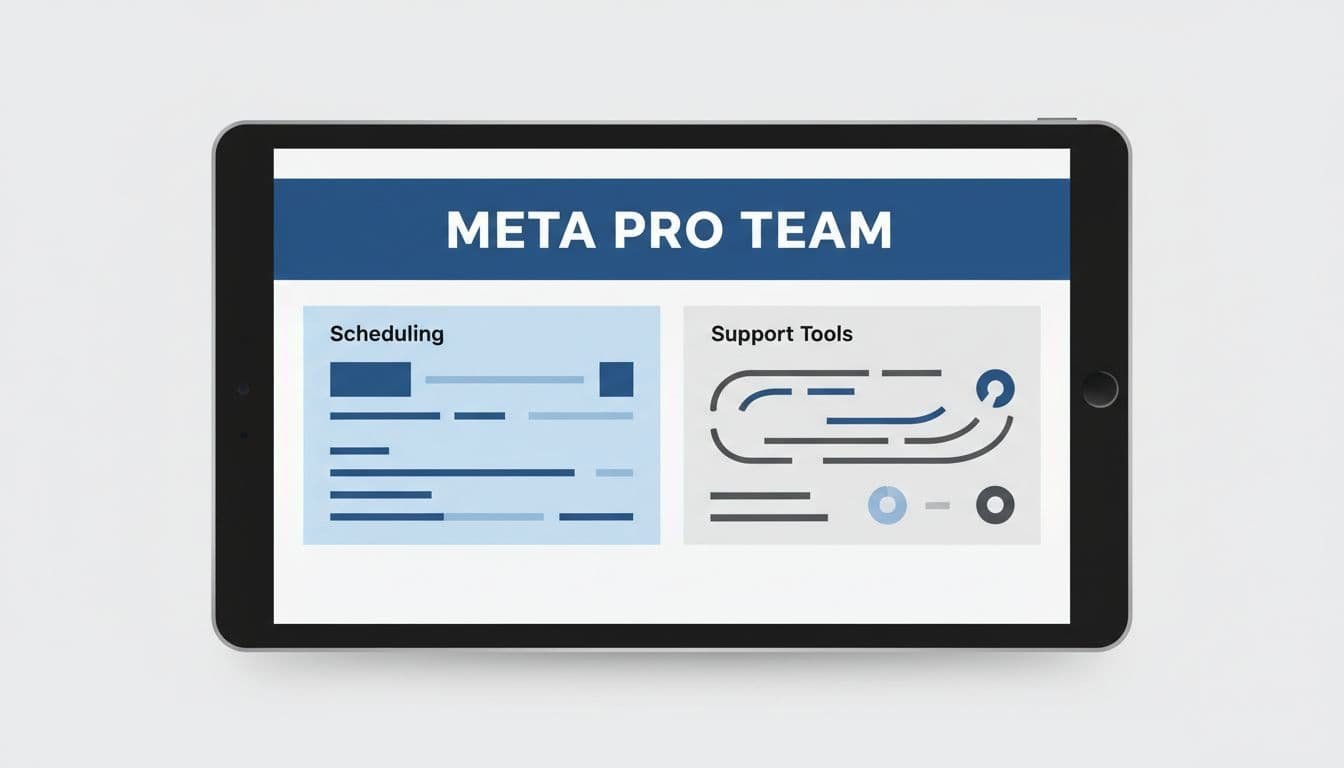
This route is a better fit if you need to contact Facebook support for a business page, want faster Facebook business page support, or need help with billing, policy, or account issues tied to business tools.
Schedule the call and come prepared
If the option is available in your area, pick a time slot and be ready before the call starts. Availability can change by region, account type, and time of day. If you don’t see an opening right away, check again later.
Have the basics ready. Know the exact problem. Keep your account or page details nearby. If the issue involves ads, billing, or policy flags, have that information in front of you so you don’t waste half the call digging for it.
This option can help with:
- billing and payment problems
- account or page issues
- policy questions
- technical bugs tied to business tools
If you’re looking for a Facebook support phone number, this is the closest fit here. It isn’t a public hotline. It’s more like Facebook business support by appointment, and it’s one of the better answers to “how to contact Facebook support directly” when the normal report form is moving too slowly.
What to do for hacked, disabled, and business page issues
These two methods are useful, but they don’t solve every case the same way. If you need to contact Facebook about a hacked account and you can’t log in, the in-app report method won’t help much because it starts after sign-in. In that case, recovery comes first, and only after that can you use a report or a support call if your account qualifies for Facebook account recovery support.
The same limitation applies to Facebook support for a disabled account. If you’re locked out, you may not see the tools shown above from that account. If you still have access, or you have a linked business asset, keep your report short and focused on the one issue you want fixed.
For page owners, the Meta Pro route is usually the better shot. It’s closer to real Facebook page support, and it makes more sense than waiting on a generic Facebook support request if your problem touches billing, policy, or business tools.
One more thing, not every Facebook problem needs support. If your issue is unwanted recommendations or sensitive posts in your feed, you’re better off adjusting Facebook content preferences than chasing a reply from support.
Never share your password with anyone claiming to be Facebook support.
Final thoughts
When Facebook feels like a locked door, these are the two handles you can still grab. The in-app report is the standard route. The Meta Pro Team is the faster one when it’s available.
Stay polite, keep your message short, and send the same facts every time. That’s still the best way to get real Facebook support without getting buried in the maze.
Frequently Asked Questions
Quick answers to common questions people ask when trying to contact Facebook customer service.
Want To Learn How to Add Admin on Facebook Page. Here’s a Step-by-Step Guide Article on how to do so.