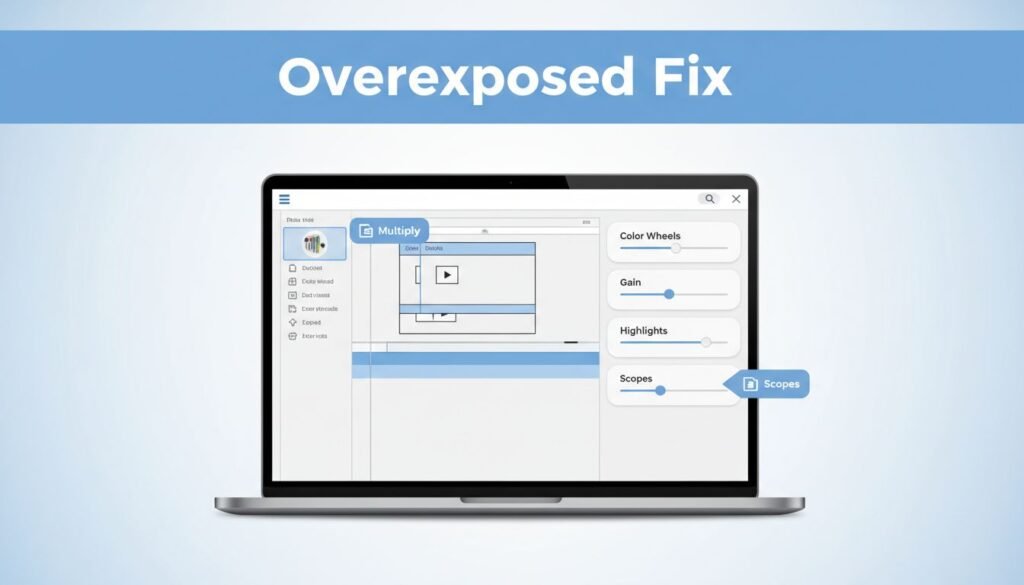
If you’re trying to figure out how to fix overexposed video in DaVinci Resolve, you don’t need a huge grading setup. A quick fix is to duplicate the clip, darken the top layer with Multiply, then pull down Gain and Highlights until the washed-out look starts to disappear.
This works well when you need a fast DaVinci Resolve overexposed fix on footage that’s too bright, flat, or hazy. If the brightest parts are clipped to pure white, you can improve the shot a lot, but you may not get every bit of lost detail back. Here’s the clean way to do it.
What this fix does before you start
Overexposed footage in DaVinci Resolve usually looks pale, low-contrast, and a little lifeless. Skin can lose shape, bright walls glow too much, and white areas start bleeding into everything around them. In simple terms, too much light hit the sensor, so the image got pushed too far toward white.
The good part is that this overexposed video repair in DaVinci Resolve doesn’t need anything fancy. You’re combining one timeline trick with a couple of color controls. The first move darkens the image overall. The second lets you pull back the brightest parts with more control.
If your highlights are fully blown out, think of this as a rescue, not a miracle. You can darken the shot and make it usable, but clipped detail may already be gone.
This approach should still make sense in DaVinci Resolve 18, 19, and newer versions. The layout can shift a bit, but the same tools are there.
How to fix overexposed video in DaVinci Resolve
1. Duplicate the clip on your timeline
Start on the Edit page with your clip in the timeline. To fix overexposed footage in DaVinci Resolve this way, you need a second copy of the same shot stacked above the original.
Hold Alt + Drag and pull the clip upward to duplicate it. You should now have the original clip on the lower track and a copy on the track above it. That top clip becomes your adjustment layer, and it’s the first step if you want to reduce video brightness in DaVinci Resolve without touching the original shot right away.
A lot of people skip this and go straight into color wheels. You can, but stacking the clip gives you a quick starting point when the exposure is way too hot.
2. Set the top clip to Multiply
Click the top clip, then open the Inspector. If you don’t see it, look toward the upper-right area of the Edit page.
Inside the Inspector, find Composite Mode and change it to Multiply. After that, lower Opacity to 30. This is the part that starts to change brightness in DaVinci Resolve immediately, and it’s a solid starting point for a basic overexposed video DaVinci Resolve fix.
Multiply acts like a darkening blend mode. It won’t solve every exposure problem by itself, but it can pull the image back into a range that looks more workable.
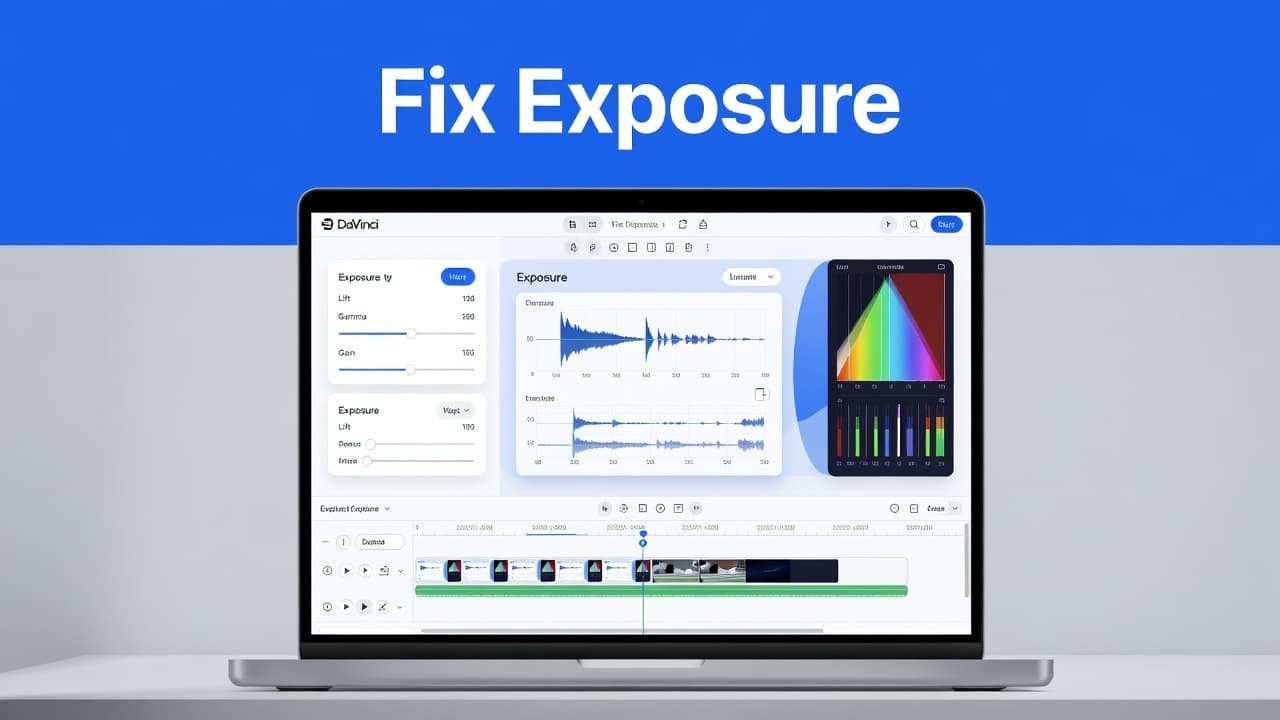
If setting opacity to 30 barely changes the shot, that’s normal on severely bright clips. Multiply helps, but strong overexposure usually needs one more step.
3. Lower Gain on the Color page
Keep the top clip selected, then switch to the Color page. You’re looking for the primary correction controls, usually the Color Wheels panel. If your layout looks different and you can’t find Gain, switch back to the primary wheels until the labels show up.
Now drag Gain to the left. This lowers the brightest end of the image and is the main move when you want to adjust video brightness in DaVinci Resolve. If you’ve been wondering how to adjust exposure in DaVinci Resolve without building a more complex grade, this is where to start.
Move slowly and watch the viewer as you drag. You don’t want to make the frame dark. You want to stop the whites from dominating everything else. That’s the core of how to correct overexposure in DaVinci Resolve when opacity alone isn’t enough.
4. Trim the Highlights if needed
If the image still looks harsh in bright areas, lower Highlights a little too. This helps when skies, windows, or pale surfaces are still pulling too much attention.
That extra adjustment is what makes this feel like a real fix instead of a shortcut. You’re not only trying to fix overexposure in DaVinci Resolve, you’re also trying to make the clip look natural again. If you’ve been searching for how to color correct overexposed footage in DaVinci Resolve, this is usually the part that brings the shot back under control.
If you want a second walkthrough open while you edit, this DaVinci Resolve overexposure tutorial on YouTube shows a similar kind of correction.
Check the result before you move on
Once you pull down Gain and Highlights, stop and look closely. This is where a good DaVinci Resolve overexposed fix can turn into a dull shot if you keep dragging controls out of habit.
Zoom in on the viewer and look for texture in the bright parts of the image. Check skin, white clothes, clouds, or light walls. If those areas have shape again, you’re close. If faces start looking gray or the whole frame feels heavy, back off a little.
You can also compare the result against the untouched version by disabling the top clip for a moment or lowering its opacity again. That makes it easier to judge whether you’ve improved the image or only made it darker.
The right mix is the one that makes the shot feel balanced. Not flat, not crushed, not strange. If you’re trying to learn how to fix overexposed footage in DaVinci Resolve without overcomplicating it, that’s your target.
If the fix still looks wrong
Sometimes the image still fights you. That’s common with harsh lighting or footage that was recorded too bright from the start.
A few quick adjustments usually help:
- If the clip turns too dark, raise Opacity a bit or move Gain slightly back to the right.
- If Gain is missing, switch to the primary color controls or color wheels panel.
- If Multiply feels too strong, keep it on the top clip but use a lower opacity than 30.
- If the frame is still too bright, lower Highlights after Gain instead of dragging everything down at once.
- If you’re matching multiple shots, copy the settings as a starting point, then tweak each clip by eye.
This is why no reduce video brightness DaVinci Resolve tutorial can hand you one perfect value for every file. Camera profile, lighting, and how badly the highlights are clipped all change the result. The same goes for any tutorial on how to fix overexposed footage in DaVinci Resolve.
For future shoots, keep an eye on your histogram or other exposure tools while recording. It’s much easier to prevent clipped highlights than to repair them later.
Prefer Visual Help? Watch the Step-by-Step Video Guide!
Struggling with How to Fix Overexposed Video in DaVinci Resolve? This video visually walks you through the steps so you can follow along more easily.
Watch TutorialA simple way to rescue washed-out footage
If you need to reduce brightness in DaVinci Resolve fast, this method works because it keeps the fix simple. Duplicate the clip, set the top layer to Multiply, lower Opacity, then bring down Gain and Highlights until the shot looks balanced again.
That’s the practical answer when you need a quick exposure adjustment, want to fix overexposed footage in DaVinci Resolve, or need a clean way to change brightness without rebuilding the whole look.
If the image starts to look dark and gray, you’ve gone past the fix. Pull it back until the highlights look normal, not dead.
Frequently Asked Questions
Here are a few common questions people ask when fixing overexposed footage in DaVinci Resolve.
Want To Learn How to See Followers on Snapchat. Here’s a Step-by-Step Guide Article on how to do so.