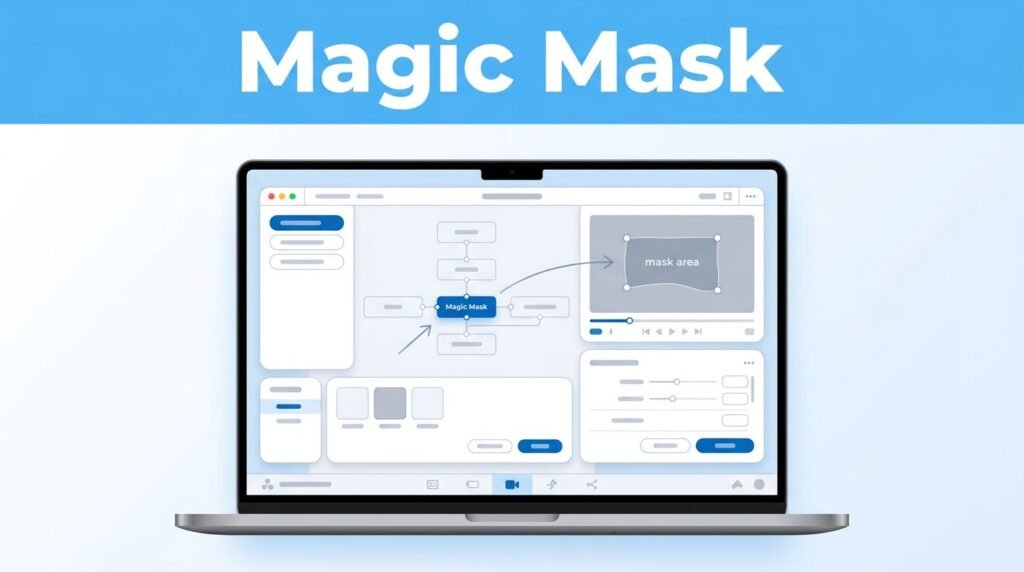
If you are wondering how to remove background in DaVinci Resolve, the fastest built-in method is to utilize the Magic Mask tool located within the Fusion page. Many creators search for how to remove background in DaVinci Resolve because they need an efficient way to remove background elements from video clips without the need for a physical green screen or complex manual rotoscoping.
The primary requirement to keep in mind is that the Magic Mask tool is exclusive to the DaVinci Resolve Studio version. If you are using the free version of the software, you may notice that this specific feature is missing from your nodes. Once you have confirmed you have the correct edition, the process of isolating your subject becomes incredibly fast and intuitive.
Key Takeaways
- Magic Mask Requirements: The Magic Mask tool is an AI-powered feature exclusive to the paid DaVinci Resolve Studio version and is not available in the free edition.
- Best Use Cases: Magic Mask is most effective for isolating moving subjects against complex, varied backgrounds; for solid-colored studio backdrops, traditional 3D or Delta Keyers provide superior, cleaner results.
- Process Efficiency: To achieve the best results, use the ‘better’ preset in the Inspector and provide clean, internal strokes on your subject to help the AI track effectively across the entire clip.
- Refining Results: If the mask drifts during playback, you can refine the output by adding additional strokes to the affected areas or using the ‘matte finesse’ controls to adjust edge softness and expansion.
Know when Magic Mask is the right tool
Magic Mask is the ideal solution when you need to remove a background in DaVinci Resolve, especially for subjects or objects that move through a scene. Instead of performing tedious frame-by-frame rotoscoping, you simply paint over the subject, and Resolve automatically tracks it across the duration of the clip. This functionality makes it the go-to method when you need to remove a background without the luxury of green screen footage.
However, Magic Mask is not always the most efficient choice for every scenario. If you are working with professional studio footage, traditional keying methods are often superior. For example, if you want to remove a green screen in DaVinci Resolve, using a 3D keyer or a delta keyer will provide much cleaner edges and faster rendering than an automated mask. These tools are specifically designed to isolate a single flat color, making them more effective for tasks like removing a clean studio backdrop or handling chroma key operations.
This quick comparison makes the choice easier:
If you are researching how to remove a background from an image in DaVinci Resolve, the process is similar to video, but you generally do not need the tracking features because the image remains static.
The short version is this: use Magic Mask when the subject is complex and the background contains varied details. If you are trying to perform a green screen removal in DaVinci Resolve or need to figure out how to key out a background efficiently, those specific color-based workflows remain the industry standard.
Remove the background in Fusion
Once your clip is positioned in the video timeline on the edit page, select it and open the Fusion page. This is where you will build the mask that tells Resolve what to keep and what to ignore.
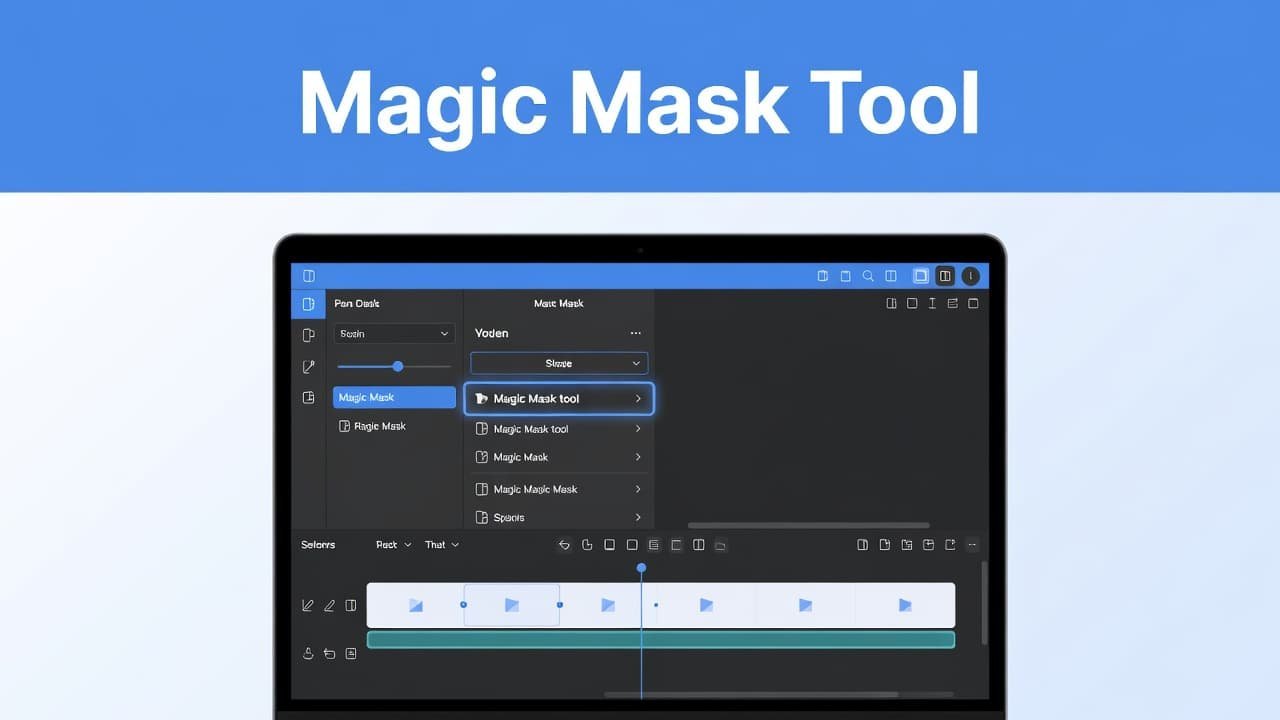
Follow these steps:
- With your clip selected, navigate to Fusion. In the node area, click the MediaIn1 node so Resolve knows which clip you want to process.
- Open the tool search popup by pressing Shift + Space. If that does not open the search box, you can locate the tool search manually within the interface.
- Type Magic Mask, choose it from the list, and click Add. Resolve will place the magic mask node into your nodes graph for that specific clip.
- With the Magic Mask node selected, go to the Inspector and set the quality option to the better preset. This mode typically takes longer to process, but it produces a much more accurate mask.
- Draw a stroke over the subject you want to keep. Think of it like telling Resolve to track the person rather than the room behind them. You do not need to trace every edge; a few clean strokes on the body, face, or clothing are usually enough to start.
- Use the tracking buttons to track forward and backward, allowing Resolve to analyze the entire clip. If your playhead is positioned in the middle of the clip, tracking in both directions ensures all frames are accounted for in your selection.
A common mistake is drawing too far outside the subject. Keep your strokes inside the person or object as much as you can. The cleaner the initial selection is, the better the final result will be.
After the track finishes, you should see your subject isolated much more clearly. At that point, you have completed the core of the background remover DaVinci Resolve workflow.
What to check if the result looks off
When the tracking is finished, play the clip back from the start. Watch the edges on the hair, hands, shoulders, and any fast movement. Those are the spots most likely to slip.
If the mask drifts off the subject, add another stroke over the area that went wrong and run the tracking again. This part can confuse people because the tool often looks good on a paused frame, then falls apart once motion starts.
If you do not see Magic Mask in the search popup, the most likely reason is that your Resolve version does not include it, or you are using the free version.
You can also improve the result by choosing footage that gives the tool a fair chance. Well-lit subjects, cleaner separation from the background, and less motion blur will all help. If playback feels slow, create proxy media or lower the playback resolution while you work.
If the cutout looks harsh, head to the inspector and look for matte finesse controls. Using these settings to slightly feather or expand the edge often creates a more professional look. Small changes are usually better than big ones.
If the automated magic mask continues to struggle with complex movement, you might need to pivot to traditional rotoscoping methods. In these cases, using a polygon mask or a planar tracker can provide the precision needed for difficult shots.
If your footage has a clean background color, Magic Mask may not be the best route at all. That is where a normal keyer makes more sense. For a side-by-side look at other workflows, this three-method background removal walkthrough helps show where Magic Mask fits.
What you can do after the background is gone
Once the subject is separated, you can place a new image or video behind it. This is typically the primary goal for users who want to remove background in DaVinci Resolve, whether the intent is to achieve a professional studio look, add a custom graphic backdrop, or transport the subject into an entirely different scene. You can easily drag these new assets into the edit page to begin your final compositing.
If your project requires you to export with a transparent background, you must check your render settings with precision. Not every export format supports an alpha channel, and selecting the wrong settings will result in the background appearing solid again.
This stage is also the perfect time to enhance your isolated subject with creative visual elements. For example, you can explore the open effects overlay options to add light wraps or color glows that help your subject blend seamlessly into the new environment. If you want the action to pause after your mask work is complete, a freeze frame in DaVinci Resolve can be a powerful tool for adding emphasis to your edit.
Frequently Asked Questions
Can I use the Magic Mask tool in the free version of DaVinci Resolve?
No, the Magic Mask tool is an advanced AI feature available only in the paid DaVinci Resolve Studio version. If you are using the free version, this option will not appear in your tool search or node library.
Why is my Magic Mask result looking jittery during playback?
Jittery masks often occur because the AI requires more tracking information or the footage has high motion blur. Try adding additional strokes to problematic areas and re-tracking, or adjust the matte finesse settings to soften the edges of your selection.
Is Magic Mask better than a Green Screen keyer?
Magic Mask is better for complex scenes without a uniform background, but it is less efficient for green screen footage. For professional studio setups, a 3D or Delta Keyer will produce much faster rendering and cleaner edge quality than the Magic Mask tool.
How do I export my video with a transparent background?
After removing the background in Fusion, you must ensure your render settings support an alpha channel. Select a codec that supports transparency, such as ProRes 4444 or DNxHR, and verify that the ‘Export Alpha’ option is enabled in the Deliver page settings.
Prefer Visual Help? Watch the Step-by-Step Video Guide!
Struggling with How to Remove Background in DaVinci Resolve? This video visually walks you through the steps so you can follow along more easily.
Watch TutorialThe part that matters most
Achieving a professional result when you need to remove background elements in DaVinci Resolve usually comes down to two factors: selecting the right tool for your specific footage and providing the AI with a clean first stroke to track. If you are working with complex subjects, the magic mask tool is often the fastest way to get there. Just remember that you must have the studio version of the software to access these advanced AI features.
However, if you are working with a green screen, a standard chroma key workflow remains the most efficient choice for solid colors. If the magic mask is missing or if you find yourself struggling with a specific shot, be willing to switch methods instead of forcing a tool that is not designed for that type of media. That one choice will save you a significant amount of time and ensure you get the cleanest remove background result possible.
Want To Learn How to Import SRT File in DaVinci Resolve. Here’s a Step-by-Step Guide Article on how to do so.