If you need to know how to import SRT file in DaVinci Resolve, the process is pretty simple once you know where the file needs to go. You don’t need a separate add-on, and you don’t need to type every caption by hand if your subtitle file is already finished.
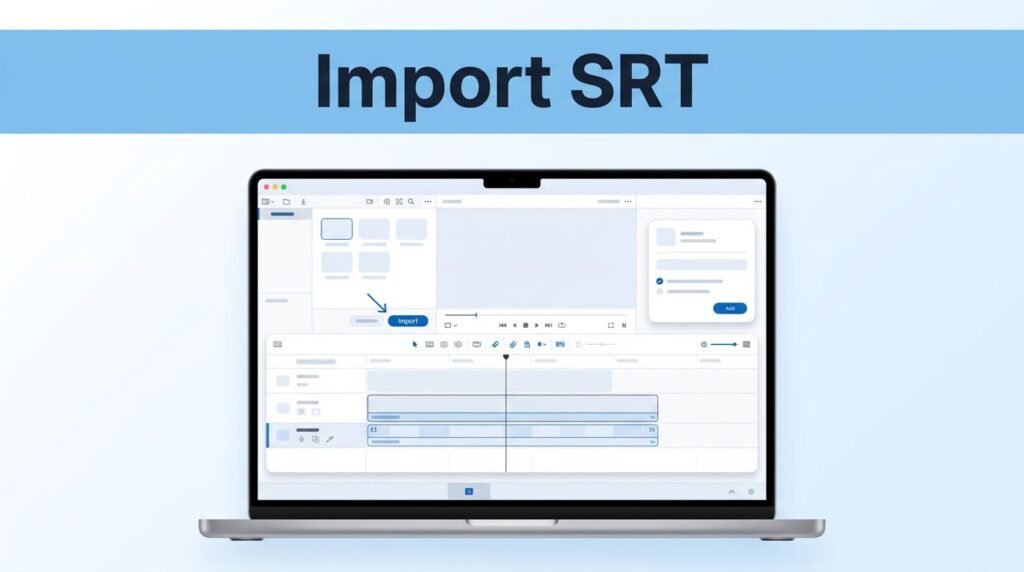
This works when you already have an .srt file and want to get it into your project fast. The key thing is starting in the Edit tab, then importing the file into the Master area (often called the Media Pool or Master bin) before you drag it onto the timeline.
What to know before you import the subtitle file
If you’re searching for import SRT DaVinci Resolve, resolve import SRT, or how to insert SRT file into DaVinci Resolve, you’re trying to do one specific thing: bring in a ready-made subtitle file and make it show up as captions inside your edit. DaVinci Resolve can do that.
This is different from creating subtitles from scratch. With an SRT file, the text and timecodes already exist, so your job is mostly importing, placing, and checking. That’s why this method is such a time-saver when you want to add subtitles to video in DaVinci Resolve without building every caption manually.
Before you start, check three things:
- Your subtitle file ends in .srt.
- Your project is open in the Edit tab.
- Your video is already in the project, or at least you’re ready to place the subtitle track on the timeline.
This workflow is the same idea in DaVinci Resolve 17 and 18, so if you’re looking for import subtitles DaVinci Resolve 18 or DaVinci Resolve subtitles import, you’re in the right place. If you’re trying to figure out how to import SRT file in DaVinci Resolve 19, the layout may look a little newer, but the path is still basically the same.
How to import the SRT file into DaVinci Resolve
If you already have the subtitle file, this part only takes a minute. This is the main DaVinci Resolve SRT import workflow people mean when they search import subtitle file DaVinci Resolve or how to add SRT to DaVinci.
- Open your project and click the Edit tab at the bottom of DaVinci Resolve.
- Look for the Master area on the left side of the screen. In many layouts, this is your Media Pool or Master bin, where your project assets live.
- Right-click an empty space inside that panel, then choose Import Media.
- Browse to the folder where your subtitle file is saved. If you downloaded it recently, there’s a good chance it’s in your Downloads folder.
- Click the .srt file, then click Open.
6. Once the file appears in the Master panel, drag it down onto your timeline. DaVinci Resolve will place it as a subtitle track.
At that point, you’ve done the core part of DaVinci Resolve import subtitles SRT. If the import worked, you should now see subtitle blocks on the timeline, each one matching a line from your SRT file.
If the file is sitting in the Media Pool but not on the timeline, your subtitles still won’t appear in the viewer. Importing the file is only half the job.
This is also the answer for people searching import SRT file DaVinci Resolve, import SRT DaVinci, or how to import subtitles in DaVinci Resolve. There isn’t a separate DaVinci Resolve SRT importer window. The regular Import Media option handles it.
How to edit subtitle text and timing after import
Once the subtitle track is on the timeline, play your video and watch for the captions to appear. If they show up on screen, the import worked and you can move on to cleanup.
Click one subtitle block on the timeline, then open the Inspector on the right side. This is where you can change the text and adjust how that subtitle behaves. If you need to fix a typo, shorten a caption, or tweak the wording, this is where you do it.
You can also adjust the timing. Look for the subtitle’s time in and time out values, then change them if a line appears too early or stays on screen too long. This matters more than people think. Even a solid SRT file can need a small timing fix once it’s inside the project.
That same subtitle track is what people are usually talking about when they search add subtitle track DaVinci Resolve, add captions DaVinci Resolve, add captions DaVinci Resolve free, or add subtitles in DaVinci Resolve. You’re not locked into the original file. After import, you can still make edits.
If you want a cleaner look, use the Inspector to change styling options that are available in your version, such as text appearance or placement. Keep it readable. Short lines, good contrast, and subtitles that don’t cover important parts of the frame usually work best.
Common SRT import problems and how to fix them
The most common problem is simple: the file imports, but nothing shows on screen. In most cases, that means the SRT file was imported into the project but never dragged onto the timeline. Go back to the Master panel, find the file, and place it on the subtitle track area.
Another common issue is the file not appearing at all after import. If that happens, check the extension first. It needs to be a real .srt file, not a text document that was renamed. This can confuse people because the filename may look right even when the format isn’t.
If the subtitles appear but the timing is off, select the subtitle clips and adjust their position or their in and out times in the Inspector. Small sync errors are normal, especially if the SRT file was created from a slightly different cut of the video.
If you edited the subtitle file outside Resolve and want the changes reflected inside the project, re-import the updated file rather than assuming Resolve will refresh it by itself.
The workflow stays close across versions, so whether you’re looking up how to add subtitles DaVinci Resolve, add subtitles DaVinci Resolve, or resolve import subtitles, the fix is usually one of those three things: wrong file format, file not placed on the timeline, or timing that needs to be corrected.
Prefer Visual Help? Watch the Step-by-Step Video Guide!
Struggling with How to Import SRT File in DaVinci Resolve? This video visually walks you through the steps so you can follow along more easily.
Watch TutorialYour subtitle track is ready
Once the SRT file is in the Master panel and sitting on the timeline, the hard part is over. From there, you can preview the captions, fix the text, and adjust timing until everything reads cleanly.
That same process covers most searches around how to add subtitles in DaVinci Resolve when you already have a caption file ready to go. Import it, drag it to the timeline, then use the Inspector to make it fit your edit.
Frequently Asked Questions
Here are a few common questions people ask when working with SRT subtitle files in DaVinci Resolve.
Want To Learn How to Fix Overexposed Video in DaVinci Resolve. Here’s a Step-by-Step Guide Article on how to do so.