If you need to locate your stripe client id, you should skip your standard API key settings. Because your live client ID is specifically tied to Stripe Connect, it will not appear in your account until you have fully configured Connect.
This process often causes confusion because Stripe uses a variety of IDs, keys, and secrets located in different areas of the platform. To find exactly what you need, log in to your Stripe Dashboard and navigate to the Connect menu, select Onboarding options, and then proceed to the OAuth settings within your Stripe Dashboard.
Key Takeaways
- Your client id stripe is exclusively tied to Stripe Connect, and it will not appear in your account until you have fully configured Connect within your Stripe Dashboard.
- To locate your client ID, navigate to Settings, select Connect, choose onboarding options, and open the OAuth settings section.
- The client ID is used specifically for authenticating your platform during OAuth flows and is entirely distinct from API secret keys, publishable keys, or customer IDs.
- If your client ID displays as “Unavailable,” ensure your account has completed all pending Connect onboarding tasks and that you have the correct administrative permissions.
Know what the Stripe client ID is for
A Stripe client ID functions as a unique account identifier that authenticates your platform account during a Stripe Connect OAuth flow. You use this ID whenever your application needs a user to authorize access to their Stripe account, a standard procedure when you onboard sellers, vendors, freelancers, or service providers.
Put simply, the client ID informs Stripe exactly which platform account is requesting access. It is a critical component of the authorization process rather than a customer record or a payout setting. It is also important to distinguish this from your API secret key, as the client ID is used specifically for public-facing authentication instead of private backend operations.
You can only get a Stripe client ID after Stripe Connect is available and set up for your account.
If you searched “how do I find my client ID?” or “what is my client ID?” because an app integration requested it, verify that the application is utilizing Stripe Connect. A standard Stripe account that only processes payments may not require a client ID at all.
A Stripe client ID lookup is also fundamentally different from attempting to access a customer record. The API actions known as Stripe retrieve customer or Stripe retrieve customer by ID are designed to fetch data for a specific buyer, and they do not help you retrieve a Stripe client identifier for Connect.
Find Stripe Client ID in the Dashboard
Use a desktop browser if possible. Navigating the Stripe Dashboard is much easier on a larger screen, especially when you need to finish your Stripe Connect setup or review specific product settings.
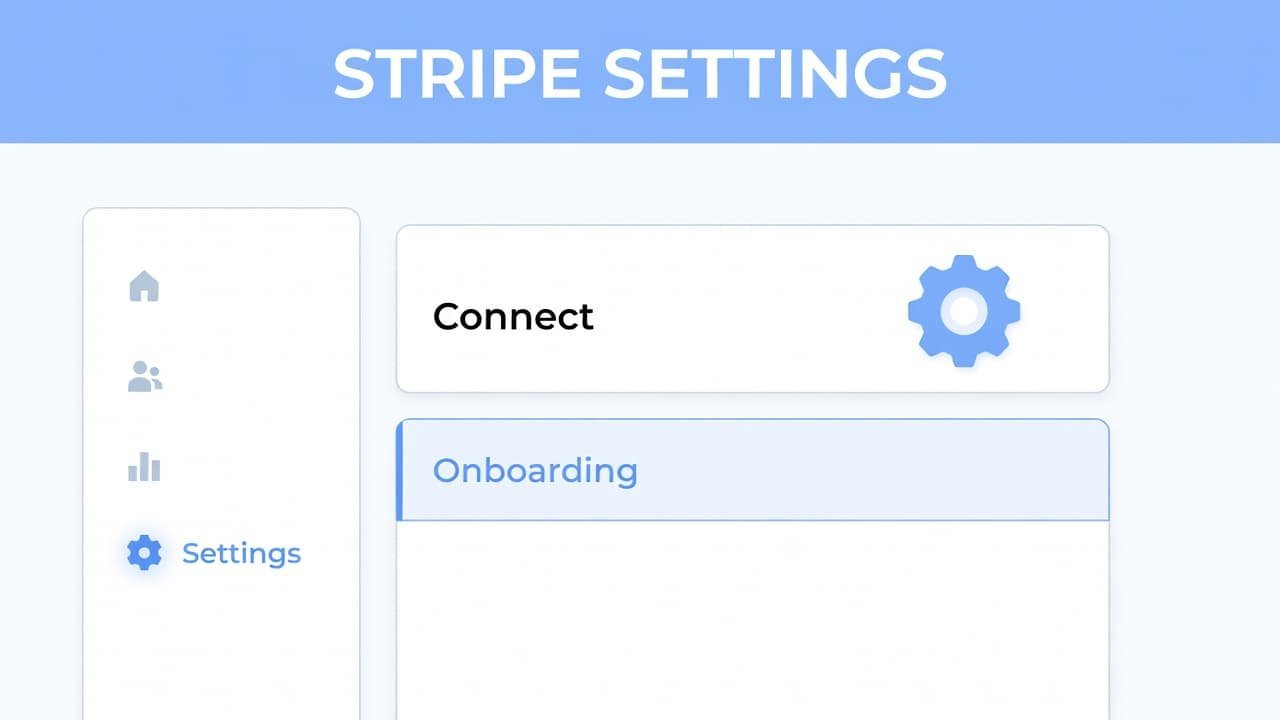
1. Sign in to your Stripe Dashboard and look for Products in the left sidebar. 2. Open Connect. If Connect is not visible right away, open More and look for the Connect section there. 3. Complete the Stripe Connect setup if Stripe asks you to. You may need to select how your platform will use Connect before the OAuth settings become available. 4. Select the settings gear in the top-right corner of the Stripe Dashboard. 5. Under Product settings, choose Connect. 6. Open onboarding options. You may see country settings on this page, depending on your specific Connect configuration. 7. Select the OAuth settings section and wait for the page to load. Your live client ID will appear there once Connect is active and you are viewing your account in live mode.
The live client ID is the value you use when an integration asks you to find your Stripe client ID. While you are on this page, ensure you also configure your Redirect URIs, as these are typically located within the same section. Copy your ID carefully into the integration’s configuration field.
A lot of people still run into menu instructions from older Dashboard versions. This Stripe client ID location discussion shows why the Connect area is often the place people miss.
Why your client ID may say unavailable
If the client ID field displays as unavailable, Stripe Connect may not be fully enabled on your account. Navigate back to the Connect section to verify that you have completed all pending identity verification tasks or onboarding requirements. It is also recommended that you check your developer dashboard to confirm that your API configuration is active and properly set up for production.
Restricted permissions can also prevent you from viewing this information. If you are accessing a Stripe account managed by another team member, you may need an account owner or administrator to complete the setup or grant you the necessary access to view these settings. If the email on the connected account also needs to change, you can change your Stripe email address to keep verification and security notices reaching the right inbox.
Regional configurations also play a role, as your business location impacts available features. Ensure your settings align with your specific business setup. Additionally, confirm that you are not accidentally viewing test mode if you require production credentials, or conversely, ensure you have properly configured your sandbox environment if you are still in the development phase.
Do not keep refreshing the page if Connect still displays setup requirements. Complete those outstanding items first, then return to Settings > Connect > Onboarding options > OAuth settings.
Older documentation may direct you toward an Applications page. You can see an example of that older path in this Stripe Connect client ID forum thread, but please note that current menu names in your dashboard may differ.
Do not confuse the client ID with other Stripe credentials
Stripe provides several unique identifiers that can look similar at first glance. The specific value you need depends entirely on what your application is trying to accomplish.
Your client ID is used specifically for Stripe Connect OAuth authorization. It is distinct from your secret key, which is used for secure server-side authentication and must never be exposed in browser code or shared with untrusted third parties. Likewise, do not mistake your client ID for a publishable key, which is designed to be used in your frontend code for tokenizing information, or a restricted API key, which limits access to specific resources.
These standard credentials are found in the API keys tab within your dashboard. This area is entirely separate from your Stripe Connect settings, which is where you will locate your client ID. Searching for how to get an API secret key can also lead to confusion. Remember that a PaymentIntent client secret is used specifically for handling payment flows, while a Stripe Connect client ID identifies your platform during the OAuth process. One cannot replace the other.
For US businesses setting up Stripe API credentials, you may also be working on payouts at the same time. While a publishable key is public facing, your secret key remains sensitive. Your bank account information is separate from your client ID, but you can use this guide to connect a bank account to Stripe when you are ready to receive payouts.
A client ID is not a secret key, but you should still copy credentials only into trusted apps and settings pages.
If you still cannot retrieve the client ID
First, confirm that you are viewing the live mode Dashboard environment if your integration specifically requests a live client ID. Settings often differ between test accounts and live accounts, so it is important to remember that data from test accounts will not transfer to your live environment.
Next, check the exact wording the app uses. Some platforms ask for a client ID, while others use terms like client identification or client identifier. In a Stripe Connect setup, they are almost always referring to the same OAuth client ID. Be careful not to confuse this with a connected account ID, which is a different identifier used for specific merchant sub-accounts. If you are configuring backend API requests, ensure you are not mistakenly inputting your Stripe-Account header where the client ID is required.
If the Connect option is still missing, try these troubleshooting checks:
- Look under More in the Products menu to ensure the feature is accessible.
- Confirm that Connect is enabled and the initial setup is complete.
- Ask the account owner to verify your Dashboard role, as restricted permissions can sometimes hide specific menu items.
- Check that your payment methods are configured correctly, as some integrations require active processing to reveal OAuth settings. Note that many third-party services require these payment methods to be fully active before they grant access to Connect-related features.
- Refresh the Dashboard or try another browser if the page fails to load properly.
- Review the app integration instructions to confirm it fully supports Stripe Connect OAuth.
If PayPal is one of the payment methods required by your setup, follow this guide to accept PayPal payments in Stripe and confirm that its status is Active before testing the integration again.
If you want another visual reference before changing settings, this Stripe client ID video walkthrough follows the same general Connect-based process.
Frequently Asked Questions
Why can I not see a client ID in my dashboard?
The most common reason is that your Stripe Connect setup is incomplete. You must finish all required onboarding steps and identity verification tasks within the Stripe Dashboard before the OAuth configuration options, including your client ID, become visible.
Is my client ID the same as my API secret key?
No, these are separate credentials with different security requirements. Your client ID is for public facing OAuth authentication, while your API secret key is for private, server side API operations that should never be exposed to the public.
Can I use my client ID to retrieve customer information?
No, the client ID is used only for identifying your platform during authorization. If you need to retrieve customer data, you should use the specific customer ID associated with that individual buyer through the appropriate Stripe API calls.
Do I need a different client ID for testing?
Yes, you should use your test client ID when working in a sandbox environment and your live client ID only for production integrations. Always ensure you are toggling between test and live modes in your Stripe Dashboard to retrieve the correct identifier for your specific development stage.
Prefer Visual Help? Watch the Step-by-Step Video Guide!
Struggling with How to Find Your Stripe Client ID? This video visually walks you through the steps so you can follow along more easily.
Watch TutorialYour Stripe Client ID Is in Connect OAuth
To successfully locate your client id stripe, navigate to the Connect section within your dashboard. After finishing the initial setup, go to Settings, then Connect, and finally select Onboarding options followed by your OAuth settings. If this field appears unavailable, it is likely because your Stripe Connect configuration is incomplete or your account lacks the necessary permissions for that specific setting.
It is important to remember that you will use a different test client id when working in a sandbox environment compared to your live production credentials. Always ensure you are selecting the correct identifier for your current development stage. A Stripe Connect client ID is strictly for OAuth authorization flows; it should not be confused with customer retrieval IDs, your API secret key, or payment client secrets.