If you are trying to figure out how to change email address in stripe, you can do it easily from the settings area in your Stripe Dashboard. The important thing is to update the email under your personal account details, then complete any verification steps Stripe sends to your new inbox.
This is the email connected to your Stripe account login and official communication, so be sure to use one you can access and keep secure. This process will update your primary email for the account. Here is where to find the setting and what to check after you save it.
Key Takeaways
- Locate the Settings: Access the gear icon in your Stripe Dashboard to open your account settings and navigate to “Personal details” to begin the update.
- Verify Your New Address: After saving your new email address, you must click the confirmation link sent to your new inbox to finalize the change securely.
- Distinguish Between Account and Customer Emails: Updating your personal login email does not automatically change the email address used for customer receipts, invoices, or business-facing notifications.
- Check Permissions: If you are unable to edit your email, ensure you have the necessary account administrator permissions or that you are signed in to the correct business profile.
Open Your Stripe Dashboard Settings
Start by signing in to the Stripe Dashboard. These steps are easiest to follow on a desktop browser, where the navigation menu is clearly visible.
Once you are in the dashboard, look in the top-right corner for the gear icon. Clicking this icon opens the account settings area for your business.
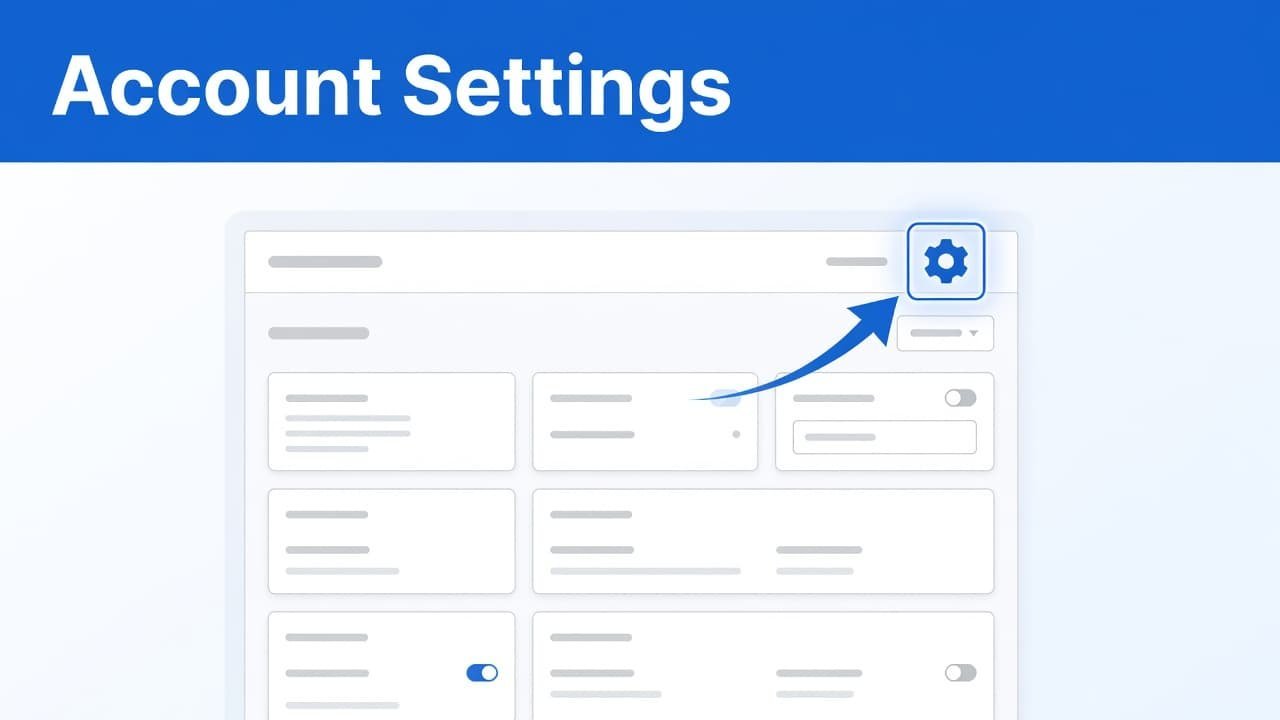
The dashboard layout can look a little different depending on your account setup or recent platform updates. If you do not see the gear icon right away, you can also select the profile icon to find the settings option within the account menu.
You are changing the email tied to your personal Stripe account details here. That is not always the same thing as a customer receipt email or a support email shown elsewhere in your business setup.
Change Your Email in Personal Details
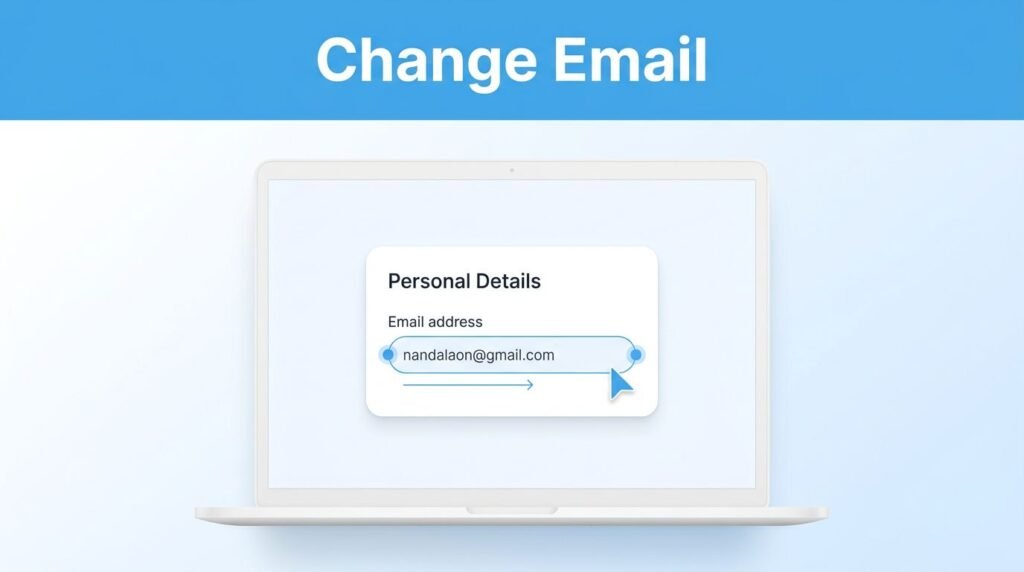
After you open settings, select Personal details. This is where Stripe keeps the basic information connected to your user account, including your current email address.
To edit email settings for your Stripe account:
- Find the Email field in Personal details.
- Select Edit next to your current email address.
- Delete the old address and enter the new one you want to use.
- Select Save to submit the change.
That is the main process to change your Stripe login email. After saving, Stripe may show a confirmation message or ask you to verify the new address before the update is fully complete.
Type the new address carefully before you save. A small typo can leave you waiting for a message that never arrives because it went to the wrong inbox.
Watch for the Verification Email
Stripe will send a verification email to the address you entered. Open that inbox, look for the message from Stripe, and click the verification link to finalize the process.
If it does not show up after a few minutes, check your spam folder, Junk, or Promotions tabs. Search the inbox for “Stripe” too, especially if you use a business email account with strict filters.
You may still need access to your old login or an active Stripe session while the update is pending. Do not sign out until you know the new email works and any verification is complete.
Confirm Change
Verification is there to protect your account. It helps prevent someone with temporary access to your Dashboard from changing where important account messages go. Always confirm change requests through the secure link provided by Stripe to ensure your settings are updated correctly.
Know Which Stripe Email You Need to Update
This part can confuse many users because Stripe utilizes email addresses in several different areas. Updating your contact information in Personal details changes the email associated with your specific user account. However, this action does not necessarily change the customer email used for external communications.
For example, changing your primary Stripe account email does not automatically update the customer email used for Stripe invoices, Checkout, or receipts. Those items are managed separately based on how your business operates. To update customer details, you must navigate to the relevant business settings. The same process applies if you need to change your business billing email or the specific address your customers see on their digital receipts.
When you need to update customer information regarding recurring subscriptions or access to the customer portal, ensure those specific data fields are adjusted. Keeping customer details consistent across your payment tools makes it easier to manage account alerts, payout notices, dispute updates, and security messages. It also ensures that clients receive accurate information without sending sensitive data to an old inbox.
If you use Stripe Connect, your account settings may include additional configurations that are not visible on a standard account. This guide on finding your Stripe client ID can help if you are also setting up Connect or OAuth settings for your business.
What to Do If You Can’t Update the Email
If the Edit option is missing, first confirm that you are signed in to the correct Stripe account. This is easy to miss if you manage more than one business or switch between team accounts.
You may also have limited permissions. A team member can sometimes access parts of the Dashboard without being allowed to change personal or account level settings. In that case, an account owner or administrator may need to handle the Stripe email update for you.
Try these checks before contacting Stripe Support:
- Refresh the Dashboard, then open Settings > Personal details again.
- Check that you typed the new email address correctly.
- Look for a verification email in every relevant inbox folder.
- Stay signed in until the email update is confirmed.
- Use a private email inbox that only you control.
If you encounter persistent login issues while attempting these changes, a password reset might be required to regain access. If you still cannot update your information or if the old email is entirely inaccessible, you may need to initiate a formal account recovery process. If Stripe continues to show an error or the verification message never arrives, visit Stripe’s account support topics for further assistance. You can also start from the main Stripe Help and Support page if you need more help getting back into your account.
Common Questions About Stripe Email Settings
Can you change your email address on Stripe?
Yes. If you are wondering how to change Stripe email settings, simply go to your Stripe Dashboard and click the gear icon. Navigate to Personal details, select Edit beside your current email address, enter your new email, and save the changes. Stripe may require you to verify the new address before the update is finalized.
Can I use an email already connected to another Stripe account?
Stripe will notify you if an email address is ineligible for use when you attempt to save your changes. If you manage multiple Stripe accounts, pay close attention to which account you are updating to ensure you do not inadvertently link the wrong credentials to your profile.
How do I change Stripe email notifications or customer emails?
It is important to note that your Personal details email is specific to your Stripe user profile. If you need to manage communication settings for your business, such as notification emails, invoice receipts, or checkout confirmations, you will need to check the specific configuration settings for those features. You can often manage these settings and update the relevant customer email or other customer details by navigating to the specific product or branding sections within your Stripe Dashboard settings. Always update the specific setting that corresponds to the type of communication you want to modify.
Prefer Visual Help? Watch the Step-by-Step Video Guide!
Struggling with How to Change Email Address in Stripe? This video visually walks you through the steps so you can follow along more easily.
Watch TutorialKeep Your Stripe Email Current
Updating your contact information is a quick process that only takes a few clicks. Simply open the gear icon in your Stripe Dashboard, navigate to Personal details, edit the email field, save your changes, and verify the new inbox if prompted.
Maintaining an accurate primary email helps ensure you retain uninterrupted access to your account and receive critical notifications the moment they arrive. Keeping your contact details up to date is the best way to stay informed and secure while managing your business.