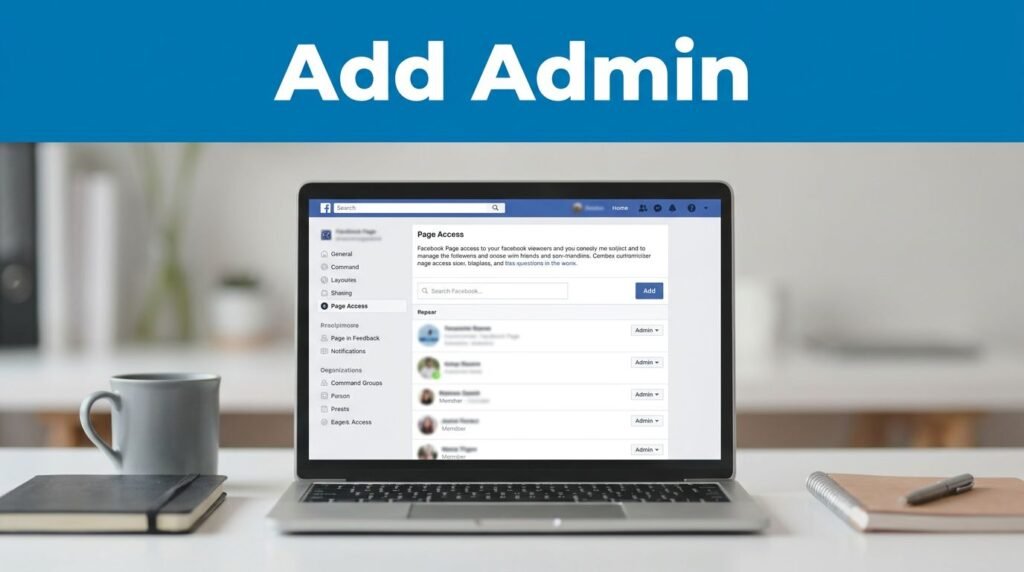
If you’re trying to figure out how to add admin on Facebook Page settings, the good news is that it only takes a few taps once you know where Facebook put the option. The part that throws most people off is the new Page experience, because Facebook no longer uses the old-looking Page roles screen from older tutorials.
You need to switch into your Page first, then head to Page Access, not your personal profile settings. Once you know that, the rest is simple.
Where the Facebook Page admin setting lives now
Facebook didn’t make this hard. It made it easy to miss.
In the newer Page layout, your Facebook Page admin settings live under your Page’s settings menu, inside Page Access. That’s the control center for Facebook page permissions, whether you want to add a full admin, give limited help, or clean up old access later.
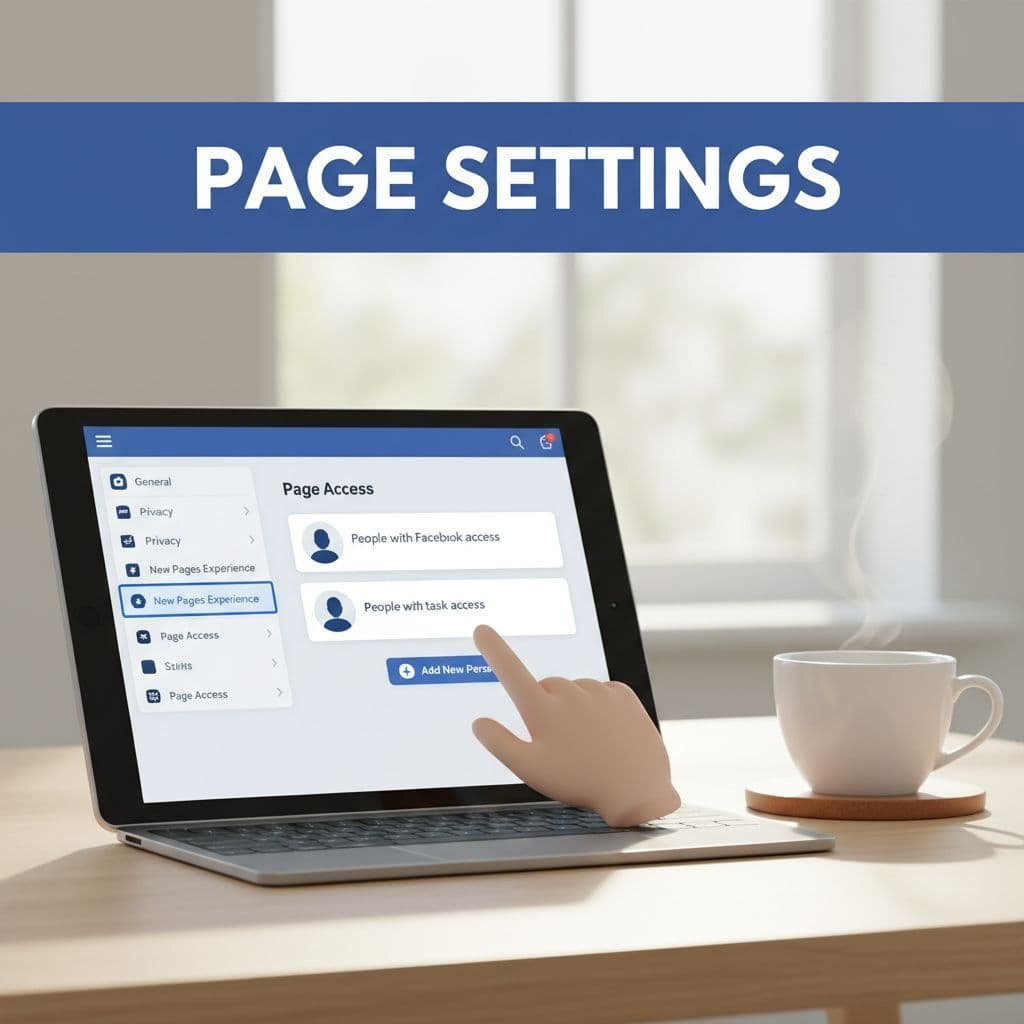
Once you’re in Page Access, Facebook splits people into two buckets. That’s important, because only one of them gives true admin-level control.
| Access type | What it means | When to use it | People with Facebook access | High-level access to the Page itself | Use this when you want to add admin to Facebook Page management | | Task access | More limited access for specific work | Use this when someone only needs help posting or moderating |
If you’re comparing Facebook Page editor vs admin options, this is the key difference. For a real Facebook Page admin role, you want People with Facebook access, then Full control.
Full control is the setting that gives someone admin-level power, including the ability to manage access for other people.
This setup works the same idea on mobile and desktop. Menus can look a little different depending on the app version, but the path is the same: switch into the Page, open settings, tap Page Access. If you want Meta’s current wording, check the official About Page access page.
How to add admin to a Facebook Page in the new layout
If your goal is to add Facebook Page admin access fast, here’s the exact path.
The steps to use
- Open Facebook and switch into your Page.
- Go to Settings.
- Tap or click Page Access.
- Under People with Facebook access, choose Add New.
- Enter the person’s name or email address.
- Select Full control.
- Confirm the change by entering your Facebook password.
That’s it. That’s how to make someone admin on a Facebook Page using the current layout.
A couple details matter here. First, don’t add the person under task access if what you want is a full Facebook business page admin. Task access is not the same thing as full control. Second, double-check the profile before you confirm, especially if the name is common. Email is often the cleaner option when search results are messy.
When you choose Full control, you’re giving that person real Facebook Page admin access. That means they can help manage the Page, and depending on the available settings, they may also be able to manage access and other Page controls. In plain English, this is not a small permission. It’s the top one.
If you were searching for how to give admin access to Facebook Page settings or how to assign admin on Facebook Page access, this is the screen that does it. The old “roles” language still shows up in a lot of articles, but in the new Page experience, this is the modern version of Facebook page roles admin management.
After you enter your password, Facebook processes the change right away on your side. On some accounts, the person may show up immediately. If Facebook shows the access as pending, wait for the other person to accept it.
How to manage Facebook Page admins after they’re added
The same Page Access screen is where you manage Facebook Page admins later.
That means you can go back any time to see who already has access, add another admin to a Facebook Page, or remove someone who shouldn’t be there anymore. If you were trying to figure out how to change Facebook Page admin access, this is also where you do it.
If you don’t see the right person
This is the part that usually wastes the most time. You type the name, Facebook shows five similar people, and now you’re staring at the screen hoping you’re not about to give the wrong person full access.
Use an email address if you can. It’s more exact, and it cuts down on mistakes.
If Facebook doesn’t find the person at all, there may be an account issue. Meta’s help notes that you can’t give Page access to a gray account, so the person may need to use a normal personal Facebook account first. The official give, edit, or remove Facebook Page access guide is helpful if your Facebook Page admin request doesn’t go through or the option looks different on your account.
Another useful note: if you were looking for a Meta Business Suite Page admin setting, don’t get stuck there. For this task, the simplest route is still through the Page’s own Facebook Page access settings.
Facebook has also kept changing how Page access works. If your screen doesn’t match older tutorials, that’s not you. It’s the platform. This short Page Access update overview gives context on why some businesses are seeing newer access prompts.
Give full control carefully
Adding an admin is useful. Giving the wrong person admin access is a headache you don’t need.
A full Facebook Page admin can do a lot. So before you confirm, pause for five seconds and check three things:
- Make sure you picked the right profile or email.
- Make sure you really want to give full control, not limited access.
- Make sure at least one trusted person on your team still keeps control of the Page.
This matters even more if you’re growing a brand, sharing content duties, or handing the Page to a business partner. The clean way to do it is through Page Access. Don’t share your personal login. Don’t hand over your password. Use the access tools Facebook gives you, then remove access later if the working relationship changes.
If all you need is help with posting or moderation, don’t jump straight to the admin setting. That’s where the Facebook Page editor vs admin decision matters. Admin is full control. Limited access is safer when the person doesn’t need the keys to everything.
Final thoughts
Once you know where Facebook moved the setting, how to add admin to Facebook Page access is pretty straightforward. Switch into the Page, open Settings, go to Page Access, add the person under Facebook access, and give them Full control if you want true admin permissions.
The only part worth slowing down for is the permission choice. Full control means exactly what it sounds like, so use it for people you trust, and use Page Access again later if you need to change or remove that access.
Frequently Asked Questions
Quick answers to common questions people ask before adding an admin to a Facebook Page.
Want To Learn How to Delete a Business Portfolio on Facebook? Here’s a Step-by-Step Guide Article on how to do so.