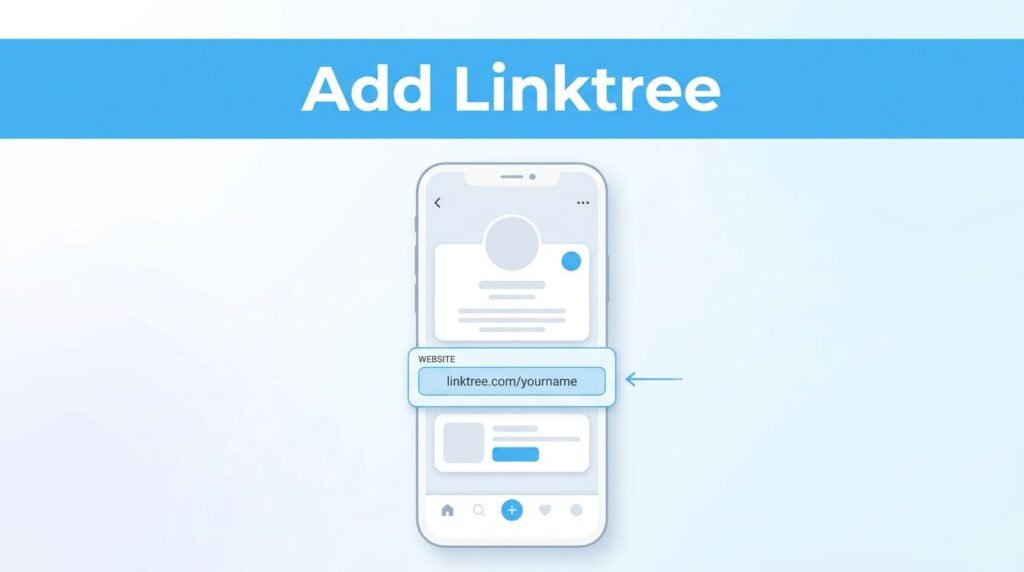
If you’re trying to figure out how to add Linktree to TikTok bio, the big thing to know is that the clickable Website field usually shows up only after you switch your account to Business. If you stay on a personal account, you may never see the option to add a website link at all.
Once that part is out of the way, the rest is quick. You switch account types, open Edit profile, paste your Linktree URL, and test the link from your profile.
What you need before you put Linktree in your TikTok bio
If your goal is to add multiple links to your TikTok bio, Linktree is the simple fix. TikTok only gives you one main website field, so Linktree for TikTok works by turning that single TikTok bio link into a page with several buttons.
If Twitch is the only destination you need, you can add your Twitch link directly to your TikTok bio instead of using a multi-link page.
Before you start, have these ready:
The steps are done inside the TikTok mobile app. On iPhone and Android, the path is usually the same, though some menu labels can look a little different depending on your app version.
If you don’t see a Website field on TikTok, check your account type first. That’s the part that trips people up most often.
One more thing. In the account flow shown here, TikTok also shows a registered business account trial after the switch. If you see that prompt on your account, don’t ignore it. The warning tied to that flow is that the link may stop being clickable after the trial ends unless you finish the business registration step TikTok asks for.
How to add a Linktree to TikTok, step by step
If you want to know how to link Linktree to TikTok without poking around every menu, follow this path once and you’re done.
- Open TikTok and tap your Profile icon in the bottom-right corner.
- Tap the three horizontal lines in the top-right corner of your profile page.
- Choose Settings and privacy.
- Tap Account.
- Tap Switch to Business Account and follow the on-screen steps.
- Pick a category for your account. In the example shown, Education and training was used, but you should choose the category that fits your content best.
- TikTok may ask for an email address. That part is optional, so you can skip it and add it later if you want.
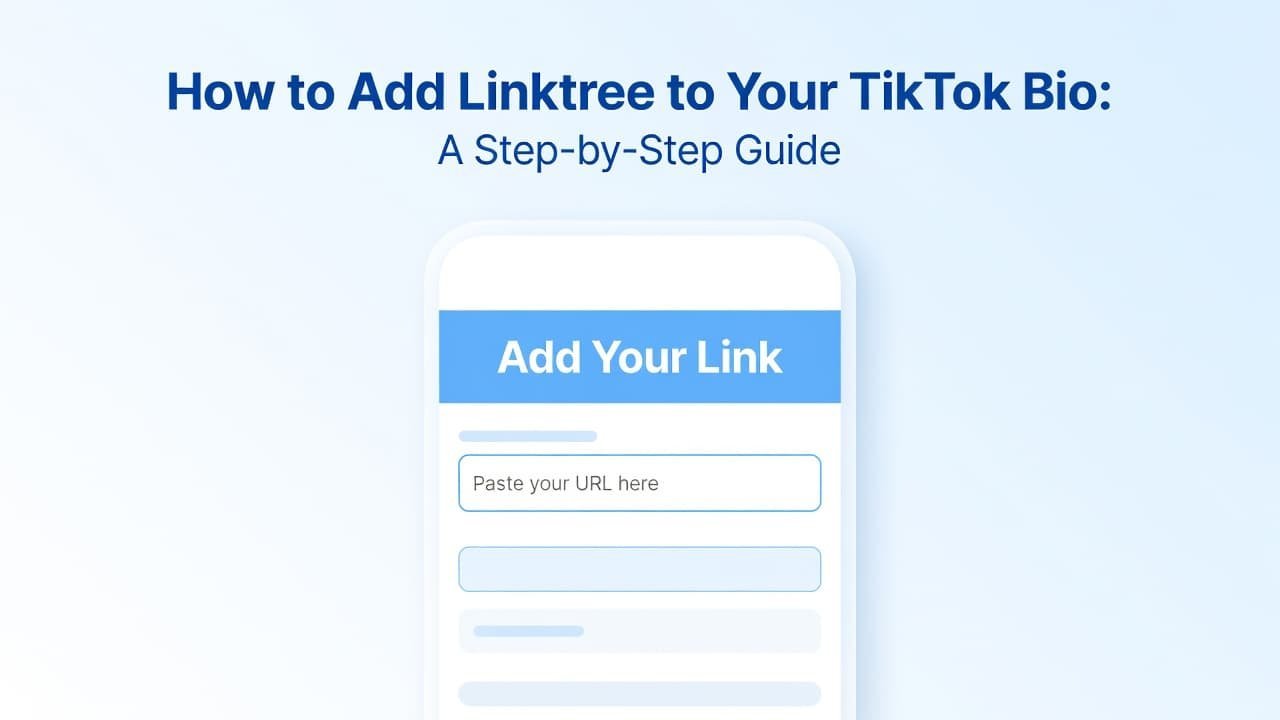
You’re looking for the profile editing area where the website link gets added.
- After the switch is complete, go back to your profile and tap Edit profile.
- Look for Links or a Website field. In many versions of TikTok, this is where you add a TikTok link in bio that people can tap.
- Paste your Linktree URL into the website box. If you already copied it, paste it. If not, you can type it in manually, but check it carefully for typos.
- Save the change, then return to your profile page.
Once you’ve done that, you should see the website link appear on your profile as a clickable TikTok bio link. Tap it yourself to make sure it opens the correct Linktree page.
That’s the full TikTok Linktree setup. If you’re trying to work out how to add Linktree on TikTok, how to add a link to TikTok bio, or how to put a Linktree in TikTok bio, this is the path that matters: switch account type first, then add the website link.
What happens after your TikTok bio link is live
When the setup works, your Linktree on TikTok appears right on your profile as a tappable website link. Tap it once, and it should open your Linktree landing page right away.
That test matters. A lot of people paste the wrong URL, miss a character, or forget to check whether the link is clickable from the profile view. If it opens your Linktree page, you’re set.
Linktree for TikTok bio is useful because you can keep one clean profile link while still sending people to more than one place. For example, your Linktree page can include:
- your main website
- your other social profiles
- your latest product, offer, or resource
If you want more traffic from that TikTok bio Linktree setup, mention it in your videos. A simple line like “check the link in my bio” is enough. That gives people a reason to tap instead of scrolling away.
If you want another written walkthrough to compare screens, wikiHow’s Linktree on TikTok steps can help if your menu wording looks different.
If the Website option is missing or the link won’t work
This is where most problems show up. Usually it’s not Linktree that’s broken. It’s the account type, the field placement, or a setup prompt you skipped.
If you don’t see the Website field
Go back and check whether the switch to Business Account finished all the way. If it didn’t, TikTok may still treat your profile like a personal account, and the website option may stay hidden.
Also check Edit profile carefully. On some versions, you may see Links first and then Website inside that section. On others, the website field may appear directly on the main edit screen.
If you want a second visual reference, this iPhone and Android TikTok Linktree walkthrough follows the same general process in the app.
If the link shows but isn’t clickable
First, open the website field again and look for a bad paste. Extra spaces, a missing character, or the wrong Linktree URL can stop the page from opening correctly.
Next, go back to your profile and test it again from the public-facing screen, not from the editor. That’s the only view that tells you whether your TikTok bio link is really live.
If TikTok showed you a registered business account trial during setup, treat that as a real warning on your account. In the flow shown here, the link is described as temporary unless you complete the registration step. So if your link worked at first and later stopped being clickable, that prompt is the first thing to revisit.
Prefer Visual Help? Watch the Step-by-Step Video Guide!
Struggling with How to Add Linktree to TikTok Bio? This video visually walks you through the steps so you can follow along more easily.
Watch TutorialThe part to remember
If you want to add Linktree to your TikTok profile, the job is simple once the right field appears. Switch to a business account, add your Linktree URL in Edit profile, and test the link from your profile page.
The one catch is the account requirement. If TikTok keeps the Website field locked, or if a business trial prompt affects your link, that account status is the piece to fix first.
Once it’s live, your TikTok bio link becomes one clean place to send people anywhere you want.