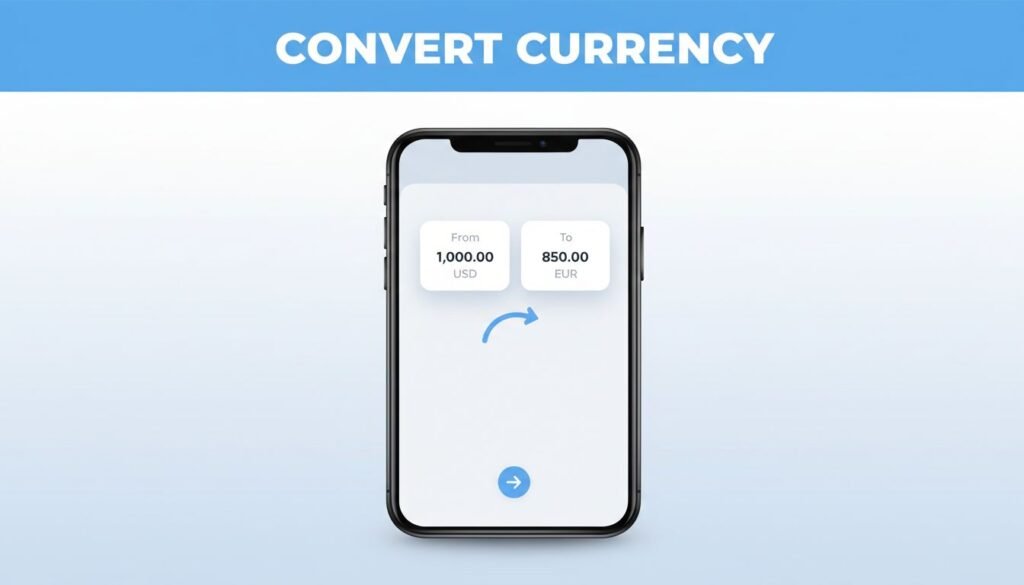
If you are wondering how to convert currency in Wise, you can manage your funds directly from any balance within the Wise app. This feature is a core part of the multi-currency account, allowing you to convert money between the currencies you hold with ease. Simply select the balance you want to use, enter the amount, choose your target currency, and review the exchange rate and fees before confirming the transaction.
The most important part of the process is to take your time on the confirmation screen. Wise clearly displays exactly what you are paying and the total amount you will receive before you finalize the exchange.
Key Takeaways
- Start with your source balance: Always tap the currency balance you currently hold funds in to begin the conversion process.
- Review before confirming: Take a moment to verify the real exchange rate, conversion fees, and the final amount you will receive on the summary screen.
- Manage new currencies easily: If you need a currency you haven’t held before, simply tap “Open a balance” on the home screen before initiating your conversion.
- Instant processing: Once you confirm, funds are typically moved between your balances instantly, allowing you to use the new currency immediately.
What you need before converting money in Wise
To convert money in Wise, you need to be signed in to your Wise account and have sufficient funds in the currency you want to convert from. For example, if you want to convert USD to EUR, your USD balance needs to have enough money available. If your balance is low, you can easily add funds via your account details or hold funds in a local currency ahead of time. Please note that business customers using an international business account follow the exact same process for managing their corporate funds.
If your money is currently held in Payoneer, follow this guide to send money from Payoneer to Wise before starting the conversion.
Wise lets you hold and manage multiple currencies in one account. That can be useful when you are traveling, paying someone abroad, or preparing for an international payment without converting money at the last minute.
You can check Wise’s own explanation of how Wise accounts and transfers work if you are still getting familiar with the app.
The amount you convert is moved between your own currency balances. It is not the same thing as sending money to another person.
If you do not have the currency you want to receive yet, you can open that balance during the process. You do not need to start over or create a separate account.
How to exchange currency in Wise
The steps for how to convert money in the Wise app are short, but the interface may look slightly different depending on your phone and app version. On some versions, this manual conversion option may be labeled as Convert or Move.
- Open the Wise app and sign in to your account.
- On the Home screen, tap the currency balance you want to convert from. This is your starting, or source, currency. If you are changing US dollars to euros, tap your USD balance first.
- Choose Convert. This opens the Wise currency conversion tool.
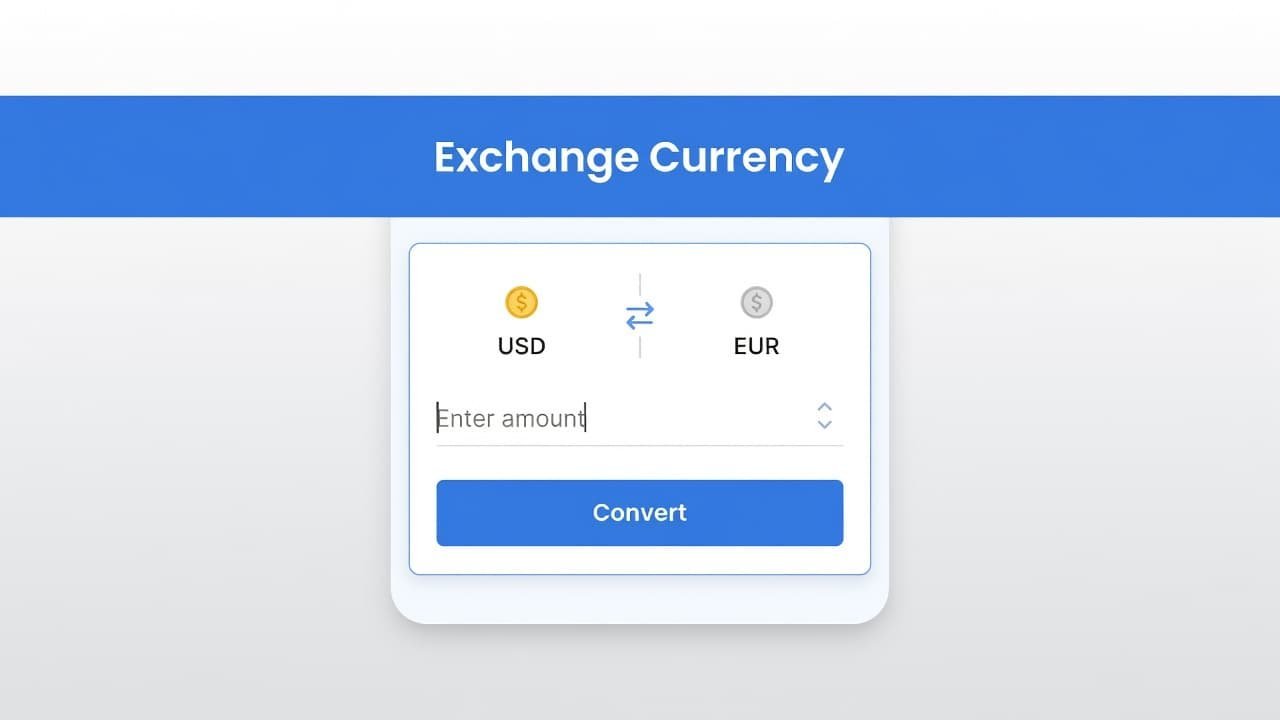
- Enter the amount you want to exchange. You can type the exact amount you want to move from your available balance.
- Select the currency you want to receive. For example, choose EUR if you want to convert USD to euro in Wise.
- Review the mid-market exchange rate, the transaction fee, and the final amount. If the details are correct, tap Confirm conversion.
Wise says its current conversion flow starts from the currency balance on Home, then lets you choose Convert or Move before entering the amount and target currency. You can also check the official Wise conversion instructions if a menu name in your app looks different.
After you confirm, the funds should move between your balances within seconds. Because the conversion happens instantly at the exchange rate shown, you can immediately keep the new currency in Wise or use it later for a payment or transfer.
Check the Wise exchange rate and fee before confirming
This is where you should slow down for a moment. When you use the Wise currency converter, the app clearly displays the real exchange rate, the conversion fee, and the exact amount you will receive in your target currency.
Wise is committed to transparent pricing, so you will never encounter hidden fees. By providing a clear breakdown of the conversion fee upfront, the app makes it easy to see the full cost before you exchange money in Wise. There is no need to guess how much of your balance will remain after the fee is processed.
Look at these details before tapping confirm:
Keep in mind that live exchange rates can change as markets move, so check the information again right before you confirm. If you searched for how to lock an exchange rate in Wise, do not assume a rate you saw earlier will still be the same later. Always review the final rate shown on the confirmation screen.
This same habit is important when looking at a Wise money transfer exchange rate. A conversion inside your balance and a transfer to someone else are different actions, but both are worth reviewing before you approve them to ensure you are getting the value you expect.
Open a new balance if the target currency is missing
You may not see the currency you want to use if you have never held it in your multi-currency account before. This is completely normal. From the Home screen, tap Open a balance, then choose the specific currency you want to add. While you can also use Jars to set money aside for specific goals, the primary conversion process happens directly between your active balances.
Once the new balance is open, go back to the currency you already hold and repeat the standard conversion steps. You will simply select that newly created balance as your target currency.
For example, if you have US dollars but no euro balance, open a EUR balance first. Once that is set up, you can convert your USD balance into euros through the familiar conversion screen.
A common mistake is tapping the currency you want to receive before selecting the one you already hold. To ensure a smooth process, always start with the balance that contains your money. This correctly identifies your source currency and tells Wise which funds you are converting out of.
What happens after you change currency in Wise
After you tap Confirm conversion, Wise moves the money from one balance to the other. You should see the updated amounts on your home screen shortly after.
This process is useful if you want to convert money in the Wise app before spending abroad. By converting funds in advance, you can use your Wise debit card to pay in the local currency with confidence. It also gives you a clear view of your holdings in each currency instead of leaving the exchange until a transfer is already in progress.
If you are making an international payment next, check that you are using the correct balance. Having euros in your account does not automatically mean every future payment will use euros. Always review the payment details before sending.
If you prefer a more automated approach, Wise offers a Smart Conversion feature for international payments. If you do not have enough money in your target currency balance, Wise will automatically convert the funds from your other balances to cover the cost, always choosing the one with the lowest fee.
Made a transfer by mistake instead of converting funds between your balances? Use this Wise transfer cancellation guide while the transfer is still processing. Completed transfers cannot be handled the same way.
If the Convert button is missing
If you cannot find the Convert button, return to the Home screen and tap a currency balance that already contains funds. The conversion option is usually located within the specific balance screen rather than as a standalone button on the main dashboard.
You may occasionally see Move instead of Convert depending on your device. App updates can slightly adjust the interface layout between iPhone and Android, but the process remains consistent. Simply open your source balance, select the conversion option, enter your desired amount, and choose your target currency.
If you are still having trouble, keep in mind that conversion limits may prevent a transaction if you are attempting to move a very large amount of money. Additionally, ensure your app is fully updated and that you have sufficient available funds. A slow internet connection can sometimes delay the screen from updating, though the transaction itself is typically processed quickly once confirmed.
If you prefer to wait for a specific target price, you might consider setting up Auto Conversions. This feature allows you to choose a desired exchange rate so that Wise automatically converts your money when the market hits your target.
For a visual guide on setting up and using these features, this Wise beginner tutorial on YouTube can be helpful if your account screens appear unfamiliar. For further assistance, you can also check the official Wise help center for more detailed troubleshooting steps.
Frequently Asked Questions
Is converting money the same as sending a transfer?
No, converting currency in the Wise app simply moves money between your own personal or business balances. Sending a transfer involves moving money from your account to another person or organization.
Can I convert to a currency I don’t have yet?
Yes, you can easily add a new currency balance by tapping “Open a balance” from your home screen. Once the new currency balance is active, you can select it as the target when performing your conversion.
Are the exchange rates fixed when I start the process?
No, live exchange rates fluctuate as the market moves. Always check the final rate shown on the confirmation screen right before you approve the transaction to ensure you are seeing the most current rate.
What should I do if I can’t find the Convert button?
Ensure you have tapped on a specific currency balance that contains funds first. Depending on your app version or device, this button may be labeled as “Convert” or “Move” within that specific balance view.
Prefer Visual Help? Watch the Step-by-Step Video Guide!
Struggling with How to Convert Currency in Wise? This video visually walks you through the steps so you can follow along more easily.
Watch TutorialConvert with the rate and final amount in view
The easiest way to convert currency in Wise is to begin with the balance you already have, choose Convert, and check the rate, fee, and final amount before you approve the transaction.
That short review is the part that matters most. You can change currency in Wise with a clear view of exactly what leaves your balance and what you will receive. Mastering this simple process makes it much easier to send money overseas while keeping your transaction fees low. Whether you are using a personal Wise account for travel or you are one of many business customers managing global finances, this tool provides the flexibility you need to handle your money efficiently.