If you’re trying to figure out how to send stars on Facebook Reels, the part that usually trips you up is simple: not every Reel can receive them. Sending Stars on Facebook is easy once the option appears, but if the icon isn’t there, you can’t force it.
This Facebook Reels Stars guide keeps it straight. On both the app and the web version, your main clue is the star icon in the comment bar, and once you know where to look, the whole thing makes a lot more sense.
What Facebook Stars on Reels actually are
If you’re wondering what Stars on Facebook are, or what Stars on Facebook Reels mean, think of them as a built-in tip. You send Stars to a creator on an eligible Reel, and that shows support in a direct, paid way.
That’s also the answer to “how do Stars work on Facebook?” and “what happens when you send Stars on Facebook?” You pick an amount, Facebook uses your Star balance, or asks you to buy more, and the creator receives that support through Facebook’s Stars system.
Not every video qualifies, though. That’s the big catch with stars on reels. A Reel might have comments turned on and still not show the option to send Stars. In some cases, the creator hasn’t enabled it yet. In others, the creator may not be eligible. Some cross-posted videos, including certain Instagram videos, may also show up without the feature.
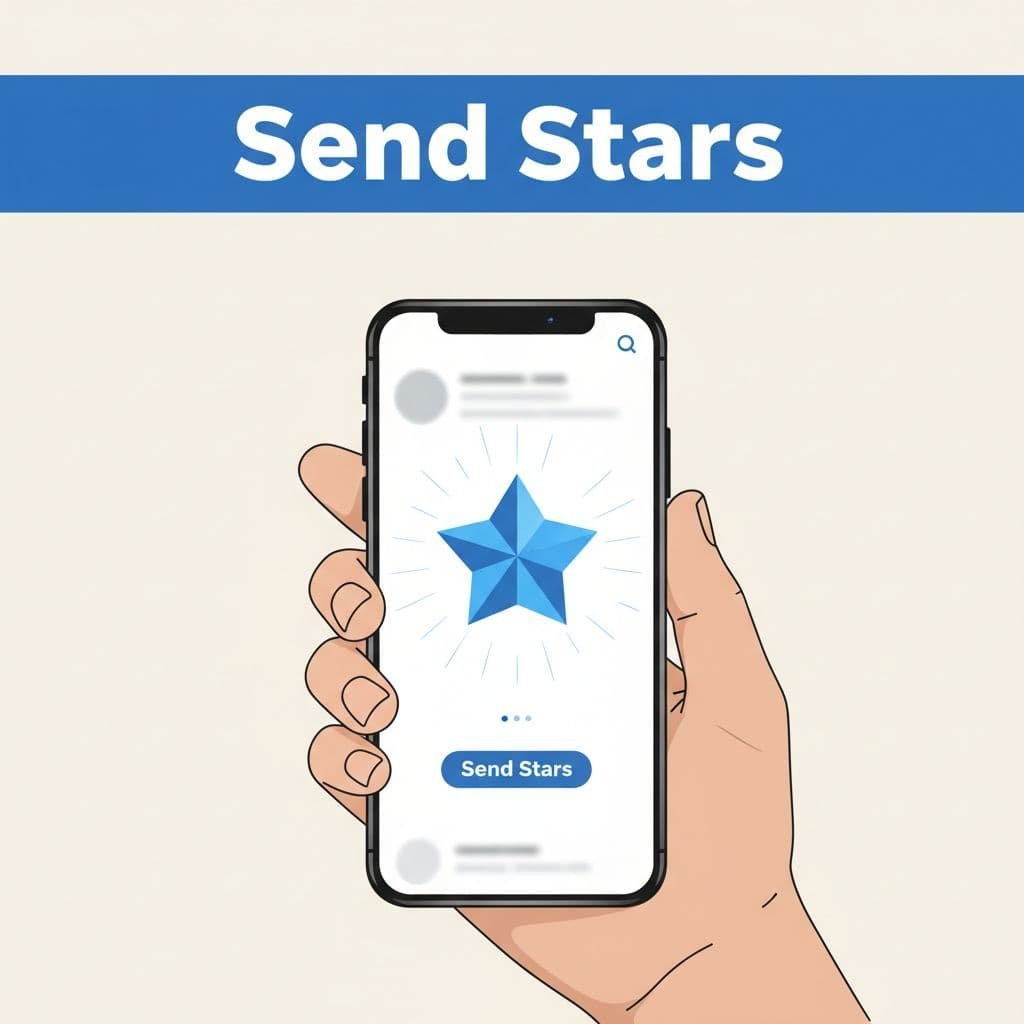
If you want the shortest possible version of this Facebook Stars explained section, here it is: no star icon means no Stars for that Reel on that screen. That’s the main thing to check before you do anything else.
How to send stars on Facebook Reels in the mobile app
If you mostly watch Reels on your phone, this is how to give Stars on Facebook in the app. The layout can shift a little between versions, but the flow stays about the same.
Find an eligible Reel first
Open the Facebook app and sign in to your account. From the bottom menu, tap Video to get into the video feed, where Reels usually appear.
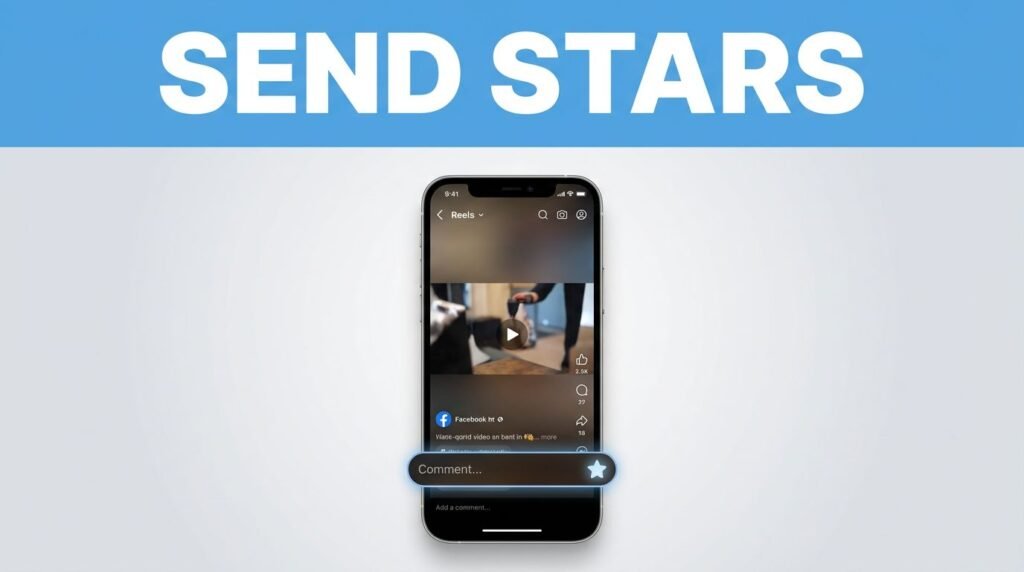
Open the Reel you want to support, then tap into the comments. Look at the comment bar closely. If the Reel supports Facebook give Stars, you’ll see a star icon there.
Here’s the quick path:
- Open Facebook on your phone.
- Tap Video in the bottom menu.
- Open the Reel you want.
- Tap the comment section.
- Look for the star icon in the comment bar.
- Tap the icon to open the gifting menu.
If you don’t see the icon, move on to another Reel. That’s usually faster than guessing whether your app is broken.
Pick the amount and complete the purchase
Once you tap the star icon, Facebook opens the Stars menu. You’ll usually see a few gift-style options or preset amounts. In the example shown in the walkthrough, one of the choices looks like a pizza gift, which is basically a visual shortcut for a certain amount.
Choose how many Stars you want to send. If you already have enough Stars for Facebook in your balance, Facebook can use those. If not, you’ll get a prompt to buy more Stars before sending them.
That’s the part people mean when they ask how to use Stars Facebook Reels style, or how to send FB Stars from the app. You’re not sending cash directly from the comment bar. You’re sending Stars through Facebook’s own balance and purchase system.
Only send what you’re comfortable with. Giving Stars on Facebook is optional, and likes, comments, and shares still matter when you want to support a creator.
How to send stars on Facebook from a computer
If you’re on a laptop or desktop, the process is almost the same. The biggest difference is the layout.
Sign in to Facebook in your browser, then go to the Video section or open the direct Reel you want to support. Once the video is open, check near the comment bar again. On desktop, you may see the button labeled Give Stars instead of only a small icon.
Click that option, choose how many Stars you want to send, and complete the purchase if your balance is too low. Once payment goes through, the Stars are sent to that Reel and to the creator behind it.
A quick comparison makes it easier if you switch devices:
The job is the same on both. You open an eligible Reel, find the star option, choose an amount, and confirm.
If a Reel doesn’t load properly on the web version, don’t overthink it. Refresh the page first. If the comment section still won’t load, try another Reel. In the walkthrough, one video failed to load correctly, and switching to a different one solved it.
Why the star icon is missing
This is usually where people get stuck when searching how to send stars on Facebook, how to send star in Facebook, or why they can’t send Stars on Facebook Reels.
If the star icon isn’t in the comment bar, that Reel is not available for Stars from your side.
Most of the time, one of these is happening: the creator hasn’t turned Stars on, the creator isn’t eligible yet, or that specific video doesn’t support the feature. That’s why you may open one Reel and see the option, then open the next one and see nothing at all.
An Instagram cross-post is one example that can throw you off. You might be able to comment on it, but not send Stars. That’s normal.
If you think the feature should be there and it still isn’t, check the basics. Update the Facebook app if you’re on mobile. Update your browser if you’re on desktop. Then test a different Reel from a different creator. If one eligible Reel shows the star icon and another doesn’t, the issue is probably with the video’s availability, not your account.
And if you still can’t use Stars on reels, you can support the creator another way. A real comment, a share, or saving the video still helps.
If you’re also a creator, here’s what matters
On the creator side, Facebook Stars are part of monetization. That means creators usually need to be eligible and have the feature turned on before viewers can send anything. If you want the current rules straight from Meta, check Meta’s Facebook Stars overview.
If you’re trying to turn the feature on for your own content, Meta also has a guide for Stars setup on the computer. That’s useful if you’re trying to earn money with Stars on Facebook Reels or understand why your audience can’t send them yet.
And if you’re running a Page while working toward monetization, it helps to stay active. This guide on scheduling Facebook content using Meta Business Suite can help you keep posting without babysitting every update.
Prefer Visual Help? Watch the Step-by-Step Video Guide!
Struggling with How To Send Stars On Facebook Reels? Don’t worry—this video breaks it down step by step with clear, hands-on instructions. If you want the only working method that actually gets results, this video is for you!
Watch TutorialFinal thoughts
The whole trick with how to send Stars on Facebook Reels comes down to one visual cue: look for the star icon in the comment bar. If it’s there, you can choose an amount and send support. If it isn’t, that Reel can’t receive Stars from you on that screen.
So if you were wondering how to give Stars on Facebook, how to send FB Stars, or what happens after you tap the button, now you know. Open the Reel, check the comment bar, pick your amount, and only buy more if you want to.
Frequently Asked Questions
Here are a few common questions people ask before sending Stars on Facebook Reels.
Want To Learn How to Remove Facebook Dating Shortcut from the App? Here’s a Step-by-Step Guide Article on how to do so.