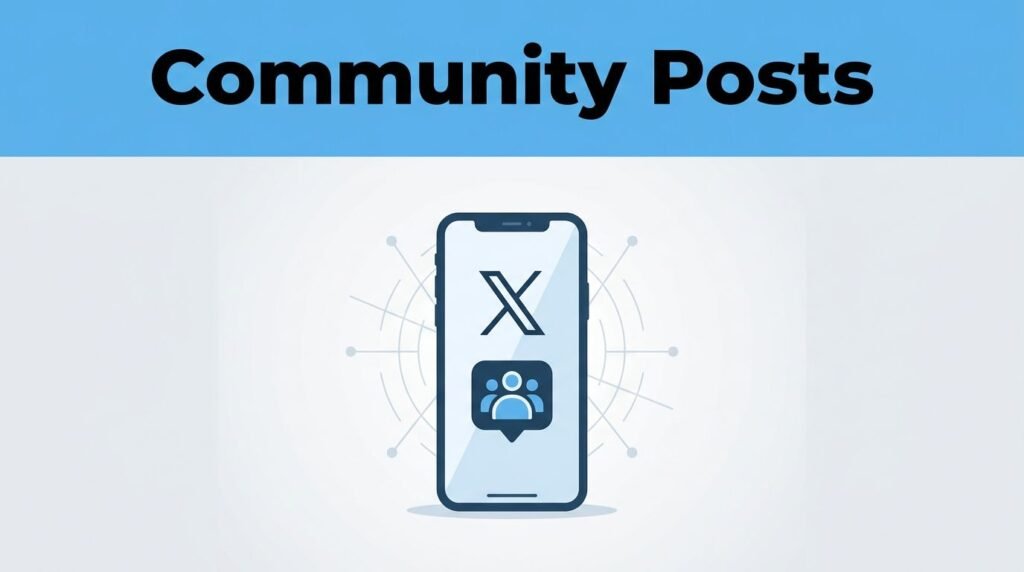
Posting to the wrong audience on X takes one missed tap. If you’re trying to learn how to use Twitter X community post settings, the whole thing comes down to this: your account needs access to Communities, and you need to switch the post audience before you publish.
Once you know how to use X Communities, you can post to people who already care about the topic instead of tossing everything onto your regular feed. If you wanted a quick Twitter X community guide without the fluff, this is the part that matters.
Start by checking that X Communities is available on your account
Before you create anything, open the X app or sign in on the website. Your account has to show the Communities feature first, or there won’t be anywhere to send a true Twitter X community post.
Not every account shows the tab right away. If you don’t see it, update the app first. If it’s still missing, join a community and check again, because that often makes the interface show up. If X changes the layout on your device, the official Communities help page is the best place to confirm what you should be seeing.
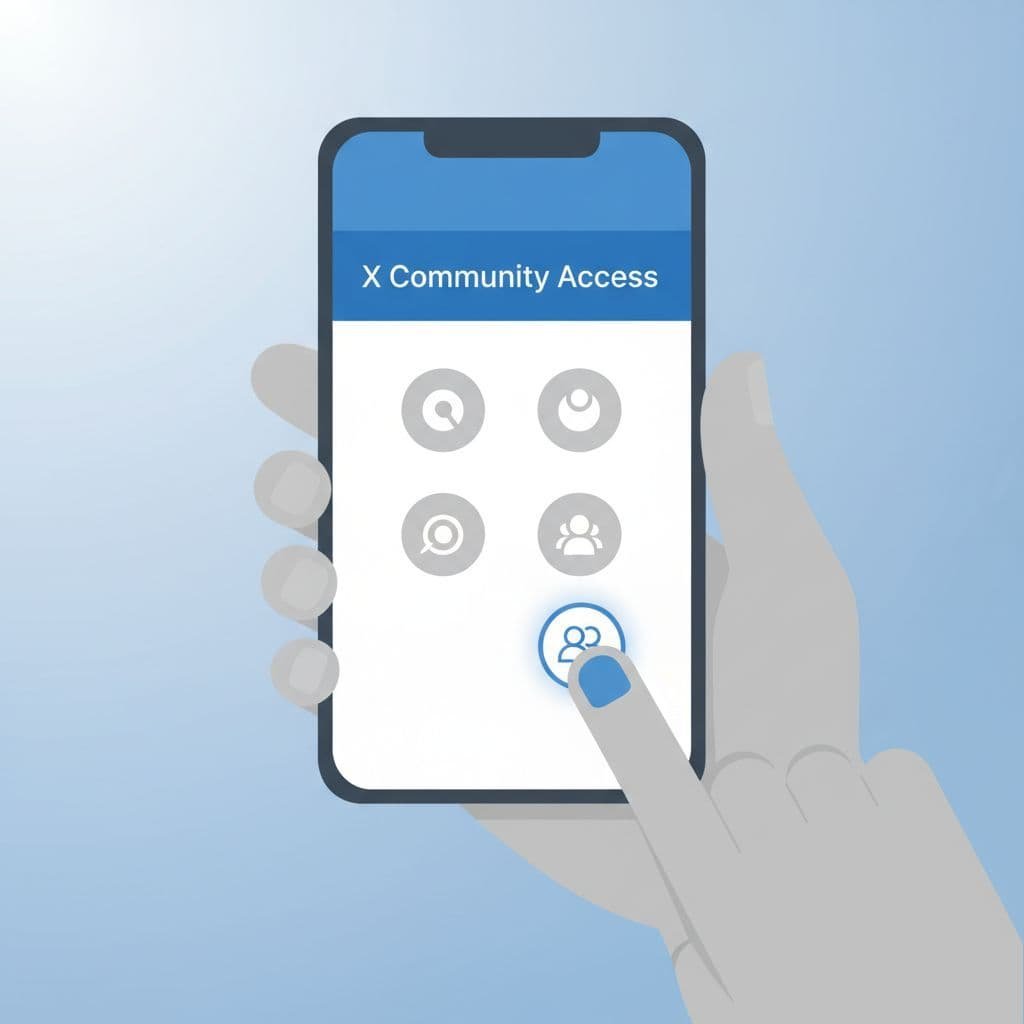
Find the Community tab from your profile
On mobile, tap your Profile area and look for the Community tab. On the website, check your account area and look for Communities there. The label can move around a little depending on the version you’re using, but the goal is the same: get into the community space, not the normal public posting screen.
If you’re brand new to X Communities, join one that matches your interests before you try to post. A creator group, a hobby group, a niche topic group, whatever fits. You can’t create a post in X community spaces if you aren’t part of one.
How to create a post in an X community
If you’ve been wondering how to create an X community post, or how to post in a Twitter community without sending it to everyone, the flow is short.
- Open a community you’ve already joined.
- Tap or click the Post button.
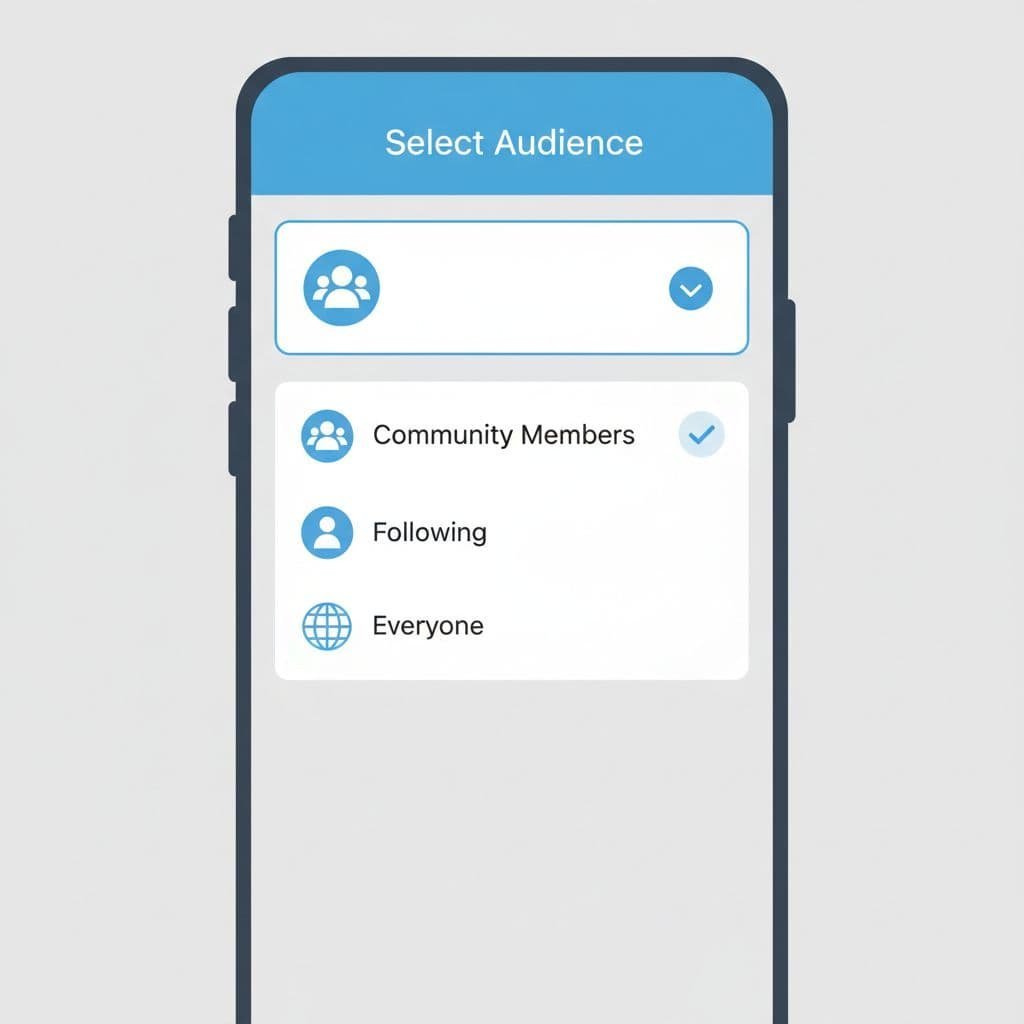
- Check the audience selector before you type.
- Change the audience from Everyone to the specific community you want.
- Write your post and add media if you want.
- Read the pinned rules, then hit Post.
That is how to create a post in a Twitter community. The post button may look the same as a standard post button, which is why people get tripped up. The difference isn’t the button. The difference is the audience setting.
The audience selector is the whole trick
This is where most of any X community tutorial lives or dies. If you leave the audience on the default public option, you’re making a normal post, not an X community post.
A quick side-by-side makes it easier to spot the difference:
The selector sounds small, but it changes everything.
If you leave the audience on “Everyone”, you’re not making a community post.
Add media, keep it relevant, then check the rules
Once the audience is right, write your message like you normally would. You can add images, videos, or polls if they fit the post. A poll can work well when you want quick feedback from a focused group instead of broad public replies.
Keep the post tied to the community’s topic. That’s a basic part of Twitter community posting, and it’s also where moderators step in. Off-topic posts can be removed, even if the post itself isn’t offensive or low quality.
Before you publish, scan the pinned rules at the top of the community. That’s where you usually find posting limits, topic rules, and anything the moderators don’t want clogging the feed. Miss that part, and your post might disappear fast.
What happens after you hit Post
When you choose the community as your audience, the post goes to that group instead of your regular public timeline. That’s why a Twitter community post can feel more focused. You’re talking to people who already opted into that subject.
This is also why targeted posting works well for creators, small brands, and people building a niche voice. A broad post gets tossed into the crowd. A community post lands in a room where the topic already makes sense.
If you’re trying to figure out how to post in X community spaces for better reach inside a niche, this is the upside. You’re not shouting into the whole app. You’re joining a conversation that’s already happening.
X community engagement tips that actually help
Posting is the easy part. The better question is how to engage in X community spaces after your post goes live.
- Reply to comments early, while the post is still fresh.
- Stay active in other discussions too, don’t only show up when you want attention.
- Use images, videos, or polls when they add something, not as filler.
- Skip spammy behavior, especially random links that don’t match the topic.
That last part matters more than people think. Communities usually respond better when you sound like a member, not a drive-by promoter. If you save good threads, examples, or ideas for later, it also helps to know how to manage saved tweets so your bookmarks don’t turn into a junk drawer.
If the Community tab is missing or the posting option looks wrong
Most problems come from one of three things: the app is outdated, you haven’t joined a community yet, or you’re trying to post from the wrong place. If the tab is missing, update X and check again. If you still don’t see it, join a community first and reopen the app or refresh the website.
If you can open a community but can’t post, make sure you’re actually a member of that community. Some posting screens also look a little different on mobile and desktop, so don’t panic if the button isn’t in the exact same spot.
If you want a broader look at how these groups work beyond this X community posting tutorial, this guide to X Communities gives more context around how community spaces are used.
Prefer Visual Help? Watch the Step-by-Step Video Guide!
Struggling with How To Use Twitter X Community Post? Don’t worry—this video breaks it down step by step with clear, hands-on instructions. If you want the only working method that actually gets results, this video is for you!
Watch TutorialFinal thoughts
The hard part of learning how to use Twitter X community post settings isn’t writing the post. It’s picking the right audience before you publish.
Once your account has access, the workflow is simple: open the community, switch the audience, keep the post on-topic, and follow the pinned rules. Do that, and your next X community post should take less than a minute to send.
Frequently Asked Questions
Here are a few common questions people ask when posting inside X or Twitter Communities.