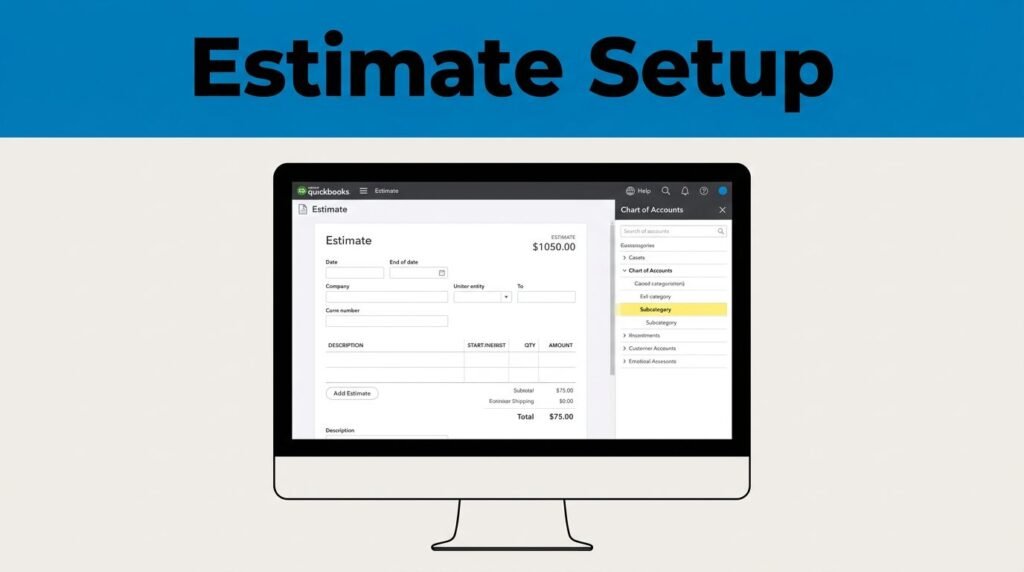
If your quotes look plain and your books feel cluttered, QuickBooks Online usually needs help in two places: your estimates and your chart of accounts.
One is customer-facing, the other lives behind the scenes, but both matter. A clean estimate makes you look organized. A clean chart of accounts makes your reporting easier to trust.
Start with the estimate, then fix the account structure that holds everything together.
Create an estimate in QuickBooks that looks ready to send
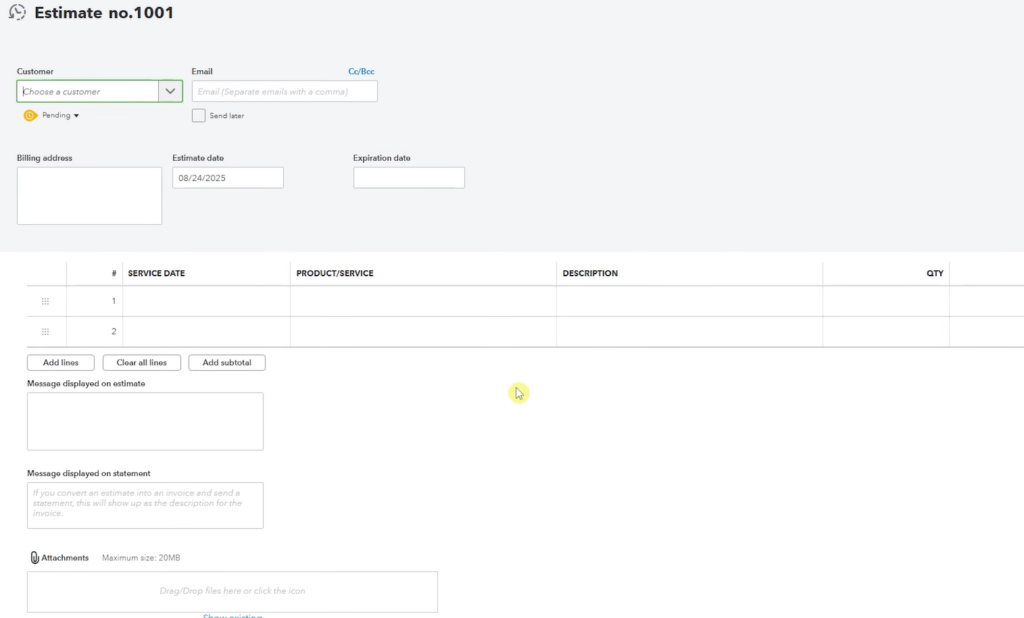
The estimate tool is easy to find once you know where QuickBooks hides it. After you log in, click New in the top-left corner, then choose Estimate. That opens the form where you can build the quote.
If you’re fine with the default look, you can start entering details right away. But in most cases, it makes more sense to set the design first. That way, you don’t finish the whole estimate and then realize the branding, contact info, or email wording still needs work.
Set the design before you fill out the form
Inside the estimate screen, click Customize. If you already have a style, you can edit it. If not, choose New style and create one from scratch.
This is where you add your logo, pick a color, change the font, and choose a template layout. You can also move into the Content area and update the business details that show on the form, like your company name and phone number. If that information is old or incomplete, the estimate instantly looks less polished, so it’s worth checking now.
You can also customize the email part of the estimate. That matters more than people think. A plain system email works, but a short custom subject and message feels more intentional when a customer opens it.
If you don’t name the style, QuickBooks may show it later as a generic estimate template, which can get confusing if you make more than one. Once the layout looks right, click Done and go back to the estimate screen. If your form looks different from older screenshots, this new-layout estimate guide can help you match the current view.
Pick the style first. It’s the easiest way to avoid rechecking the same estimate twice.
And if you’re using estimates as part of your paperwork flow, using estimate forms for delivery notifications is a useful next step.
Choose the customer, enter the details, and send it
The most important field is the customer. If the customer already exists in your QuickBooks account, select them from the list. QuickBooks will usually pull in their saved details for you, which saves time and cuts down on spelling errors.
If the customer isn’t there yet, you can add a new one or type the information in manually. After that, enter the estimate details, such as the products, services, amounts, and any descriptions you want the customer to see.
At the end, you’ll usually choose between these two actions:
If you choose Save and Send, enter the email address, then review the message window. QuickBooks lets you edit the email body and subject before the estimate goes out. That’s a good spot for a short note, especially if the customer asked for a quote by a certain date or needs extra context.
The preview is worth a quick look. What you see there is close to what your customer will see on their end. If something feels off, fix it before sending. That’s faster than sending a messy estimate and following up with a correction.
Add a subcategory in the QuickBooks chart of accounts
Now for the back-end part. If you’re trying to figure out how to add a subcategory in QuickBooks Online, the menu label you’re looking for is usually sub-account. QuickBooks uses “subaccount” language, even if you think of it as a category under another category.
Your QuickBooks chart of accounts is the list that organizes assets, liabilities, income, and expenses. In plain English, it’s the structure behind your reports. Whether you call it the chart of accounts in QuickBooks, the QuickBooks Online chart of accounts, or your QBO chart of accounts, this is where the bookkeeping gets cleaner or messier.
Create the account and mark it as a sub-account
Go to the Gear icon at the top right, then open Chart of Accounts. This is the same area you’d use if you were trying to add an account to the chart of accounts in QuickBooks, set up the chart of accounts in QuickBooks Online, or build it from scratch.
From there, click New account on the top right. Enter the account name first. In the video example, the account was for a new car, so the setup used a fixed asset type and a vehicle detail type. That structure makes sense when you’re tracking a business vehicle as an asset.
If you want it to sit under another account, check Make this a sub-account. That’s the checkbox most people miss when searching for how to create a sub account in QuickBooks or how to create sub accounts in QuickBooks Online. Once you check it, QuickBooks lets you choose the parent account.
That parent account is the main bucket. Your new account sits underneath it. Depending on your file, the parent might be something like a vehicle account, furniture, or accumulated depreciation. The mistake that trips people up is choosing a parent that is too broad or simply wrong for the asset. The account will still save, but the hierarchy won’t read cleanly later.
If your screen wording has changed a bit, QuickBooks has an official subaccount setup help page that lines up with the current menu labels.
Finish the details and keep the list clean
After you choose the parent account, fill in any extra details QuickBooks asks for. That can include the original cost, a description, and other asset-related fields. If you’re organizing fixed assets, you may also keep related depreciation accounts nearby so the structure makes sense when you review it later.
Then click Save. To confirm it worked, search for the account by name in the chart of accounts. If everything was entered correctly, you’ll see it nested under the parent account.
This is where QuickBooks subaccounts help more than people expect. They don’t just make the list prettier. They make reports easier to read, especially when you want detail without turning your top-level chart into a wall of account names.
A clean setup usually gives you three things:
- clearer parent and child account relationships
- easier tracking for assets, expenses, or income buckets
- less confusion when you review reports later
A few small habits help here too. If you already use QuickBooks account numbers, keep the numbering pattern consistent across parent and child accounts. If you plan to enable account numbers in QuickBooks Online later, think about your naming now so you don’t have to rework it. The same goes if you started from a QuickBooks chart of accounts template or a QuickBooks chart of accounts sample from an accountant.
And if you ever need to export the chart of accounts from QuickBooks Online, clean names and clean hierarchy make that file far easier to review. The goal isn’t to create as many sub accounts in QuickBooks as possible. The goal is to create only the ones you will recognize and use.
The small setup work pays off later
A good estimate and a clean chart of accounts solve two different problems, but they follow the same rule: do the structure work early, and you save yourself cleanup later.
Once you know where the Estimate form lives and where the sub-account checkbox sits, QuickBooks gets a lot less frustrating. Your quotes look better, your account list makes more sense, and you spend less time fixing preventable messes.
Prefer Visual Help? Watch the Step-by-Step Video Guide!
Struggling with How to Add a Subcategory in QuickBooks Online and Create an Estimate? Don’t worry—this video breaks it down step by step with clear, hands-on instructions. If you want the only working method that actually gets results, this video is for you!
▶ Watch TutorialFrequently Asked Questions
Want to learn How to Create a Delivery Note in QuickBooks Online? Here’s a Step-by-Step Guide Article on how to do so.