If your cash flow report feels too broad, too cluttered, or tied to the wrong dates, you don’t need a different report, you need better settings. Here’s how to customize cash flow report in QuickBooks Online so you can see the numbers you care about without all the extra noise.
This is one of those small QuickBooks tasks that makes a big difference. A few changes to the date range, grouping, filters, and header can turn a standard report into something you can actually use, print, or share. Let’s get to the part that matters, where to find it and what to change.
Open the Statement of Cash Flows
To customize a cash flow report in QuickBooks, you first need to open the standard version of the report. You’re not creating a brand-new report from scratch here. You’re starting with the built-in Statement of Cash Flows, then adjusting it to fit what you need.
Here’s the path inside QuickBooks Online:
- Sign in to your QuickBooks Online account.
- Look at the left-hand menu and select Reports.
- In the reports area, use the available list, search, or drop-down menu to find Statement of Cash Flows.
- Select the report to open it.
Once you open it, QuickBooks loads the default version into the main workspace. That’s your starting point for any QuickBooks Online financial report customization on this screen.
If you don’t see the Reports option at all, your user permissions may be limited. If you searched for how to customize cash flow report QuickBooks Desktop, pause here too. These steps are for QuickBooks Online, and the Desktop menus are different.
If you want the official QuickBooks path for opening this report, Intuit has a short Statement of Cash Flows guide. It matches the basic route: Reports, open the report, then customize it.
Use the Customize panel without overcomplicating it
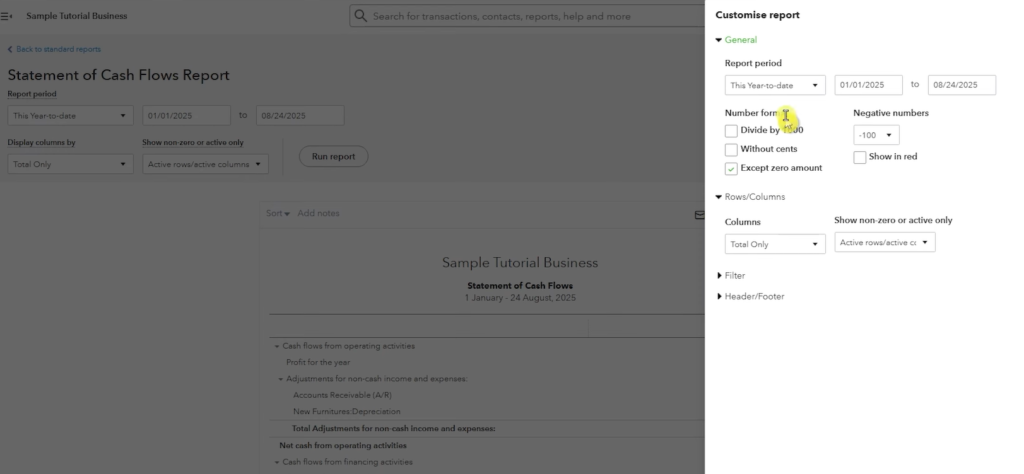
Once the report is open, go to the top-right area of the screen and click Customize. That opens the right-side panel where all the useful controls live. If you’ve never used custom reports in QuickBooks before, this is the part that matters most.
This is also the same general setup you use when you customize reports in QuickBooks Online across other financial statements. So even though you’re working on cash flow now, the habit carries over to other QuickBooks custom reports later.
The panel is split into a few main sections:
That’s the whole idea. QuickBooks isn’t asking you to rebuild the report. It’s giving you a control panel for what shows up and how it looks.
If you’ve been trying to figure out QuickBooks Online customize reports options in general, this screen is a good one to learn on because the settings are clear and the results show up fast. Intuit also explains the broader report settings in its QuickBooks Online report customization help, including the note that some customization features can vary by subscription.
The cash flow report settings in QuickBooks Online that matter most
Pick the right period first
Start in the General section. The first thing to change is the report period.
You can usually switch the report to a monthly view, a quarterly view, or a custom date range. That one choice changes the entire story the report tells. A monthly view is useful when you’re checking short-term movement. A quarterly view makes more sense when you want a wider trend. Custom dates help when you’re reviewing a specific stretch of time, like a tax period or a single project window.
You’ll also see number formatting choices here, including how negative numbers appear. That sounds minor until you print the report or hand it to someone else. A cleaner format makes the report easier to scan, especially if cash outflows are easier to spot with your preferred negative number style.
Group rows and columns by the detail you care about
Next, look at Rows/Columns. This is where QuickBooks lets you change how the information is grouped.
Depending on your setup, you may be able to group the report by customer, vendor, class, or location. That helps when you want to see which part of the business is driving cash movement. If you track multiple locations, for example, grouping by location can make a plain report much more useful. If you use class tracking, that view can separate activity by department or business area.
Think of it like changing the camera angle, not the numbers themselves. The data stays the same. You’re choosing the view that makes the pattern easier to spot.
Use filters, then clean up the header and footer
After grouping, move to Filters. This is where you narrow the report down by account, transaction type, or tag.
The filter section usually works with checkboxes, so you can turn options on and off without changing the whole report. If you only want to look at certain accounts, filter by account. If you’re reviewing one kind of activity, filter by transaction type. If your business uses tags, that filter can help you focus on a certain project or category.
If the report looks empty after you customize it, check the date range and filters first. That’s usually the problem.
Then finish in Header/Footer. This part is simple, but it matters if you’re sharing the report with anyone else. You can rename the report, turn on Show logo, and adjust the layout. A clear title makes it obvious what the report is showing, especially if you export or print it later.
This isn’t a brand-new QuickBooks custom report built from scratch, but it does give you the same kind of control people want from custom reports QuickBooks Online users rely on every week.
Run the report and make sure the results make sense
Once you’re happy with the settings, click Run report. QuickBooks refreshes the report using the options you selected, and your updated view appears on screen.
Take a minute to check the result before you move on. Make sure the date range matches what you intended. Confirm the grouping is correct. If you filtered by account, transaction type, or tag, scan the report to see if the numbers look narrower than before. That’s a quick way to verify the settings actually stuck.
A few common issues are easy to miss:
- If the report is blank, the date range may not include any matching transactions.
- If a filter feels too restrictive, clear it and re-run the report.
- If the report looks messy no matter what you do, the underlying account setup may need work.
That last point matters more than people think. Reports can only be as clean as the bookkeeping behind them. If your account list is cluttered or inconsistent, start by organizing your QuickBooks chart of accounts. Clean account structure makes cash flow reporting easier to read.
Once you understand this workflow, other QuickBooks Online custom reports stop feeling intimidating. The same logic keeps showing up across custom reports in QuickBooks: choose the right period, narrow the data, and clean up the presentation. That’s also the foundation if you later want to create custom reports in QuickBooks Online or create a custom report in QuickBooks Online from a saved starting point, depending on what your subscription allows.
Final thoughts
A cash flow report doesn’t become useful because it’s longer. It becomes useful when it shows the right time period, the right transactions, and a layout you can read without squinting.
Once you know where the Customize button is and what each section controls, you can adjust the report in a couple of minutes instead of settling for the default view. That’s the real win with QuickBooks custom reports, you stop working around the report and start shaping it to fit the question you’re trying to answer.
Frequently Asked Questions
Quick answers to common questions about customizing cash flow reports in QuickBooks Online.
Want to learn How to Add a Subcategory in QuickBooks Online and Create an Estimate? Here’s a Step-by-Step Guide Article on how to do so.