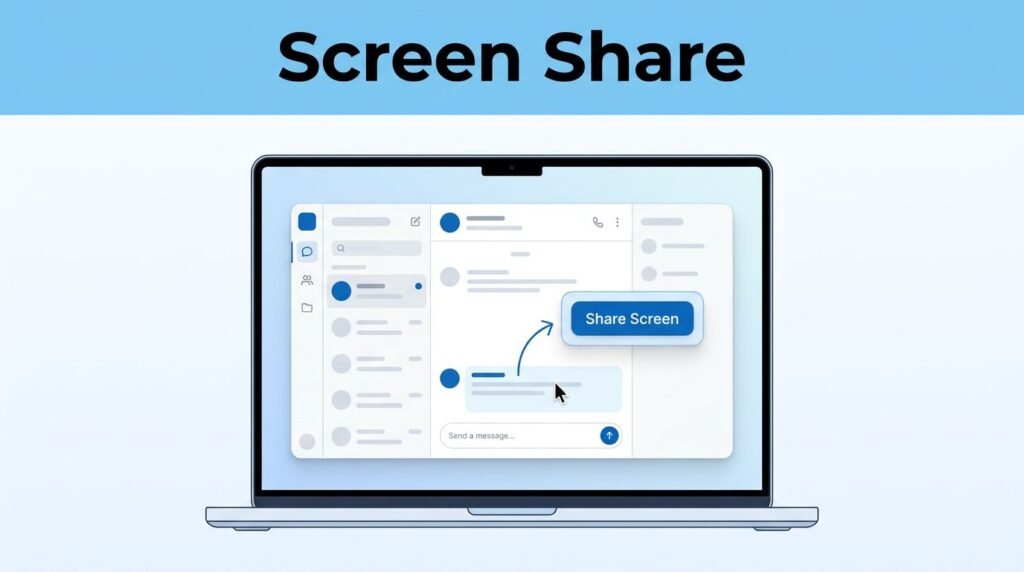
If you need a Telegram screen share guide that gets to the point, here’s the key thing to know: you can do it from the Telegram Desktop app during a call. You won’t find it through some hidden menu on the main chat screen, and there isn’t a special Telegram screen sharing Windows shortcut you need to memorize.
Once you’re in a Telegram desktop video call, you can either use Telegram’s built-in Screencast option or send your screen through OBS as a virtual camera. If the share option looks missing, the app version is usually the first thing to check.
What you need before you start
Telegram desktop screen sharing works from the Telegram Desktop app, so start there. If you’re on Telegram Web or looking at the mobile app, the buttons won’t line up with this guide.
This is also why people get confused when they search things like “can you screen share on Telegram” or “does Telegram do video calls.” Yes, it does, but on PC the path starts inside a call window. You’re not sharing from the chat itself. You’re sharing from the controls that appear after the call begins.
If you’re on Windows 10 or Windows 11, the steps are the same in the app. So if you were searching for Telegram screen sharing on Windows 10 or Telegram screen sharing on Windows 11, you don’t need a separate method. The bigger difference is app version, not the Windows version.
If you don’t see Screencast, check that you’re using Telegram Desktop and update it before you troubleshoot anything else.
Telegram keeps a few useful features on desktop only. The same goes for tasks like exporting chat data from Telegram, which also starts in the desktop app.
How to share your screen on Telegram Desktop
To share screen on Telegram desktop, open the chat where you want the call to happen. Then look at the top-right corner of that conversation and click the call icon.
Once the call opens, click Start Video. This is the part that matters. Telegram screen sharing is tied to the video call interface, so you need to get into that screen first.
Use the built-in Screencast option
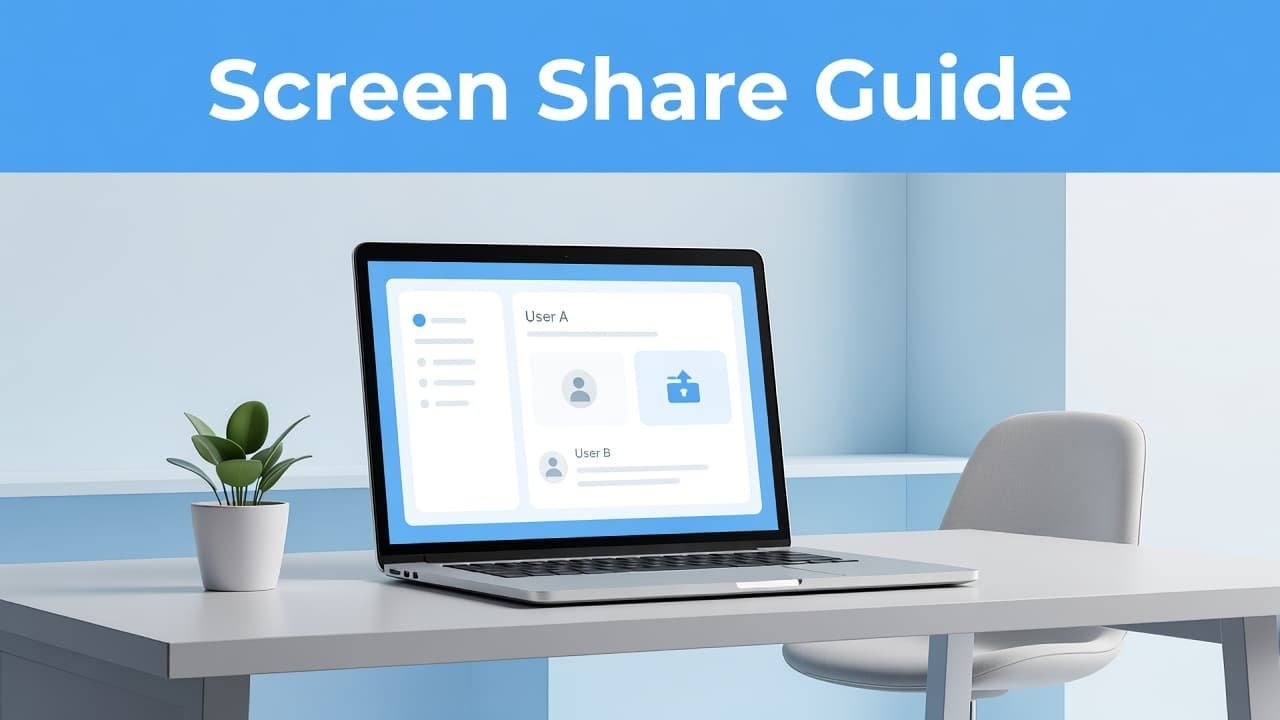
If you want the fastest way to do a Telegram share screen session, use the built-in screencast tool:
- Open the chat where you want to start the call.
- Click the call icon in the top-right corner.
- In the call window, click Start Video.
- Choose Screencast.
- Pick the screen or window you want to show, then click Share Screen.
After that, your Telegram screen share is live.
Telegram usually lets you choose between sharing an entire screen or a specific window. If you have more than one monitor, you’ll see those displays listed separately. In the example flow shown in the tutorial, one of the available choices was Screen 2, then Share Screen finished the job.
If you only want to show one app, picking a single window is the safer move. If you want the other person to see everything you do, choose the full screen instead. That’s the main difference between a quick share and one that accidentally shows more than you meant to show.
Some people search for “cast Telegram” or “Telegram cast” and expect a separate button with that wording. On desktop, the label you’re looking for is Screencast. That’s Telegram’s name for screen sharing inside the call.
Use OBS as a virtual camera instead
There’s a second method in the same call window if you already use OBS or another third-party tool. Instead of sharing your display directly through Screencast, you can pipe your screen into Telegram through a virtual camera feed.
Here’s how that works. You start the call, click Start Video, and Telegram shows the camera source that’s active. If OBS is set up as your camera source, that feed can appear there. Once you click Start Virtual Camera in OBS, Telegram can show the OBS scene instead of a regular webcam.
That means your screen, or whatever layout you’ve built inside OBS, becomes the video feed in the call. It’s not the same thing as the built-in Telegram screencast option, but it still gets your content on-screen for the other person.
This method makes sense if you already use OBS for tutorials, demos, or recordings. If you don’t, the built-in screencast button is quicker and easier. You can use a similar virtual-camera setup to stream OBS to Discord when you want to share the same scenes through a Discord call or voice channel.
If Telegram screen sharing isn’t working on Windows
When Telegram screen sharing isn’t working, start with the simple fix first: update the app.
In the desktop app, look toward the bottom-left area. If an update is waiting, Telegram may show an Update button there. Click it, let the app update, and then try the call again. If your Telegram share screen option is missing, or the interface looks different from this guide, an outdated version is a likely reason.
This matters whether you’re using Windows 10 or Windows 11. The issue usually isn’t “Telegram screen sharing Windows 10” versus “Telegram screen sharing Windows 11.” It’s more often that the app isn’t current, or you’re not using the Desktop app at all.
If you’re using the OBS method, make sure OBS is already running and that Start Virtual Camera is turned on before you expect Telegram to show that feed. Otherwise, Telegram may keep showing your normal camera source.
If you want a broader look at device differences, this Telegram screen share on desktop and mobile overview can help you compare how the feature looks across platforms.
Prefer Visual Help? Watch the Step-by-Step Video Guide!
Struggling with How to Screen Share Telegram for PC? Don’t worry—this video breaks it down step by step with clear, hands-on instructions. If you want the only working method that actually gets results, this video is for you!
Watch TutorialThe quickest way to get it done
If you’re wondering how to share screen on Telegram without overthinking it, open the chat, start the call, hit Start Video, then choose Screencast. That’s the cleanest built-in method.
If you already work with OBS, you can use the virtual camera route instead. If anything looks off, update Telegram Desktop first. In most cases, that’s the fix that gets Telegram sharing screen features back where they should be.
Frequently Asked Questions
Here are a few common questions people ask when screen sharing on Telegram Desktop.
Want To Learn How to Get Telegram Chat ID. Here’s a Step-by-Step Guide Article on how to do so.