Got PayPal reward points sitting in your account? You can turn them into cash back, gift cards, or donations in a few taps from the PayPal app or the website.
The part that trips most people up is finding the right menu and knowing what to check before confirming. If you’re trying to figure out how to redeem PayPal reward points without poking around every tab, the process is pretty quick once you know where PayPal puts it.
PayPal points explained: what you can redeem
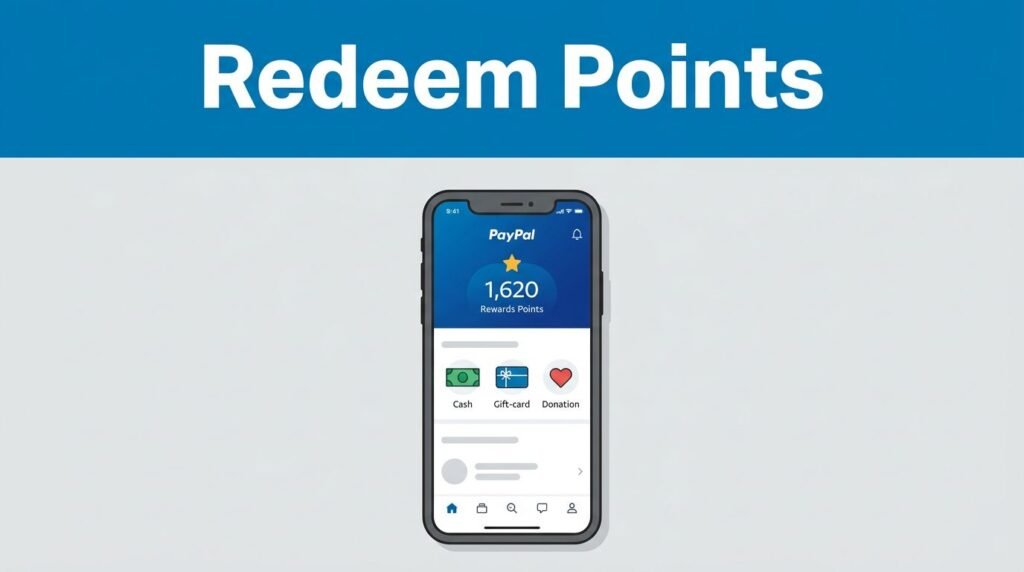
Your points usually show up in the “Rewards” or “PayPal Extras” section after you log in. That’s where you can see your available balance and the redemption choices tied to your account. If some points aren’t ready yet, PayPal notes on its Rewards help page that points can stay pending until they’re available to redeem.
Most people use PayPal rewards in one of three ways:
- Cash back to your PayPal balance
- Gift cards from available retailers
- Charitable donations
That’s the short version of PayPal points explained. If you’re wondering how to use PayPal reward points, the answer is simple: pick the reward that fits what you want right now, instead of letting the points sit there unused.
How to redeem PayPal reward points on the app or website
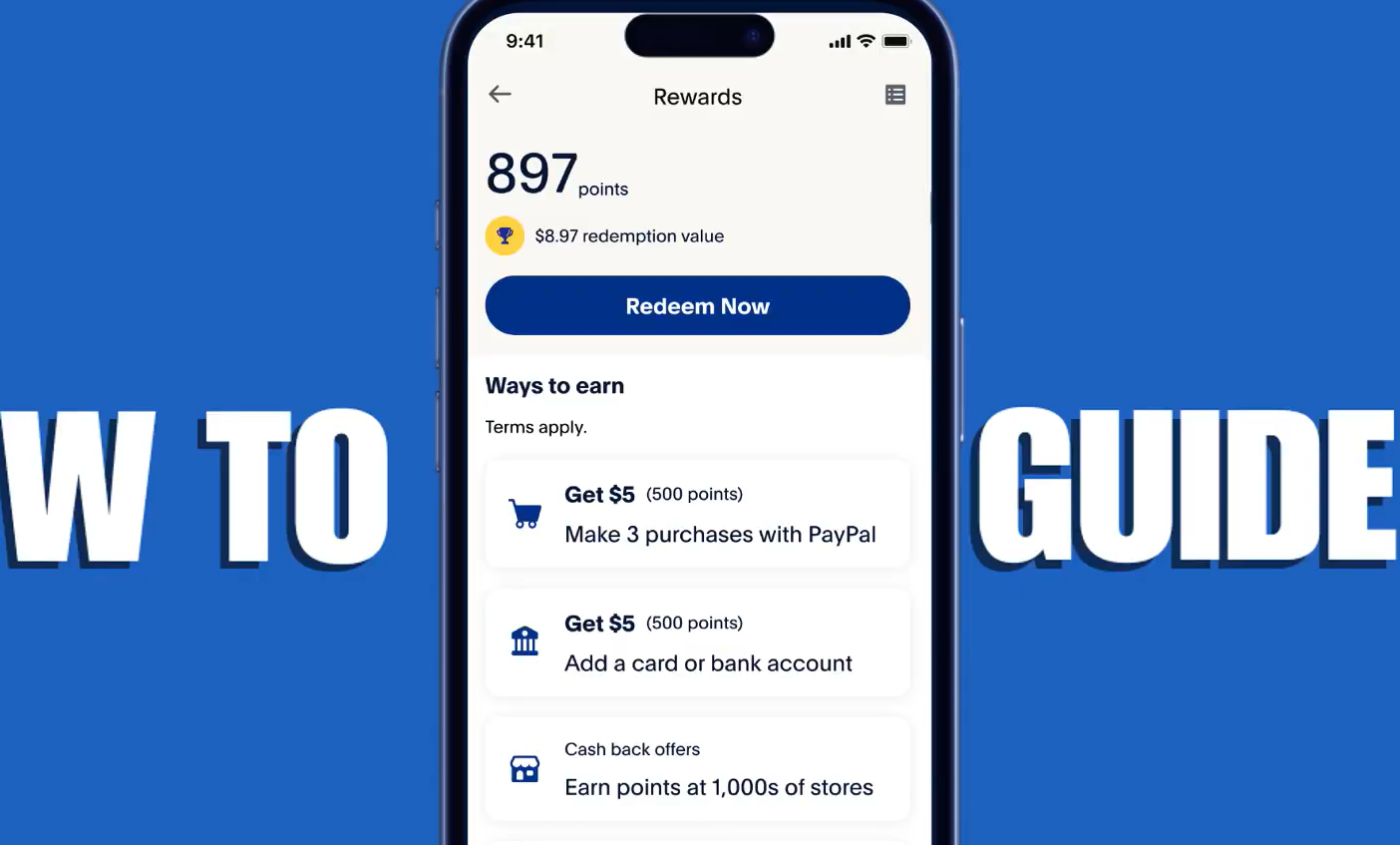
This works as a quick PayPal app tutorial, and the same flow usually works on desktop too. If you’re checking PayPal rewards this year, the menu names may look a little different after updates, but the steps are still close to the same.
- Log in to your PayPal account from the official app or website.
- Open the “Rewards” or “PayPal Extras” area.
- Check how many points are available to use.
- Choose the reward you want, cash back, gift card, or donation.
- Enter the number of points you want to redeem, review the details, then tap “Redeem” or “Confirm.”
If your goal is PayPal points to cash, choose the option that sends cash back to your PayPal balance. That’s the easiest way to move from PayPal rewards to balance without doing anything complicated later. If you want PayPal rewards to cash for spending inside PayPal, this is usually the option you’re looking for.
You also don’t have to empty your full balance every time. In many cases, you can enter only part of your available points and save the rest. That’s helpful if you want to test PayPal rewards redemption first or keep some points for a bigger reward later.
Once you confirm, the reward may show up instantly or after a short wait, depending on what you picked. Cash back is often fast, while gift cards or donations can take a little longer. That’s the full process for how to redeem PayPal rewards without any extra steps.
What to check before you confirm
Before you hit the final button, read the terms on the screen. Some rewards come with expiration dates, and some need a minimum number of points before you can redeem them.
Check the terms before confirming. A reward can process fast, and you may not be able to undo it once it’s gone through.
If a reward looks unavailable, start by checking your points balance and the minimum redemption amount. That’s usually the reason. If you don’t see the rewards section at all, make sure you’re signed into the right account, update the app, and use only the official PayPal app or website.
A little caution helps too. Never share your login details with anyone while trying to redeem PayPal cashback rewards. If a page isn’t loading, a weak connection can be enough to make the rewards menu disappear or fail to update.
Final thoughts
Once you know where the rewards tab is, redeeming your points is easy. You log in, pick the reward, enter the amount, review the terms, and confirm.
That means your PayPal reward points can turn into something useful instead of sitting there untouched. And if you’re also using PayPal for business payments, you can learn how to accept PayPal via Stripe.
Prefer Visual Help? Watch the Step-by-Step Video Guide!
Struggling with how to redeem PayPal reward points? This video breaks it down step by step with clear, hands-on instructions so you can follow along visually.
Watch Tutorial