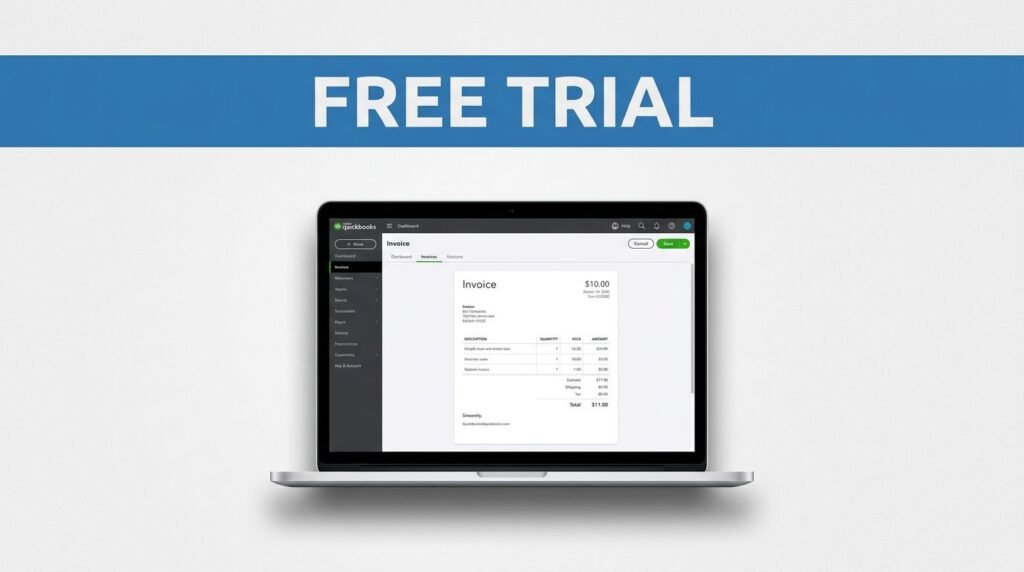
Free trials sound simple until the pricing page gives you two different offers and one wrong toggle changes the whole deal. If you want the QuickBooks Online 30-day free trial, the key is picking the trial option early and checking the total before you finish.
This matters if you’re setting up QuickBooks Online for beginners, testing QBO for a small business, or using the account for hands-on accounting and bookkeeping practice. Here’s the clean way to get in without picking the discount by mistake.
Start on the official QuickBooks site
Go straight to the official QuickBooks Online site. That’s the safest place to start, and it’s where the real plan offers live.
If a regional pop-up appears, choose “Visit the US site” if you want US pricing in USD. That part matters more than it looks. Your region can affect what plans you see, what currency shows up at checkout, and how billing is displayed later.
Once you’re on the US version, open “See plans and pricing.” If you’d rather skip the home page, the QuickBooks pricing and free trial page gets you to the same place faster.
Pick the free trial, not the discount
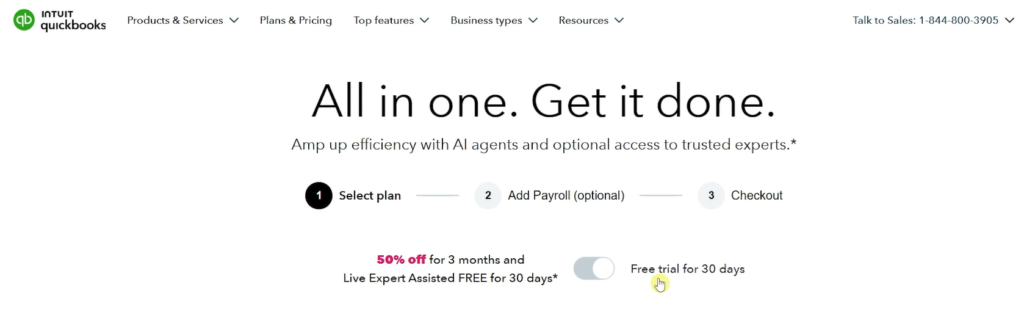
On the pricing screen, QuickBooks shows two promos. You don’t get both. You have to choose one.
Here’s the difference at a glance:
Turn the toggle to the 30-day free trial option. Once that’s selected, keep an eye on the pricing text as you move forward.
If you switch to 50% off for 3 months, you give up the 30-day free trial.
This is the step people miss. The page makes it easy to bounce between offers, so take a second and confirm you’re still on the free-trial setting before choosing a plan.
Choose your plan and decide on add-ons
After the promo is set, pick the QuickBooks Online plan you want to try. In the walkthrough, the plan selected was Essentials, but you can choose whichever tier fits your needs.
Your plan choice shapes what you can test during the trial. If you’re using this as a QuickBooks Online tutorial or QuickBooks Online training run, think about what you want to do inside the account. Maybe you want basic invoicing. Maybe you want more bookkeeping tools. Maybe you want to see how QuickBooks Online accounting feels in real day-to-day finance work.
You may also get an add-on screen, including payroll. If you want it, you can add it there. If not, continue to the next step and keep your setup simple.
This is also a good time to think about what you’ll practice once you’re in. If you’re learning how to add subcategory to Chart of Accounts in QuickBooks Online, the free trial gives you a safe place to test your setup without paying on day one.
Create your account and check the billing page
Next, create your account with your email address, password, and phone number. After that, move to the next screen, often shown as “One more step” for billing.
This is the part to watch closely. If the trial is set correctly, the total should show $0 before you finish. That’s the clearest sign that you’re on the QuickBooks free-trial path and not the discounted paid offer.
QuickBooks may still ask for a payment method. That’s normal for many software trials. The charge shouldn’t happen up front if the page is showing $0 today, but your card can stay on file for after the trial ends.
If you notice the wrong plan or promo in the order summary, use the Edit option before you submit anything. You can change the plan there, but be careful. Switching offers at the last minute can move you off the free trial and back to the 50% discount.
If the 30-day trial doesn’t show up
Usually, the problem is one of three things: the wrong region, the wrong promo toggle, or a slightly changed page layout.
Check the region first. If you landed on a global version instead of the US site, the options may look different. Then go back to the pricing page and look for the trial-versus-discount switch again. QuickBooks updates its interface from time to time, so button labels or placement may shift a bit.
If you’re new to QBO, don’t rush this part. A slow double-check here saves you from sorting out the wrong plan later.
Make the 30 days count
Once your account is live, use the trial like a test drive, not a placeholder. Set up your books, look through the Chart of Accounts, try a few QuickBooks tips and tricks, and see how the workflow fits your small business.
That matters even more if you’re comparing tools or learning QuickBooks Online for beginners. A free month gives you enough time to test invoicing, bookkeeping, reporting, and the kind of accounting tasks you’ll handle every week.
Final thoughts
The whole process comes down to one thing: pick the 30-day free trial before you choose your plan, then verify that billing shows $0. If those two details line up, you’re in the right place.
After that, the trial gives you room to test QuickBooks without guessing. And if your goal is learning the software, including tasks like organizing accounts or building cleaner bookkeeping, that’s exactly what the free period is for.
Prefer Visual Help? Watch the Step-by-Step Video Guide!
Struggling with How to Get a QuickBooks Online 30-Day Free Trial? Don’t worry—this video breaks it down step by step with clear, hands-on instructions. If you want the only working method that actually gets results, this video is for you!
▶ Watch TutorialFrequently Asked Questions
Want to learn How to Install QuickBooks on Desktop? Here’s a Step-by-Step Guide Article on how to do so.