If you’re trying to figure out how to add mutual contact on Telegram, the main thing to know is simple: adding someone to your contacts is only half of it. For the contact to become mutual, the other person has to add you back on their side too.
That part trips people up, especially if you’re trying to control who can message you. Once you know where the button is, the whole thing takes a minute.
Before you start, know what “mutual” means
A regular contact and a mutual contact are not the same thing. You can add someone on Telegram, save their number, and still not see them as mutual because Telegram needs both sides to do it.
A mutual contact means both of you have saved each other.
This is why a lot of searches around how to find mutual contacts on Telegram, find mutual friends Telegram style, or even Telegram mutual friends feel more confusing than they should. Telegram isn’t showing a social network list here. It’s showing whether both accounts exist in each other’s contact list.
Here’s the quick breakdown before you start:
That’s the part most people miss. If you’re looking for a Telegram mutual contact guide because a message restriction is getting in the way, saving the person yourself may not be enough until they do the same.
How to add mutual contacts in Telegram
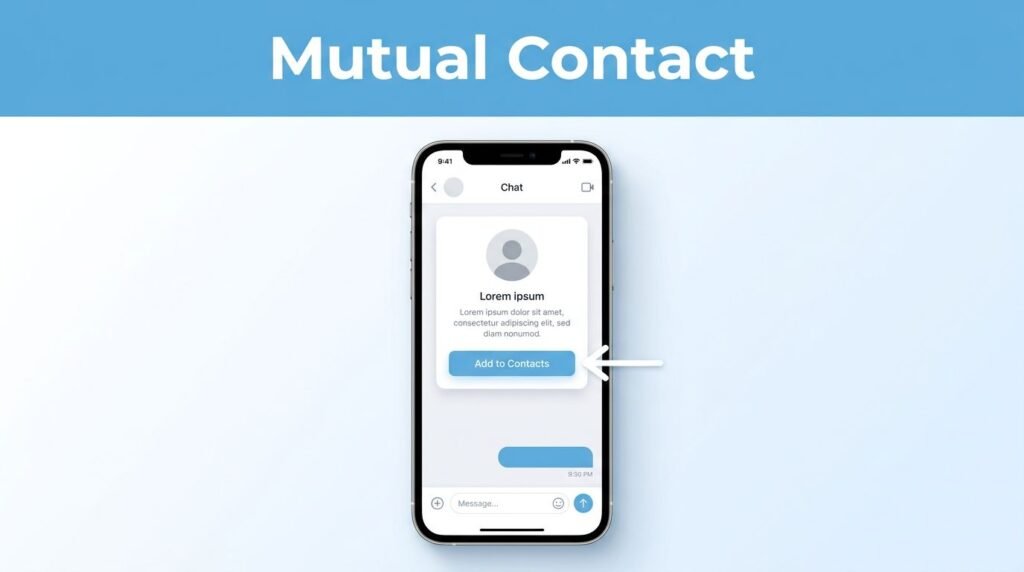
The easiest way to add mutual contacts in Telegram is from the chat itself. Open Telegram, go to the conversation with the person you want to save, and look near the top of the chat. You should see options such as Block User and Add to Contacts.
Tap Add to Contacts. Telegram opens a form where you can edit the person’s details before saving them. In the flow shown here, you can modify:
- First name
- Last name
- Mobile number
Once everything looks right, tap Done. That saves the contact.

If you’ve been searching for how to add contacts on Telegram, this is the cleanest route because the contact button is right inside the conversation. The add contact Telegram flow is short once you know where that button lives.
If you only have their username
If you don’t have a conversation yet, you’re not stuck. Use Telegram’s Search bar, type the person’s username, and open their account from the results. This is the usual Telegram add contact by username method when you don’t already have their number saved. If a bot or automation tool is asking for a numeric identifier instead of a username, learn how to get your Telegram chat ID.
From there, open the chat and look again for Add to Contacts. If the button isn’t there right away, start the conversation first and then check the top of the chat again. That’s often enough to make the option show up.
This is also one of the easiest ways to add someone on Telegram when all you have is their handle and not their phone number.
What happens after you tap Done
Once you tap Done, Telegram saves that person to your contacts. That’s it on your side. If you’re wondering how to add someone on Telegram and make it mutual right away, this is where the limit shows up: you can’t complete the other half for them.
The other person has to open your chat and add you back. Until that happens, you’ve added a contact, but you haven’t created a mutual one.
That matters more than it sounds. Some users look up how to add mutual contact on Telegram because they run into message restrictions tied to contacts. If someone’s privacy settings only allow messages from contacts or mutual contacts, both of you may need to save each other before messaging works the way you expect. If you want more background on that issue, this overview of Telegram mutual-contact message restrictions gives extra context.
Does this work on Android and desktop?
These steps fit the mobile app best, and they’re easy to follow on Android. On desktop, labels and layout can look a little different, but the idea is still the same: open the chat, add the person, then save the contact.
If Telegram syncs your account normally, you’ll usually see the same saved contacts across devices. The important part doesn’t change, mutual means both sides have added each other.
If you don’t see the Add to Contacts button
This is where most confusion starts. The Add to Contacts option shows up in the chat view, not in every place where a username or profile appears. So if you’re trying to find contacts in Telegram but the button seems missing, make sure you’re inside the actual conversation screen.
If it still doesn’t show, one of these is usually the reason:
- You’ve already added the person
- You haven’t opened or started a chat yet
- Your app version places the option in a slightly different spot
A quick fix is to search for the username, open the conversation, and send a message if needed. Then look near the top of the chat again. That’s often enough if you’re trying to work out how to find contacts on Telegram or how to add someone on Telegram when the usual button isn’t obvious.
Telegram privacy can affect other actions too, not only messaging. If you’re also dealing with blocked captures inside private channels, this guide on Telegram privacy settings and screenshots covers that side of the app. If an invite link you were sent has stopped working, this guide to opening an expired Telegram link covers the one method still worth trying.
Contact sync, privacy, and the mistakes that cause trouble
Don’t mix up manual adding with Telegram contact sync. If you’re searching for a Telegram contact sync tutorial, how to sync contacts on Telegram, or sync contacts Telegram-wide, that’s about importing your Telegram phone contacts from your device. It does not make another person a mutual contact by itself.
That difference matters. Contact sync is about your phone book. Mutual status is about both Telegram accounts saving each other. That’s why you can sync every contact on your phone and still not see the person listed as mutual.
The mistakes that usually cause trouble are pretty small:
- Typing the wrong mobile number before tapping Done
- Thinking a chat automatically means a saved contact
- Assuming Telegram contact sync creates mutual contacts
- Looking for the add button outside the chat window
If you’re trying to find contacts Telegram already knows from your phone, syncing can help. If you’re trying to make a contact mutual, the other person still has to take the same step you did.
Prefer Visual Help? Watch the Step-by-Step Video Guide!
Struggling with How to Add Mutual Contact on Telegram? Don’t worry—this video breaks it down step by step with clear, hands-on instructions. If you want the only working method that actually gets results, this video is for you!
Watch TutorialA mutual contact needs both sides
The shortest answer is still the right one: open the chat, tap Add to Contacts, fill in the details, and press Done. That adds the person to your list.
It becomes mutual only when they add you back. So if the label isn’t showing yet, it usually doesn’t mean you missed a step. It means Telegram is still waiting on the other side.