Adjusting exposure settings within a professional editing dashboard If you want to know how to lighten dark footage in Premiere ...

Simple, Step-by-Step Tutorials for Everyday Tasks
Video Editing Software Guides & Tutorials
Find clear, step-by-step video editing tutorials for CapCut, Premiere Pro, DaVinci Resolve, and Descript. Learn how to edit footage, fix audio, add subtitles, create effects, improve video quality, and export your finished videos.
Browse by Video Editing Software
Choose the video editor you use and browse focused tutorials for effects, audio, subtitles, color correction, exports, and common editing problems.
🎬 CapCut
Find CapCut tutorials for keyframes, motion blur, cropping, QR codes, app updates, and desktop or mobile editing tools.
🎞 Premiere Pro
Learn how to improve video quality, sharpen footage, animate elements, use keyframes, brighten dark clips, and upscale videos.
🎨 DaVinci Resolve
Find guides for fixing overexposed footage, importing subtitles, creating freeze frames, blurring faces, removing backgrounds, and cleaning audio.
🤖 Descript
Learn how to add subtitles, remove background noise, fade audio, censor words, and edit videos using Descript’s transcript-based tools.
Browse Video Editing Guides by Task
Find the right tutorial based on what you need to fix, create, or improve in your video project.
💬 Captions & Subtitles
Add automatic captions, import subtitle files, edit transcript text, and improve subtitle timing and appearance.
🎨 Color Grading
Fix dark, blurry, overexposed, or low-quality footage and create a cleaner, more professional result.
🔊 Audio Fixes
Remove background noise, fade music, censor unwanted words, and improve the sound of your videos.
📤 Exports & Formats
Choose the right resolution, format, frame rate, and export settings for YouTube, TikTok, Instagram, and other platforms.
Featured Video Editing Tutorials
Start with practical guides for creating effects, improving footage, and solving common editing problems.
How to Add Keyframe in CapCut PC
Use keyframes to animate position, scale, rotation, opacity, and other properties in your CapCut projects.
How to Upscale Video to 4K in Premiere Pro
Improve the resolution of lower-quality footage and prepare it for a higher-resolution sequence or export.
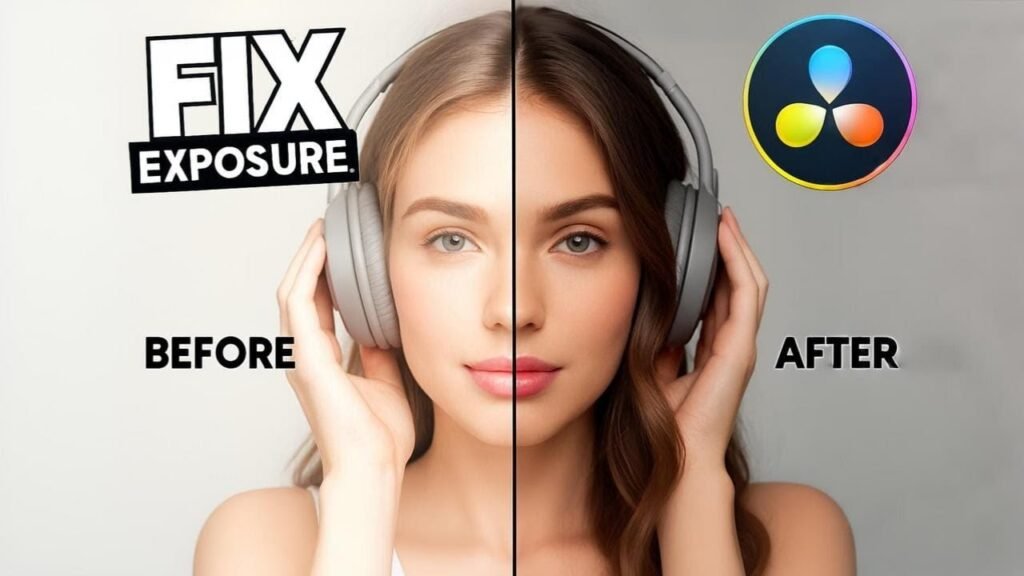
How to Fix Overexposed Video in DaVinci Resolve
Recover overly bright footage by adjusting exposure, highlights, contrast, and color controls.
Quick Comparison
Compare Video Editing Software
Not sure where to start? Use this quick comparison to choose the editing software and help topic that matches what you need.
| Editing Software | Best For | Common Help Topics | View Guides |
|---|---|---|---|
| CapCut | Short-form and social videos | Keyframes, motion blur, cropping, mobile editing, and CapCut PC | View Guides |
| Premiere Pro | Professional video production | Video quality, keyframes, animations, dark footage, and 4K upscaling | View Guides |
| DaVinci Resolve | Color correction and advanced editing | Exposure, subtitles, freeze frames, blurring, backgrounds, and audio | View Guides |
| Descript | AI editing, captions, and audio | Subtitles, transcripts, noise removal, audio fades, and censoring words | View Guides |
Prefer to Watch Instead?
Many of our tutorials include full video walkthroughs. Follow along visually at your own pace — no reading required.
Everything You Need, Organized in One Place
🎯 Problem-First Structure
Every section is built around what you’re trying to fix or learn — not just a list of random articles.
⚡ Fast, Practical Answers
No fluff, no filler. Each guide gets straight to the fix so you can get back to editing in minutes.
🔄 Regularly Updated
Editing tools update constantly. Our guides are kept current so the steps you follow actually match what you see on screen.
Frequently Asked Questions
Quick answers to the questions editors ask most often.
What’s the best free video editing software for beginners?
CapCut is the top pick for most beginners — it’s free, available on mobile and desktop, and has a huge library of templates and effects. DaVinci Resolve is also free and excellent if you want to grow into a more professional tool.
Do I need a powerful computer to edit videos?
For basic editing with CapCut or InShot on mobile, almost any modern phone works fine. For Premiere Pro or DaVinci Resolve, a mid-range computer with at least 16GB RAM and a dedicated GPU will give you a smooth experience.
Can I switch from CapCut to Premiere Pro later?
Absolutely. Many creators start with CapCut to learn the basics, then move to Premiere Pro when they need more control. The core concepts — cuts, transitions, audio, exports — transfer directly.
How do I add captions automatically to my videos?
CapCut and Descript both offer AI-powered auto-captions that are fast and accurate. In CapCut, use the ‘Auto Captions’ feature under the Text menu. In Descript, your transcript is generated automatically when you import your video.
Ready to Edit Smarter?
Pick your software, find your fix, and start creating better videos today. Every answer you need is already here.