If you have been looking for the best way on how to upscale video to 4K in Premiere Pro, the most important choice happens long before you reach the export settings. The wrong scaling option can degrade your footage quality early, even if your final export settings indicate a 4K resolution.
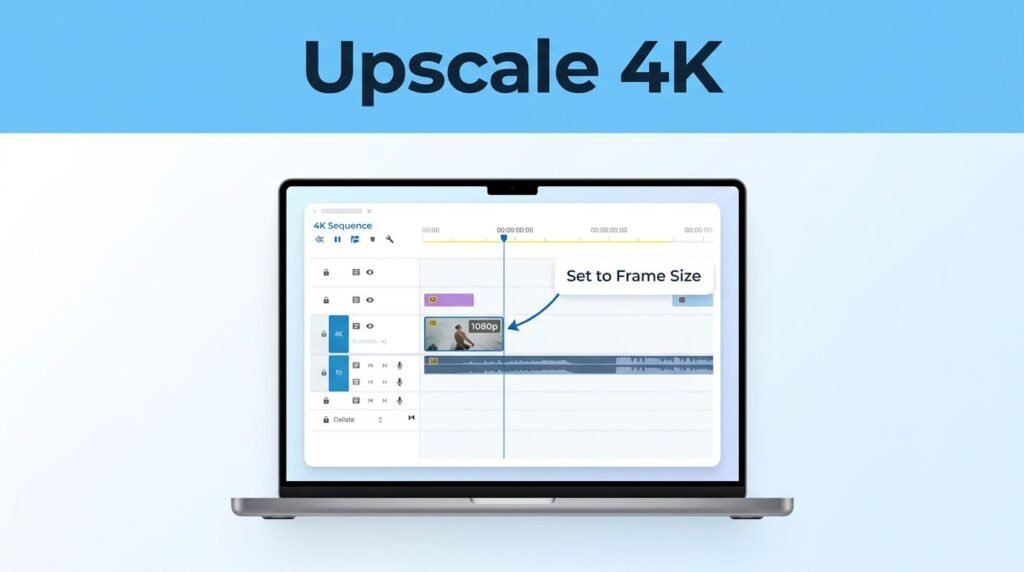
If you are trying to convert 1080p to 4K in Premiere Pro, the cleanest method is to place your original clip into a native 4K sequence, fit the frame correctly, and export in 4K at the end. That sequence setup is often where creators run into trouble, so it is the best place to start.
Key Takeaways
- Sequence settings matter most: Always place your footage into a native 4K sequence before you begin editing to ensure your output maintains the correct resolution.
- Prioritize flexibility: Use “Set to Frame Size” instead of “Scale to Frame Size” to keep your original image quality intact and maintain the ability to crop or reframe your footage later.
- Understand the limitations: Upscaling in Premiere Pro increases the frame size but does not create new pixel detail; for better results on low-resolution source files, consider external AI tools like Topaz Video AI.
- Optimize your export: When exporting, confirm your output resolution is set to 3840×2160 and enable “Maximum Render Quality” to ensure the scaling process is handled with the highest possible precision.
What you need to know before you upscale footage in Premiere Pro
When you upscale video to 4K in Premiere Pro, you are taking low resolution footage, often 1080p, and placing it inside a larger 4K frame. In most cases, that means your source clip is smaller than the native resolution of your target sequence.
It is important to remember that Premiere does not magically create extra real detail. If your original footage is 1080p, it will still look like 1080p footage that has been enlarged. Clean source footage will hold up better, while softer footage will look even softer when stretched. If you find that basic resizing does not meet your quality standards, you may want to look into AI upscaling tools like Topaz Video AI, which can provide more advanced detail enhancement.
The good news is that you can still effectively convert 1080p to 4K in Premiere Pro for delivery, online uploads, or a consistent 4K timeline. If your goal is to convert video to 4K in Premiere for YouTube or another platform, this standard workflow is usually sufficient.
The important part is setting up or working inside a 4K sequence first. Your sequence settings should match a resolution of 3840×2160 to ensure your output meets standard UHD 4K requirements. Once your clip is sitting in that sequence, you can decide how to resize it.
Use the frame-size option that keeps quality intact
A lot of people searching for a Premiere Pro 4K upscaling tutorial assume both resizing options do the same thing. They don’t.
“Set to Frame Size” vs “Scale to Frame Size”
Here is the difference that matters most:
If image quality matters, use Set to Frame Size. Avoid Scale to Frame Size unless you only need lighter playback on weaker hardware.
This part can confuse people because both options sound nearly identical. But if you use Scale to Frame Size, Premiere treats the clip as if it has already been resized. That can leave you with less room to zoom in, reframe, or animate later.
If you want Premiere Pro upscale 1080p to 4K results that hold up better, Set to Frame Size is the safer choice. It keeps more flexibility in the edit, which matters if you decide to crop, keyframe, or punch in after the clip is on the timeline.
### How to upscale 1080p to 4K manually
If you want more control, you can scale the clip yourself. This is often the simplest way to upscale footage in Premiere Pro without letting the software make the choice for you.
- Open your project and place your clip on the timeline in a 4K sequence.
- Click the clip so its settings appear in the Effect Controls panel.
- If you want a quick, quality-friendly method, right-click the clip and choose Set to Frame Size.
- If you want to do it by hand, go to Effect Controls, find Motion, then adjust Scale until the clip fills the proper frame size.
- Check the edges in the Program Monitor so you do not leave thin gaps around the image.
Manual scaling works well because you can see exactly when the frame is filled. If you are learning how to upscale video in Premiere Pro, this is often easier to trust than automatic resizing. If manual scaling makes your playback choppy, you can use the render and replace feature in Premiere Pro to maintain high performance.
For a more precise result, use the numeric scale value instead of dragging visually if the fit looks slightly off. If you are working with several clips, do not assume each one will land perfectly. Mixed footage can behave differently, so check the frame size for each clip before you move on.
How to export 4K video in Premiere Pro
Once your clip looks right in the 4K sequence, the next step is export. This is where you lock in the final file size and resolution.
Premiere Pro 4K export settings to check
If you’re wondering how to export 4K video in Premiere Pro, keep your export settings simple but effective:
- Open the Export window.
- Confirm your video resolution is set to 3840 x 2160 for a 4K output.
- Choose H.264 as your primary format, which is the industry standard for web delivery.
- Select a high-quality preset or manually adjust your bitrate. For high quality 2160p results, aim for a higher bitrate setting and consider using VBR 2-pass encoding to ensure consistent detail across the file.
- Check the file name and save location.
- Make sure Video and Audio are both enabled.
- Under the Video tab, ensure you check Maximum Render Quality to help Premiere Pro handle the scaling process with better precision.
If you are looking for the best export settings for 4K upscaling in Premiere, this is the practical answer: keep the sequence and export at 4K, use the right frame-size method, and verify your target resolution before you click Export.
You don’t need to overcomplicate this part. The goal is to confirm the output is 4K and that the rest of the settings match your delivery needs. If you are exporting for YouTube, H.264 is the preferred format, as it balances file size and visual clarity perfectly.
What to check if the export looks wrong
If your final file doesn’t look right, check the basics first.
A common mistake is thinking the export is 4K when the sequence is still 1080p. Another is using Scale to Frame Size early, then wondering why the clip looks softer when you try to zoom or reframe later. Always verify the video resolution in the output summary to ensure it matches your intended target.
You should also confirm that video and audio are both toggled on before export. Missing one of those can leave you with an incomplete file.
If you want a second opinion on how other editors handle this, this Reddit discussion about upscaling 1080p to 4K in Premiere highlights the same quality concern. For more edge cases, Adobe users talk through similar issues in this Adobe community thread on upscaling 1920×1080 footage to 4K.
Common questions about Premiere Pro upscaling
Does this increase real image detail?
No. You can increase video resolution in Premiere Pro and export a 4K file, but that does not create new native detail from a 1080p source. It changes the frame size and delivery resolution rather than improving the actual sharpness of the image. If you need advanced processing, the Detail-Preserving Upscale effect is available in After Effects. Using this tool in After Effects can help maintain better edge clarity than a standard sequence resize.
Can you upscale 720p footage the same way?
Yes, the process is the same if you want to up-convert your video Premiere Pro projects from 720p to 1080p or 4K. However, because you are starting with a low resolution source, the final output will likely appear soft. The lower the starting resolution, the more softness you will notice compared to footage shot at a native resolution.
Will the exported file be larger?
Usually, yes. Even when starting with low resolution source files, a 4K export typically results in a larger file size and requires more time to render than a 1080p export. Because the encoder is creating a larger pixel grid, the final output needs a higher bitrate to maintain quality, which contributes to the increased file size.
Prefer Visual Help? Watch the Step-by-Step Video Guide!
Struggling with How to Upscale Video to 4K in Premiere Pro? This video visually walks you through the steps so you can follow along more easily.
Watch TutorialThe method that usually gives you the cleanest result
If you want to convert 1080p to 4K Premiere Pro projects without sacrificing quality, keep your workflow streamlined. Start by placing your clip into a 4K sequence settings environment, then use Set to Frame Size or adjust the scale manually to ensure your video resolution remains crisp.
For the most professional results, many editors prefer using the Detail-Preserving Upscale effect in After Effects, which provides greater control over the final sharpness of your footage. If you are looking for the absolute best AI upscaling, Topaz Video AI is an industry-standard video upscaling software that handles complex textures better than standard internal tools. While a native 1080p to 4K transition is fine for many projects, integrating AI upscaling into your pipeline can significantly improve the final video resolution on your timeline.
Always avoid using Scale to Frame Size, as it rasterizes the image and limits your ability to reframe later. Instead, maintain your original quality by keeping your assets flexible on the timeline. Finally, when you are ready to export, ensure your bitrate is high enough to support the increased pixel density, confirming that your output settings perfectly match your project goals.