If you’re trying to figure out how to schedule a post on Facebook page, the trick is simple, but Facebook doesn’t put it where you’d expect. You can switch into your Page and start writing a post, but the regular post box usually won’t show the scheduler.
That’s why so many people think the feature is gone. It isn’t. You just need to open the right tool first, and once you do, schedule posting on Facebook takes about a minute.
The part Facebook hides from the regular post box
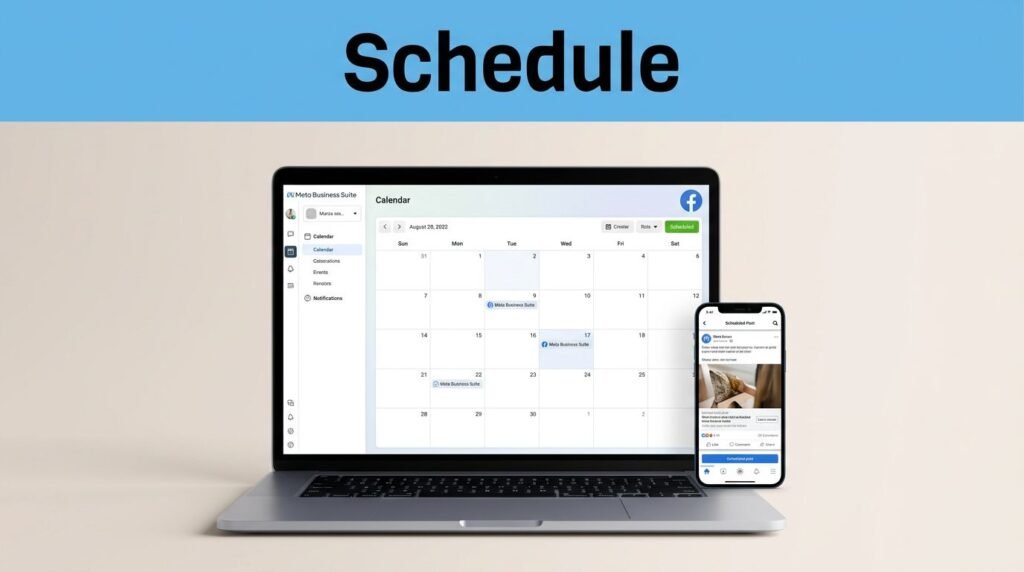
Here’s the bit that trips people up. When you’re on your Facebook Page profile, you can post normally, but you usually can’t schedule a post from that basic composer. If you want to schedule a Facebook post, or schedule Facebook posts for later, you need Meta Business Suite.
Think of it as Facebook’s built-in facebook post scheduler for Pages. It’s also the main facebook page scheduling tool if you’re trying to learn how to schedule a post on Facebook business page without using a third-party app.
This quick comparison makes it easier to see:
| Where you’re posting | Can you schedule there? | What to use instead | Regular Page composer | Usually no | Open Meta Business Suite | Meta Business Suite | Yes | Use “Create post” | Connected Instagram account | Sometimes | Toggle it on in the same post window |
If the schedule option isn’t showing on your Page, you’re probably not in the wrong account. You’re in the wrong tool.
Facebook’s own Business help for scheduling posts points to the same place, Meta Business Suite, not the basic Page post box.
How to schedule a Facebook post in Meta Business Suite
Once you’re inside your Page, the rest is pretty straightforward. If you’ve been searching how to schedule a post on Facebook, how to schedule posts on Facebook, or how to schedule a Facebook post for a business page, this is the path you want.
- Open Facebook and switch into the Page you want to post from.
- Go to your Page profile.
- Open Meta Business Suite.
- Choose Create post.
- Write your post. A text-only post works fine if you’re testing it.
- Open Scheduling options.
- Set the future date and time you want.
- Hit Schedule for Facebook, then tap or click Done.
That’s it. Your post is now queued for the date and time you picked.
If you want a quick test, type something simple first, even a one-line post, then schedule it a few minutes ahead. That makes it easy to confirm the process before you queue up something important. It’s the fastest way to get comfortable with scheduling Facebook posts if you’ve never used the tool before.
Set the right time, and use active times when it helps
After you write the post, pay attention to the scheduling panel. That’s where you set the date and time manually, and it’s also where Facebook may show active times for your audience.
That matters because the best time to schedule Facebook posts isn’t the same for every Page. Your best time to post on Facebook depends on when your audience is online. For some Pages, mornings work. For others, evenings do better. If Meta shows suggested active times, use that as a starting point instead of guessing.

You can also choose Instagram from the same post window if that account is connected. That’s helpful if you want one post setup to cover both platforms, but double-check the destination before you confirm it.
One small mistake causes a lot of trouble here, the time setting. Check AM/PM before you lock it in. If you’re trying to find the best times to post on Facebook, timing matters more than people think, and a wrong time setting can make a planned post look like it failed.
How to find, change, or delete your scheduled posts
After you schedule a post on Facebook, it doesn’t disappear into thin air. It stays in Meta Business Suite until publish time. So if you’re asking, “How do I see my scheduled posts on Facebook?” the short answer is, open Meta Business Suite and look for the scheduled content area. Depending on the version you’re seeing, the label may show under planner, content, or scheduled posts.
If you need to know how to change a scheduled post on Facebook or how to delete a scheduled post on Facebook, the process is usually:
- Open the scheduled posts area in Meta Business Suite.
- Select the queued post.
- Edit it, reschedule it, or delete it.
Meta’s help page for scheduled post management is worth keeping handy because menu names can shift a bit over time.
If you’re trying to figure out where to find scheduled posts on Facebook mobile, the answer is usually the same, but the regular Facebook app may not show everything cleanly. For how to schedule a Facebook post on mobile, or how to schedule a post on Facebook mobile, the better bet is usually Meta Business Suite on mobile rather than the standard post box in the Facebook app.
Common reasons the schedule option isn’t showing
Most problems come down to one of a few things. You haven’t switched into the Page yet, you’re posting from the normal composer instead of Meta Business Suite, or you don’t have the right Page permissions.
A few quick checks usually sort it out:
- Make sure you’re posting as the Page, not from your personal profile.
- Open Meta Business Suite instead of the normal Page post field.
- Confirm you have access to manage the Page.
- If Instagram isn’t available, check that the accounts are connected.
If you’re working on mobile and Facebook feels cluttered, cleaning up the app can help you get to the tools you use faster. If that sounds familiar, here’s how to hide the Dating icon from Facebook.
One more thing, the method here is for a Page or business Page. If you’re trying to schedule post on Facebook from a personal account, the steps can be different, and the option may depend on account type or whether other professional tools are turned on.
Prefer Visual Help? Watch the Step-by-Step Video Guide!
Struggling with How to Schedule Post on Facebook Page? Don’t worry—this video breaks it down step by step with clear, hands-on instructions. If you want the only working method that actually gets results, this video is for you!
Watch TutorialThe one thing to remember
The hardest part of learning how to schedule post on Facebook page isn’t the scheduling itself. It’s knowing that the feature lives in Meta Business Suite, not the regular Page composer.
Once you open the right tool, you can write the post, set the time, use active-time suggestions, and queue it up in a few clicks. After that, managing scheduled posts is mostly about checking the right section and making edits before the post goes live.
Frequently Asked Questions
Here are a few common questions people ask when scheduling Facebook Page posts with Meta Business Suite.
Want To Learn How to Remove Facebook Dating Shortcut from the App? Here’s a Step-by-Step Guide Article on how to do so.