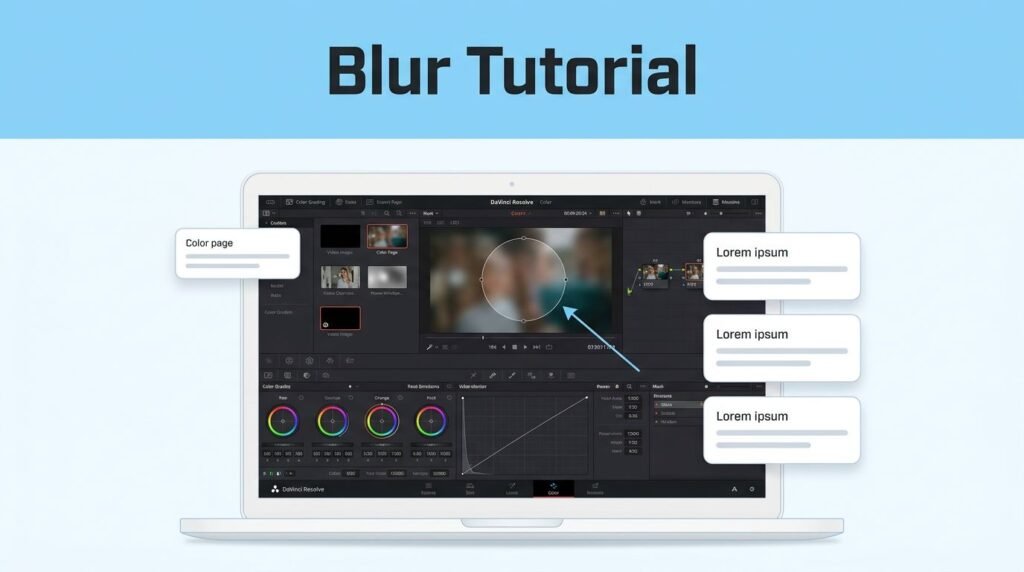
If you need to know how to blur in DaVinci Resolve, the cleanest method is to duplicate your clip, add a mask in the Color page, and track that blur to your subject. This technique is highly effective when you need to blur a face, hide sensitive information, or obscure moving objects without affecting the rest of your shot.
The part that usually trips people up is not the blur effect itself. It is knowing where to build the effect, which node to use, and how to make the adjustment follow movement. Once those concepts click, the rest of the process becomes quite manageable.
Key Takeaways
- Duplicate your footage: To maintain control, duplicate your clip on the timeline so you can apply the blur effect to the top layer while keeping the original footage underneath.
- Use the Color Page for precision: Perform your masking, node work, and tracking within the Color page, as this is where Resolve handles the most powerful tools for object isolation.
- Master the Power Window: Use circular, rectangular, or custom pen-drawn masks to define exactly which part of the frame to hide, and soften the edges to ensure a natural look.
- Leverage Automatic Tracking: Once your mask is placed, use the built-in tracker to analyze the movement in your clip, allowing the blur to follow subjects like faces or license plates automatically.
- Select the right blur type: Use a mosaic blur for privacy-focused tasks like censoring, or a Gaussian blur for general aesthetic softening and background adjustments.
What this method does, and when to use it
Learning how to blur in DaVinci Resolve uses a simple setup. You keep your original clip underneath, then place the blur on a duplicated layer above it. That gives you total control, and it makes a lot more sense when you are learning how to blur video in DaVinci Resolve for the first time.
It is the best method to use if you are trying to figure out how to apply a face blur in DaVinci Resolve, how to blur an object, or how to blur part of a video. You choose the area with a shape mask, then let the tracker follow it through the shot.
If your goal is a full frame blur, the process is easier. You can apply a blur effect to the whole clip without masking or tracking because the entire image gets softened. If what you really want is a background blur look to simulate a specific depth of field, that is a little different. In that case, you usually need to isolate the subject first so the background can be blurred separately. If that is the direction you are going, this guide on using Magic Mask for video background removal is a helpful next step.
One important distinction is that people often search for DaVinci Resolve motion blur or how to add motion blur in DaVinci Resolve when they actually want to censor something. Motion blur is for creating the look of movement. The blur effect in DaVinci Resolve used here is specifically for hiding or softening part of the frame.
Set up the clip in the Edit and Color tabs
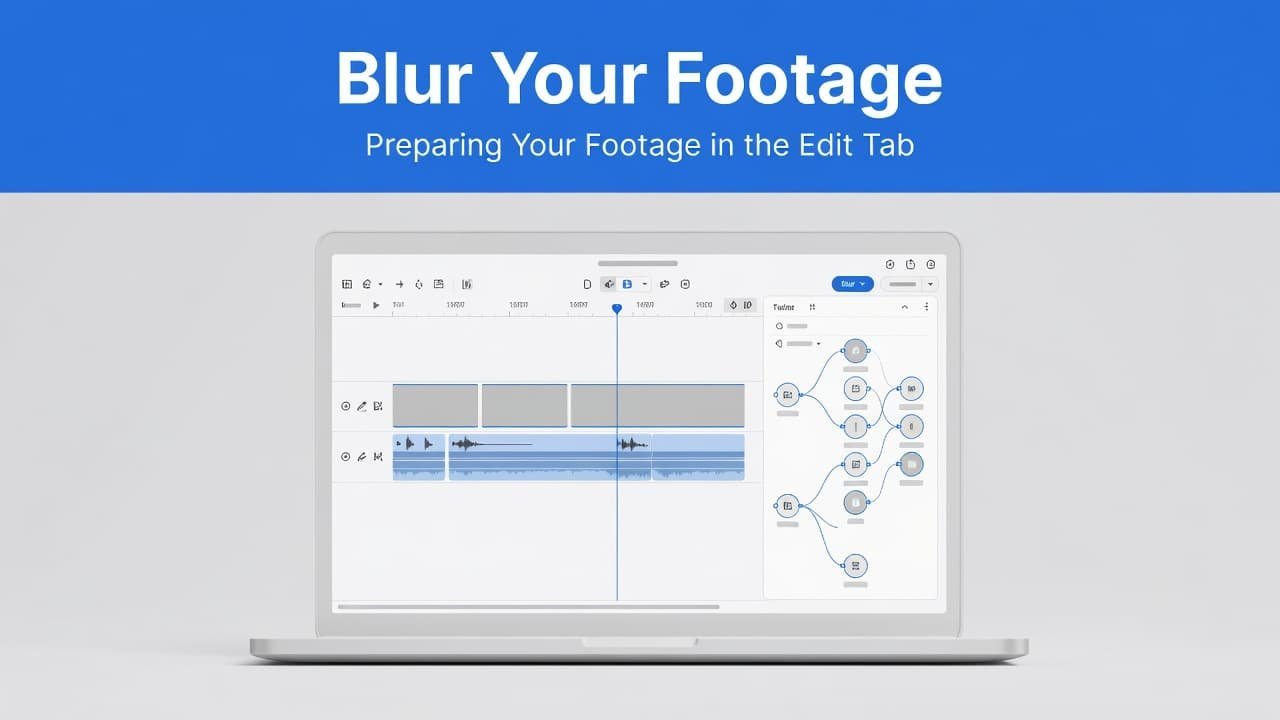
Start in the edit page and duplicate the clip you want to work on. The quick way is to hold Alt while dragging the clip upward to another video track on your timeline. That creates an exact copy above the original.
This step matters because the top clip will hold the blur, while the clip underneath preserves the rest of the image. If you skip the duplicate and blur the only clip on the timeline, you will blur everything.
Now switch over to the color page. In most versions of Resolve, this is where masking, node work, and tracking are handled.
Right-click in the node area, choose Add Node, then select Add Serial. Resolve will create a new serial node for the effect. You can leave it as is, but labeling it helps if your project gets more complicated. Right-click the serial node, choose Node Label, and name it Blur.
A common mistake here is adding the effect to the wrong node, or trying to do the whole thing from the edit page. If you do not see node controls, you are probably not in the color page yet. This part can confuse people because Resolve spreads similar tools across different pages.
If you want another visual example of the same general workflow, this blur anything tutorial for Resolve 17 shows a similar approach in an older version of the interface.
Add the mask and choose the blur type
With the blur node selected, click the Window icon in the Color tab to open the power window options. This tool allows you to define exactly which area of your frame should be affected by the blur.
For a face, a simple circular or rectangular power window usually works best. For irregular moving objects, such as a hand or a non-standard shape, you can use the pen tool to draw a custom mask that fits your subject perfectly. Once the shape appears on the viewer, drag it directly over the subject.
Use the blue points to resize and stretch the window, and use the magenta points to soften edges. Softening edges is essential to keep the blur from looking like a harsh, pasted-on cutout.
If the blur looks too sharp around the edges, increase the softening effect before you adjust the blur strength.
Next, open the effects library and search for “blur.” You will see several options, including directional blur, Gaussian blur, and mosaic blur. Simply drag the effect you prefer onto the blur node you created earlier.
Here is a quick breakdown of the primary options:
Whether you are searching for Gaussian blur in DaVinci Resolve or learning how to Gaussian blur in DaVinci Resolve, the setup process remains the same. The only difference is the specific blur effect you choose to apply. For a professional censor-style result, mosaic blur is typically the better fit.
Once the effect is attached to the node, open the blur palette to refine the look. Adjust the strength using the radius control settings. With mosaic blur, this often involves changing the pixel frequency; a higher frequency results in a more pronounced, blocky look. This is the stage where you finalize the blur effect in DaVinci Resolve to decide exactly how strong or subtle you want the transformation to be.
Track the blur so it follows movement
After the blur looks right, click the tracker palette in the color page. This is the essential tool that keeps your blur locked to moving objects or faces.
Put your playhead at the beginning of the clip before you begin. Then, use the track forward control and let Resolve analyze the shot from start to finish.
Start from the beginning when possible. If you begin in the middle, you may only get clean tracking in one direction.
Once tracking finishes, play the clip back and watch the mask closely. Do not only watch the start or end. Scrub through the middle as well, because that is often where a track starts to drift.
If the blur stays attached to the subject, you are done. If it slides off, the issue is usually one of three things: the mask is too loose, the subject changes direction too fast, or the tracker picked up the wrong part of the image.
The easiest fix is to go back, tighten the mask so it fits the subject better, and run the tracker again. A wider window may seem safer, but it often makes tracking worse because Resolve has too much area to follow. If the automatic tracking still struggles, you can use keyframes to make manual corrections and nudge the mask back into position.
This same process works whether you are trying to blur a face, hide moving objects, or place blur over anything else that moves in the frame. If your interface looks a little different in a newer version, this Resolve 19 blur walkthrough can help you compare the layout.
When you don’t need masking or tracking
Not every project requires a tracked window. If you want to blur the whole frame, you can apply the effect directly and skip the shape tool and tracker entirely. For a more photographic look, you might consider using the defocus effect instead of a standard gaussian blur to achieve a softer, optical transition.
Applying a full-frame effect can also help if you are looking to create a background blur in DaVinci Resolve by softening a duplicated clip. However, keep the limitation in mind: a full-frame blur is not the same as a true subject-separated background blur. If you want the person to remain sharp while the background is soft, you need some form of subject isolation first.
As you dial in the intensity of your blur effect, you can use the key output gain in your node settings. This is a professional way to precisely control the transparency of the filter, allowing you to blend it perfectly with your footage.
This is also where it helps to separate standard blur from motion blur. DaVinci Resolve motion blur is specifically designed to make movement feel smoother or more natural. It is not the same thing as covering a face or hiding an object. If you have been searching for motion blur DaVinci Resolve tutorials or how to add motion blur in DaVinci Resolve, please note that those are part of a different workflow.
Before you export, jump back to the edit page and watch the clip in real time. If the blur feels too small, too large, or too weak, go back to the Color tab and adjust the mask or the effect settings. Most fixes are quick once the node and track are already in place.
Frequently Asked Questions
Can I blur an object if it moves quickly?
Yes, you can use the tracker to follow fast-moving objects, but you may need to adjust your mask size or use keyframes for manual corrections. If the tracker loses the subject, try tightening your mask shape to focus only on the object itself rather than the background.
What is the difference between Gaussian and Mosaic blur?
Gaussian blur provides a smooth, soft transition often used for aesthetic purposes or subtle obscuring. Mosaic blur creates pixelated blocks, making it the industry standard for effectively censoring faces, text, or sensitive documents.
Why is my whole video blurring instead of just one area?
This usually happens because you are applying the blur effect to the entire clip rather than isolating it with a Power Window. Ensure you have created a mask in the Color page and that the blur effect is applied specifically to a node linked to that mask.
Do I need to be in the Edit page to add a blur?
While you can organize your layers in the Edit page, the actual blur effect, masking, and tracking tools are best utilized in the Color page. Applying effects in the Color page gives you far more control over the intensity, positioning, and movement of your blur.
Prefer Visual Help? Watch the Step-by-Step Video Guide!
Struggling with How to Blur in DaVinci Resolve? This video visually walks you through the steps so you can follow along more easily.
Watch TutorialKeep the blur on the top layer
The most effective workflow for how to blur in DaVinci Resolve is to keep your effects on a duplicated clip. By managing your blur effect on a separate layer above your original footage, you ensure a clean base remains on the timeline while you handle the specific adjustments in the color page.
This separation makes it much easier to troubleshoot your project. If the tracking or the visual results look off, verify your settings on the serial node first. Check the size of your mask, confirm the correct node is selected, and ensure your playhead was positioned at the start of the motion before you began tracking. Following this organized structure keeps your timeline clean and makes mastering the blur effect a simple process.