Need to copy a Discord user ID on your phone, but Discord doesn’t show it anywhere obvious? That’s normal. The app hides user IDs by default, so if you’re trying to find Discord ID on mobile, the option won’t appear until you switch on one setting.
Once that’s done, you can copy a Discord user ID in a few taps on Android or iPhone. Usernames can change, display names can match, but the ID stays tied to that account.
Why Discord hides user IDs on mobile
A Discord mobile user ID is a separate number from a username or display name. If you need to get a Discord ID for moderation, bot-related tasks, or a support request, this is the number people usually mean.
Discord keeps that option hidden behind Developer Mode. So if you’re wondering how to find user ID on Discord mobile, how to check your Discord ID, or how to view a Discord user ID for someone else, that setting is the whole key. Discord also explains the process on its support page for user, server, and message IDs.
If you don’t see Copy ID, Developer Mode is almost always the reason.
How to copy Discord user ID on mobile
Step 1: Open settings and turn on Developer Mode
Start by opening the Discord app on your phone. Tap your profile picture, then go into your settings and scroll down until you see Advanced.
Inside that section, turn on Developer Mode. This works the same way if you’re trying to learn how to find Discord ID on iPhone or on Android. Without it, Discord won’t show the Copy ID option, so you won’t be able to find your user ID on Discord or copy someone else’s.
Step 2: Go to the user you want
After Developer Mode is on, go to the person whose ID you want to copy. You can do this from a server, a group chat, or a direct message.
If you’re trying to find your own Discord ID on mobile, the idea is the same. Open your own profile in the Discord app and look for the same ID option. This is the basic method people mean when they search for how to find your user ID on Discord, how to see Discord ID, or how to get Discord ID without using desktop.
Step 3: Copy the ID from the profile
Now tap the user’s profile, name, or avatar to open their profile card. On some versions of the app, you may need to long-press the profile or open the three-dot menu first.
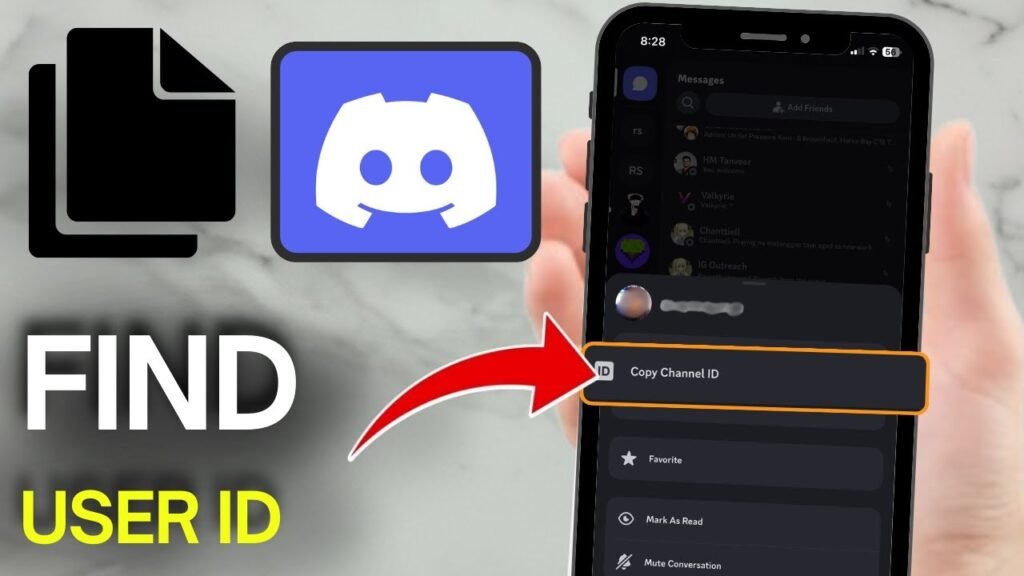
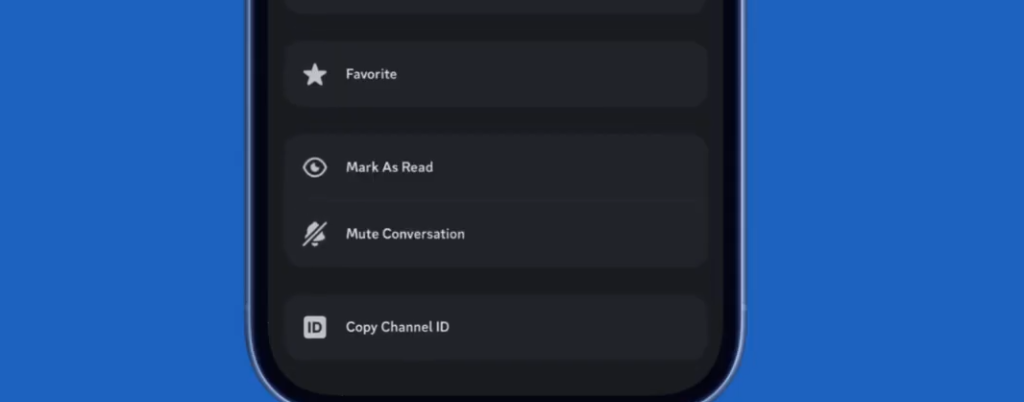
When the menu appears, tap Copy ID or Copy User ID. That’s it. The Discord ID is now copied to your clipboard, and you can paste it into a note, a bot command field, or a support form. If your goal was to copy Discord user ID, copy Discord ID on mobile, or find Discord unique ID fast, this is the exact step that gets it done.
If Copy ID doesn’t show up
Most problems come down to a small missed step. The usual ones are simple:
- Developer Mode is still off
- You opened the wrong menu
- You’re looking at a username instead of the account ID
Discord’s layout can look a little different depending on your app version, but the path stays close to the same. Turn on Developer Mode, open the user’s profile, then look for Copy ID. If you’re also trying to find Discord ID on PC, the steps are similar but the menus are different, and this web, desktop, and mobile Discord ID guide can help fill in that part.
You can now copy a Discord ID in seconds
The hard part isn’t copying the ID. It’s knowing that Discord hides it until Developer Mode is on. Once you flip that switch, finding a Discord app ID, your own Discord ID, or another user’s ID gets a lot easier.
So if you ever need to find Discord ID again, you won’t have to hunt around the app. Open settings, turn on Developer Mode, open the profile, and tap Copy ID.
Prefer Visual Help? Watch the Step-by-Step Video Guide!
Struggling with How to Find Discord User ID on Mobile and Copy It? Don’t worry—this video breaks it down step by step with clear, hands-on instructions. If you want the only working method that actually gets results, this video is for you!
▶ Watch TutorialFrequently Asked Questions
Want To Learn How to Fix the Discord “Loading Chunk Failed” Error . Here’s a Step-by-Step Guide Article on how to do so.