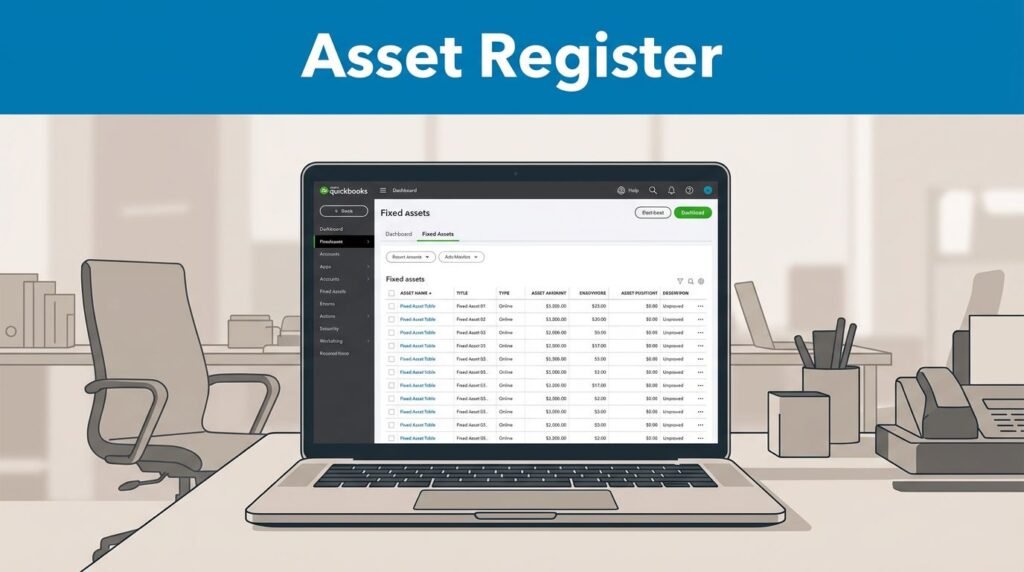
Trying to figure out how to run a fixed asset register in QuickBooks Online can feel a little backward the first time. You go looking for a clean report, then realize a big part of the job starts with setting up the asset account itself.
That’s the part that throws people off. In regular QuickBooks Online, you usually create the fixed asset account in the Chart of Accounts, enter the original cost and any depreciation you already have, then review that entry in your account list and reports. Once you know where it lives, it stops feeling hidden.
Where the fixed asset register lives in QuickBooks Online
Here’s the plain version: a fixed asset in QuickBooks is something your business will use over time, not something you burn through this month and forget about. Furniture, equipment, and similar purchases usually land here. They don’t belong in a normal expense account if you’re tracking them as long-term assets.
If you’re wondering what depreciation is, or what depreciation is in accounting, it’s the way you spread the cost of an asset across time instead of taking the whole hit at once. That’s basic depreciation accounting. The depreciation of an asset affects your books differently than a regular one-time purchase, which is why a depreciating asset needs its own setup.
In standard QuickBooks Online, depreciation is usually manual, not automatic.
That matters because your plan level changes what you can do. Intuit notes in its Fixed Assets Register support page that automatic fixed asset register tools and book depreciation features are available in QuickBooks Online Advanced. If you’re on a lower subscription, you’re handling more of the fixed asset QuickBooks work yourself.
How to set up the asset so you can run the register
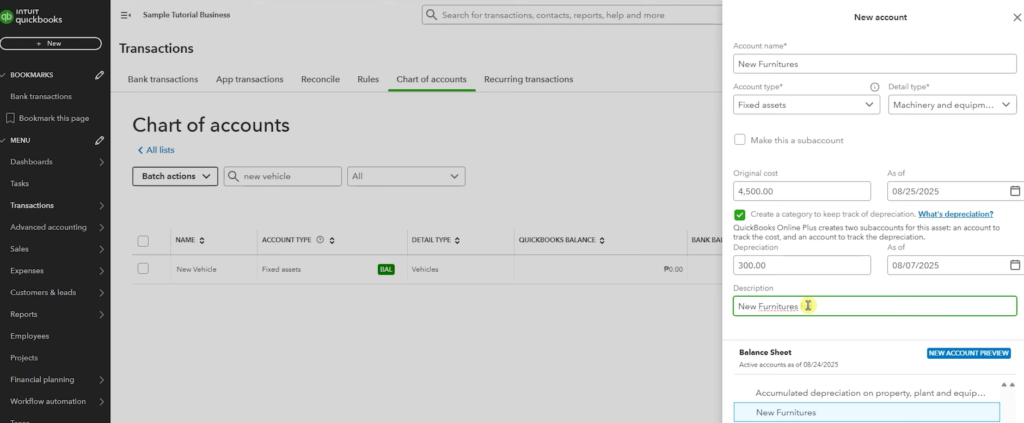
Once you log in to QuickBooks Online with your Intuit account, go to the Gear icon in the top-right corner. From there, open Chart of Accounts, then click New.
If you’re doing this in a sample company, a test file, or through an accountant login for a client, the path is still the same. This lives in the accounting side of QBO, not payroll. So if you landed here after searching something like “run asset register qbo payroll,” you’re in the wrong area until you get back to the Chart of Accounts.
When the new account window opens, fill in the asset details. The example used here is furniture, but the same idea works for equipment and other fixed assets.
A few details matter more than they look. Your account name should be clear enough that you recognize it later without guessing. “Office Desk” beats “Asset 1.” If you have several similar items, being more specific now saves you trouble later.
For the account type, choose Fixed Assets. That’s the part that tells QuickBooks this is not income, not a billable expense, and not something that belongs under regular operating costs. The detail type in the example is Equipment, which works for the kind of setup shown on screen. Menu labels can shift a bit over time, but the structure stays the same.
Then enter the original cost. In the example, the amount is $4,500. Use the date that matches when you bought it, or when that value should start showing in your books. If your asset records and your QuickBooks dates don’t line up, the depreciation of assets gets messy fast.
You can also enter depreciation here, but this is where people get tripped up. QuickBooks Online does not automatically handle ongoing asset depreciation in many standard setups. If you already have a depreciation amount to enter, type it in along with the related date. Add a short description if you want a little more context.
When you’re done, click Save. If you’re adding several depreciating assets in one session, use Save and New instead.
What to check after you save
After saving, go back to the Chart of Accounts list. If a search filter is active, clear it first so you’re looking at the full list. Then scroll or search for the account you just created.
You should see the new asset account listed there. In the example, that means your furniture account appears with the original cost and the depreciation amount shown in the list. For many people trying to run asset register QBO online, this is the key screen they actually needed.
If the account doesn’t show up where you expect, check the account type first. A wrong category is the fastest way to hide a fixed asset in plain sight.
This is also the point where you catch simple mistakes. Maybe the account name is misspelled. Maybe the original cost is off by a zero. Maybe the date is wrong. Fixing it now is easy. Fixing it after you’ve built reports around it is not.
If you’re testing the process in a QBO sample file or a practice company, this review step is still the same. The whole point is to confirm that the fixed asset in QuickBooks now exists in the Chart of Accounts with the right values attached to it.
Depreciation, reports, and the mistakes that waste time
Depreciation is where most of the confusion lives. You can enter depreciation in the account setup, but ongoing depreciation accounting in regular QBO is still more manual than people expect. Intuit’s own community post about creating an asset register points back to manual setup and manual depreciation entries unless you’re using higher-tier features.
That means if you’re depreciating assets over time, you need to stay consistent. A clean name, the right opening value, and the right dates do a lot of the heavy lifting. Once your fixed asset QuickBooks setup is wrong, every report after that gets harder to trust.
The mistakes that usually cause trouble are pretty simple:
- Putting furniture or equipment into an expense account instead of Fixed Assets
- Using a vague name that means nothing six months later
- Entering the cost but forgetting the depreciation amount or date
- Expecting payroll, bank feeds, or another menu to build the register for you
- Assuming every QBO subscription has the same fixed asset tools
That last one matters more than people think. If you’re comparing QBO pricing or wondering why another account has better fixed asset options, the subscription level is often the reason. QuickBooks Online Advanced has more built-in help for this than lower plans. If you’re using QBO Accountant for a client, you’re still working with the same company data underneath, so the account setup still has to be right.
And once the asset account is in place, it doesn’t just sit there for decoration. It feeds into your financial reporting, including the balance sheet. That’s why a small cleanup now can save you a lot of backtracking later.
Prefer Visual Help? Watch the Step-by-Step Video Guide!
Struggling with How to Run a Fixed Asset Register in QuickBooks Online? Don’t worry—this video breaks it down step by step with clear, hands-on instructions. If you want the only working method that actually gets results, this video is for you!
▶ Watch TutorialFinal thoughts
Once you know where QuickBooks keeps fixed assets, the process stops feeling mysterious. You open the Chart of Accounts, create the asset account, enter the original cost, add any depreciation you already have, and confirm it shows up correctly.
That’s the core of how to run a fixed asset register in QuickBooks Online for most standard QBO users. Keep the names clean, keep the dates accurate, and don’t assume depreciation updates itself. A tidy register now makes every later check much easier.
Frequently Asked Questions
Want to learn How to Import Trial Balance Into QuickBooks Online? Here’s a Step-by-Step Guide Article on how to do so.