If you need to create a delivery note in QuickBooks Online and don’t want to retype the same message on every sale, the easiest fix is to build it into your invoice workflow. You can add the note manually on a one-off invoice or save it as a reusable template, so it shows up by default.
That matters because the form screen doesn’t always show every change right away. In QuickBooks, some delivery-note-style details only show properly when you preview the final email or document.
What a delivery note looks like in QuickBooks Online
Before you start clicking around, it helps to pin down what you’re trying to make. In a lot of businesses, a QuickBooks delivery note, QuickBooks dispatch note, QuickBooks sales delivery note, QuickBooks delivery challan, QuickBooks order delivery note, QuickBooks customer delivery slip, QuickBooks shipment document, QuickBooks delivery ticket, or a delivery receipt in QuickBooks Online all point to the same basic idea: a document or note that tells the customer what is being sent.
If you’re new and still figuring out the everyday QuickBooks Online meaning behind the menus, think of QBO as the place where your sales forms, customer details, and email templates all connect. So when you create a delivery note in QuickBooks, you’re usually attaching that delivery information to a sales form, most often an invoice or estimate.
The first choice is simple:
- Pick Invoice when you’re billing the customer now.
- Pick Estimate when you’re sending a quote first and the final charge comes later.
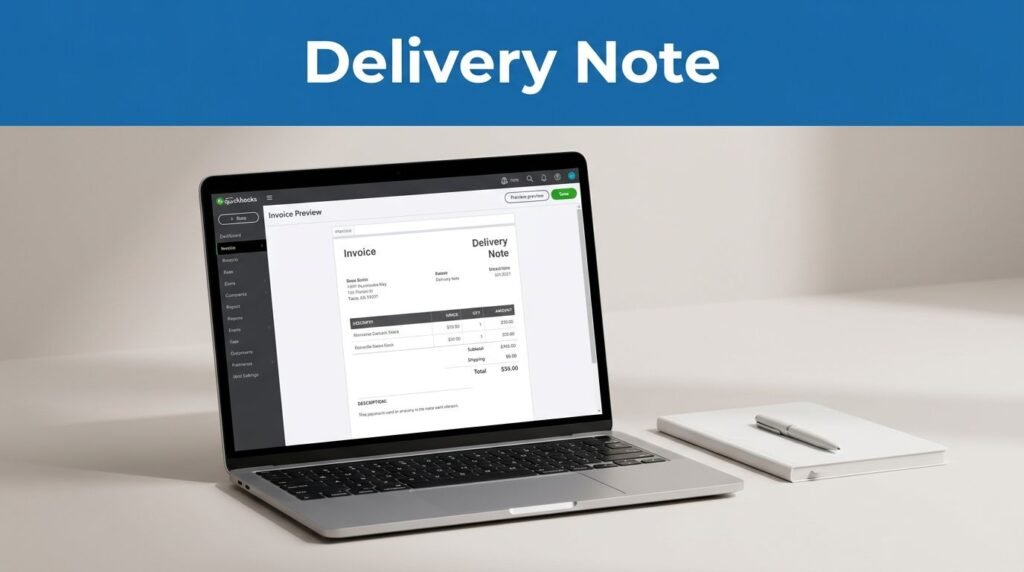
A QuickBooks Online invoice delivery note is usually tied to the invoice itself. A QuickBooks Online packing slip or QuickBooks invoice packing slip is a little different. A packing slip is more about the items inside the package. A delivery note is more about the handoff, the message, and the record that goods were sent.
So if you’re asking how to create a delivery note in QuickBooks Online, the practical answer is this: use the invoice or estimate form, then add the delivery message where QuickBooks lets you customize customer-facing text.
Add a delivery note directly to an invoice or estimate
If you only need this once in a while, the manual method is the fastest way to create a delivery note in QuickBooks.
- Open QuickBooks Online.
- Click New in the top-left corner.
- Choose Invoice or Estimate.
- Select your customer.
- Enter the customer email and the rest of the form details.
- Add your delivery message in the available note area.
Depending on your layout, you may see a field that reads like a delivery note for the invoice, or you may use Message to customer or Message on statement. QuickBooks labels can vary a bit, but the idea is the same. You are adding the note that travels with the sale.
This method works well when the message changes from one order to the next. Maybe one shipment needs a gate code, a special receiving instruction, or a note about partial delivery. In that case, typing the note directly on the form makes sense.
It also helps to fill in the customer email before you move on. If you skip that and jump straight to the note, the form can feel finished when it isn’t. Then you hit send and have to backtrack.
If your goal is “how to make delivery note in QuickBooks” without setting up a reusable style, this is the cleanest path. You’re not building a full QuickBooks delivery note template yet, you’re simply adding the note to the current transaction.
One small catch, if you’re expecting a polished QuickBooks Online shipping document or QuickBooks Online delivery slip with matching branding every time, the manual method gets old fast. That’s where templates start earning their keep.
Create a QuickBooks delivery note template
If you send the same note often, turn it into a saved style. This is the better setup for a QuickBooks delivery note template, a QuickBooks shipping template, or any customer-facing QuickBooks delivery form you want to reuse.
Start on an invoice screen, then click Customize. From there, open your template list. You’ll usually see your current styles, often a standard one plus any custom versions you’ve already saved. Click New style to make a fresh template.
Rename it right away. Don’t leave it with a vague name. If you have multiple forms later, you’ll want to know which one is your delivery-note version at a glance.
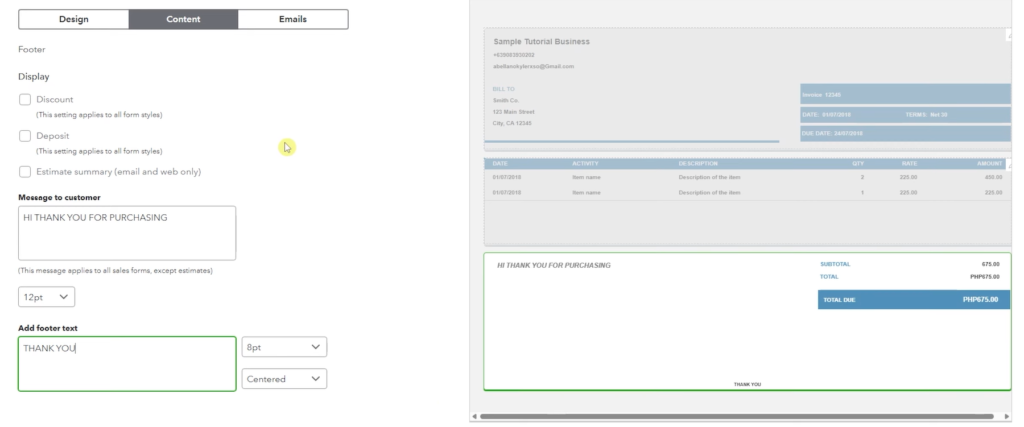
From there, you can change the design if you want. Colors, layout, and branding are all there. But the important part is the Content tab. Click into the section of the invoice where customer-facing text appears, then edit the message area.
This is where your default delivery wording goes. Once it’s saved, that text becomes the starting point every time you use that template. That’s the real benefit. You stop typing the same thing over and over.
You can also format the text. Make it larger if needed. Add emphasis where it helps. If you want a footer, add one there too, something short like “Thank you” or a basic delivery instruction.
If the footer doesn’t show on the invoice screen right away, don’t assume the template failed.
Click Done to save the style. Then go back to your invoice, open Customize again, and select the template you just made. QuickBooks should apply the style to that invoice.
This same setup works if you think of it as “create shipping note QuickBooks Online” rather than “create delivery note QuickBooks.” You’re still using the invoice template system to control what the customer sees.
If you’re also cleaning up imported bookkeeping data inside QBO, this QuickBooks trial balance import guide covers a different, but related, part of keeping your records in order.
Preview the final document before you send it
This is the step people skip, then wonder why the footer or note didn’t appear. After you’ve entered enough invoice details to move forward, click Save and Send.
Now check the preview carefully. You’ll see how the email and document are actually going to look. This is where your subject line and email body can still be edited, and it’s also where the saved template changes often become visible.
That missing footer from earlier? This is usually where it shows up.
Look at three things before sending:
- the customer email
- the message body and subject
- the bottom of the preview, where the footer and saved note should appear
If the form looks right here, your QuickBooks Online invoice delivery note is doing its job.
If you need a separate printed delivery note
Sometimes you don’t want the note attached to the invoice email. You want a separate printout, more like a handoff sheet, delivery receipt, or shipping document. That’s where things get a little messy, because QuickBooks doesn’t look identical across every region.
QuickBooks has official help on creating and printing a delivery note and a community post on printing a delivery note without generating an invoice. Those examples show a Batch actions > Print delivery note workflow in some versions.
In some QuickBooks versions, the printed delivery note is a separate feature, and it may not be customizable.
So if you’re searching for how to print a delivery note in QuickBooks Online and you don’t see the same buttons, that doesn’t always mean you’re missing a step. It can mean your account, region, or interface works differently. In other words, a QuickBooks delivery note and a QuickBooks Online packing slip are not always handled the same way.
Prefer Visual Help? Watch the Step-by-Step Video Guide!
Struggling with How to Create Delivery Note in QuickBooks Online? Don’t worry—this video breaks it down step by step with clear, hands-on instructions. If you want the only working method that actually gets results, this video is for you!
▶ Watch TutorialFinal thoughts
The easiest way to build a delivery note in QuickBooks Online is to start with the invoice or estimate, add the message where QuickBooks allows it, then save that wording into a custom template. That’s the setup that saves time and keeps your customer documents consistent.
The part worth remembering is the preview. If something looks missing on the form screen, check Save and Send before you redo the template. That’s usually where the final version tells the truth.