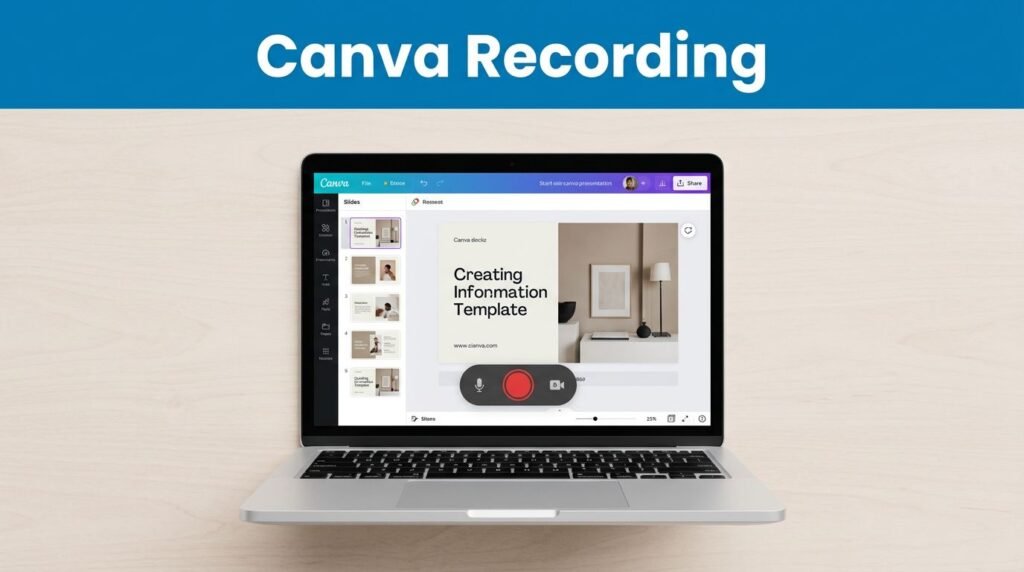
Need to talk through your slides without opening a separate screen recorder? Canva already has a built-in option for that, and once you know where it lives, the process is pretty quick.
If you’ve been wondering how to record presentation in Canva, this is one of the easiest features to pick up. It works well for school, work, a quick webinar in Canva, or a tutorial video in Canva when you want your slides, your voice, and maybe your camera all in one place.
Start inside your presentation, then follow the recording flow from there.
Find the Present and record option
Open the Canva presentation you want to record. Whether you’re using free Canva or Canva Pro, you begin in the editor with your slides already open.
Look at the top-right corner and click Present. Canva will show you a few presentation choices. You might see full-screen and other review-style options, but the one you want is Present and record.
Don’t pick the wrong presentation mode
The part that trips people up most is choosing regular presentation mode instead of the recording option.
If you’re still learning how to use Canva, that mistake is easy to make because both features sit in the same menu. The right choice is the one that opens Canva’s recording flow, not the one that only plays your slides live.
If your layout looks a little different, Canva’s guide to talking presentations can help you match the current buttons. Once you spot Canva Present and record, click it, then hit Next.
Set up the recording studio
After you click Next, choose Go to recording studio. This is the part that handles the actual video and audio capture, so if you’re trying to figure out how to record in Canva or how to record video presentation in Canva, this is the screen that matters.
Allow access and choose your devices
Before Canva can record anything, your browser will ask for permission to use your camera and microphone. When that prompt appears, click Allow.
Then go through these steps:
- Pick the camera you want to use.
- Pick the microphone you want to use.
- Click Start recording when you’re ready.
- Wait for the countdown to finish.
- Begin presenting your slides.
That countdown gives you a second to settle in before the recording goes live. Once it starts, you’ll see a timer on screen, which makes it easier to pace yourself and avoid rambling through a long Canva tutorial.
Record, pause, and position your camera
When your camera is enabled, Canva shows your video in a small circle over the presentation. One of the handiest Canva tricks here is dragging that circle to a spot where it won’t cover a slide title, chart, or image.
If you don’t turn on the camera, you won’t see that circle at all, and that’s normal. In the video walkthrough, the camera bubble doesn’t appear for that reason.
This is also where your Canva presentation voice over comes in. If your main goal is to explain the slides clearly, double-check the mic before you start. A wrong microphone can turn a solid Canva presentation tutorial into a muffled mess fast.
Need a quick break in the middle? You can hit Pause instead of ending the whole session. That’s helpful when you lose your place or want a moment before moving to the next slide.
End the recording and save it
Once you’re finished, click End recording. Canva will upload the recording to your account, so give it a moment to process.
When the upload is done, you’ll see that the recording is ready. At that point, you can either download the file or choose save and exit if you want to keep it in Canva and come back later.
That’s the full process for recording a talking presentation without extra software. It fits a Canva tutorial for beginners, but it’s also useful when you need a quick business update, a class lesson, a webinar in Canva, or a tutorial video in Canva with narration built in.
A small upgrade before you record, make your slides easier on the eyes. If you want a more polished look, try adding visual depth to presentation slides. That kind of layered design can make your final video feel less flat.
One common issue is missing video or audio. When that happens, recheck your browser permissions and the device selectors in the recording studio. If Canva can’t access the camera or mic, it can’t record them.
Final thoughts
Once you know the path, Present -> Present and record -> Next -> recording studio, the rest is mostly picking your devices and talking through your slides.
Open one presentation and do a short test run first. A 30-second recording is enough to check your mic, camera, and slide layout before you record the real thing.
Prefer Visual Help? Watch the Step-by-Step Video Guide!
Struggling with How to record a presentation in Canva? Don’t worry—this video breaks it down step by step with clear, hands-on instructions. If you want the only working method that actually gets results, this video is for you!
▶ Watch TutorialFrequently Asked Questions
Want to learn How to Put Text Behind a Person in Canva? Here’s a Step-by-Step Guide Article on how to do so.