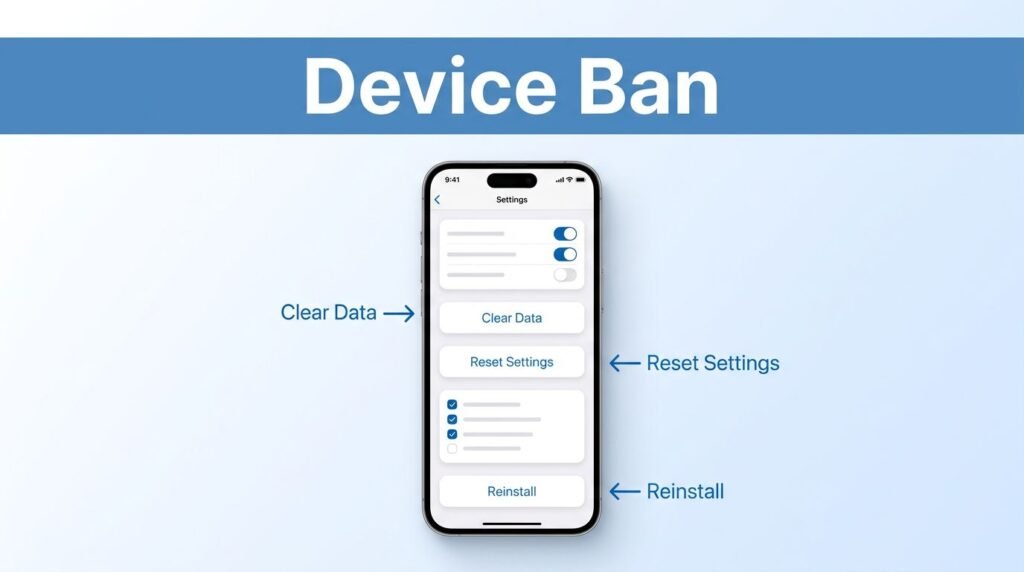
Looking for a Snapchat device ban fix that actually works? The path is simple, but the order matters. On iPhone, you want to fully remove Snapchat, clear leftover data, reset a couple of device settings, restart, then reinstall and try a clean account.
If the device is still blocked after that, you’re past basic troubleshooting and into support-review territory. Start with the cleanup first, because that’s the part people skip.
What a Snapchat device ban usually looks like
A Snapchat device ban is different from a normal login problem. You’re not only dealing with a bad password or a locked account, you’re dealing with a phone that may have been flagged.
If your phone is banned at the device level, changing your password usually won’t fix it.
You may be dealing with this if you see things like:
- a “device banned” message
- a “locked device” error
- an SS06-style error tied to the phone, not only the account
- repeated login failures even after reinstalling the app
If you’re searching for a Snapchat device ban fix SS06, or trying to figure out how to fix the Snapchat SS06 device banned error, you’re usually dealing with this same kind of block.
The important thing to know is that this guide is most accurate for iPhone, because the steps shown use iPhone menus. If you’re asking how to remove Snapchat device ban on iPhone, you’re in the right place. If you’re searching how to remove Snapchat device ban Android or how to fix Snapchat SS06 device banned Android, the idea is similar, but your exact menus will be different.
How to fix Snapchat device ban on iPhone
This is the cleanest order to try. Don’t skip around.
1. Delete Snapchat and remove all leftover data
First, delete the Snapchat app from your iPhone. Then go one step further and check for anything left behind in storage.
Open Settings > General > iPhone Storage and look for Snapchat. If it still appears there, tap it and make sure the app data is removed too. If you see an Offload App option, be careful, offloading can leave data behind. You want Snapchat fully gone.
The goal here is a true reset, not half a cleanup. If Snapchat still shows stored data, the phone is not starting fresh.
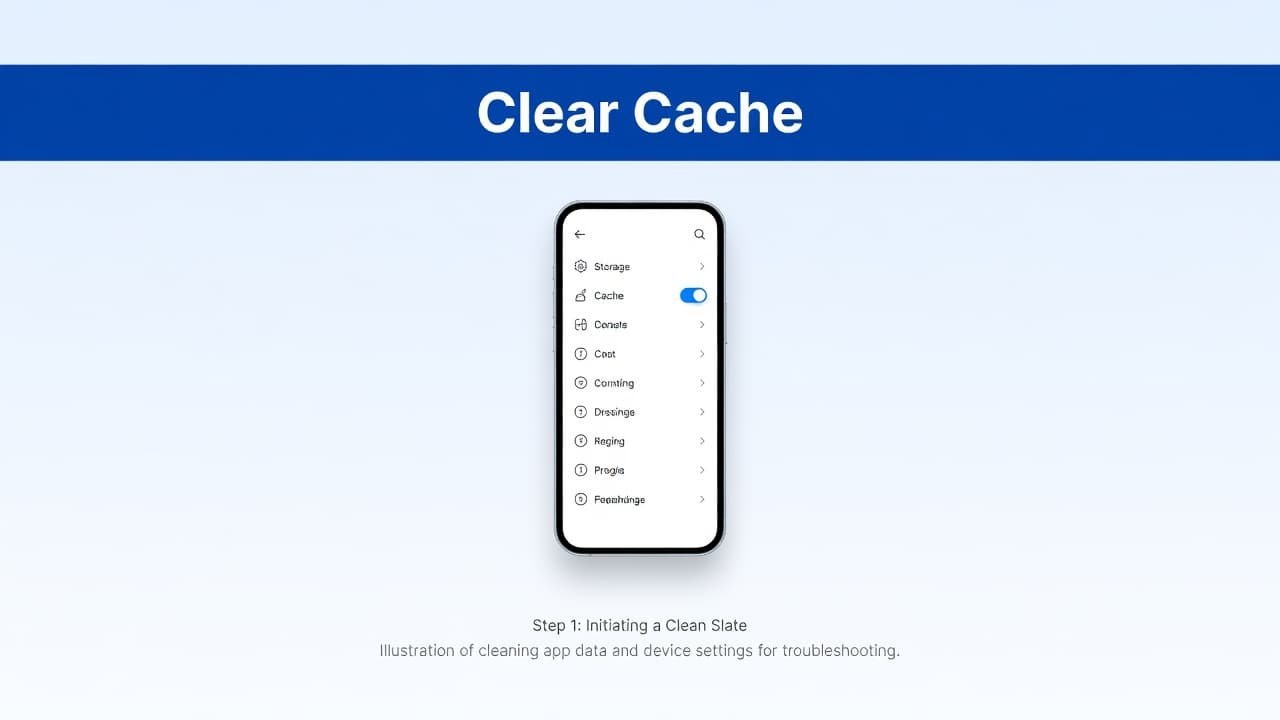
Once you’re done, check iPhone Storage again. If Snapchat no longer appears, or no longer shows leftover usage, you’ve finished the first step the right way.
2. Reset the tracking setting
Next, go to Settings > Privacy & Security > Tracking.
Turn Allow Apps to Request to Track off, then turn it back on. The transcript describes this as resetting the advertising identifier. On your screen, it may simply look like you’re flipping one tracking setting off and back on.
This can confuse people because it feels unrelated to Snapchat, but it’s part of the reset flow shown here. If the menu looks a little different on your iPhone, stay in Privacy & Security and look for Tracking.
If you’re trying to work out how to fix Snapchat device banned messages on iPhone, this step is one of the small ones that often gets missed.
3. Reset network settings, then restart your iPhone
Now go to Settings > General > Transfer or Reset iPhone > Reset > Reset Network Settings.
This refreshes your device connection and clears network settings that could be hanging onto bad connection data. After the reset, restart your iPhone.
A common mistake is doing the network reset and then jumping straight back into Snapchat without a restart. Don’t do that. Let the phone reboot cleanly first.
Also, be ready to reconnect to Wi-Fi afterward, because your saved network settings may be cleared. If you’re looking up Snapchat ban troubleshooting, this is one of the most useful steps in the whole process because it resets the phone’s connection state, not only the app.
4. Reinstall Snapchat and use a clean account
After the restart, reinstall Snapchat from the App Store. Then either create a new account or log into a clean account.
In this context, “clean account” means one that isn’t already tied to the same restriction. If you sign right back into an account that was already part of the problem, you may not get a clear result.
If the fix worked, you should get the normal login or sign-up flow instead of the device-blocked error. For people searching how to fix Snapchat device ban iPhone or how to fix Snapchat SS06 device banned iPhone, this is the exact sequence to try first.
If you’re on Android and searching how to fix Snapchat SS06 device banned Android, the same logic still applies, remove the app, clear all Snapchat data, reset relevant settings, restart, then reinstall. The difference is only the menu path.
If the Snapchat device ban is still there
If the ban remains after all of that, you’ve hit the point where local fixes may not be enough. Your next move is to contact Snapchat Support and request a review of the device ban.
Keep your message short and clear. Include the exact error you’re seeing, your username, your phone model, and the fact that you already deleted the app, cleared Snapchat storage, reset tracking, reset network settings, restarted the iPhone, and reinstalled the app.
This is the safer path if you’re trying to remove Snapchat device ban issues without guessing. It also matters if you’re looking for a Snapchat account unban guide, because once the device itself is flagged, support review is often the only real next step.
Don’t expect an instant fix. Some cases are reviewed, some are denied, and some simply take time. That’s also why it helps to try this method before you keep creating new accounts.
Quick answers before you try bigger resets
If you’re asking, “How do I remove a Snapchat device ban?”, start with the method above before you even think about wiping your whole phone. The guide shown here does not use a factory reset.
If you’re wondering, “Does factory resetting iPhone remove Snapchat device ban?”, this method doesn’t claim that. It sticks to deleting Snapchat, removing leftover data, resetting tracking, resetting network settings, restarting, and reinstalling. Since the restriction comes from Snapchat’s side, a full phone wipe isn’t the first thing to jump to, and it still may not solve the flag.
A few mistakes can keep the process from working:
- deleting the app but leaving stored Snapchat data behind
- offloading the app instead of fully removing it
- skipping the network reset
- not restarting the iPhone after the reset
- signing back into a problem account too fast
If you’re reading this later and searching for a Snapchat device ban fix, the logic will probably still be the same even if Apple or Snapchat changes a few menu labels.
Prefer Visual Help? Watch the Step-by-Step Video Guide!
Struggling with How To Fix Snapchat Device Ban? Don’t worry—this video breaks it down step by step with clear, hands-on instructions. If you want the only working method that actually gets results, this video is for you!
Watch TutorialThe part that matters most
If you’re stuck on a Snapchat device ban, the cleanup is where this either works or falls apart. Deleting the app alone isn’t enough if Snapchat data is still sitting in iPhone Storage.
Once you’ve cleared everything, reset tracking, reset network settings, restarted the phone, and reinstalled the app, you’ll know if this is a local device issue or something only Snapchat Support can review. That’s the clean way to test it without guessing.
Frequently Asked Questions
Here are a few common questions people ask when fixing a Snapchat device ban or SS06 error.
Want To Learn How to Send Red Snaps on Snapchat. Here’s a Step-by-Step Guide Article on how to do so.