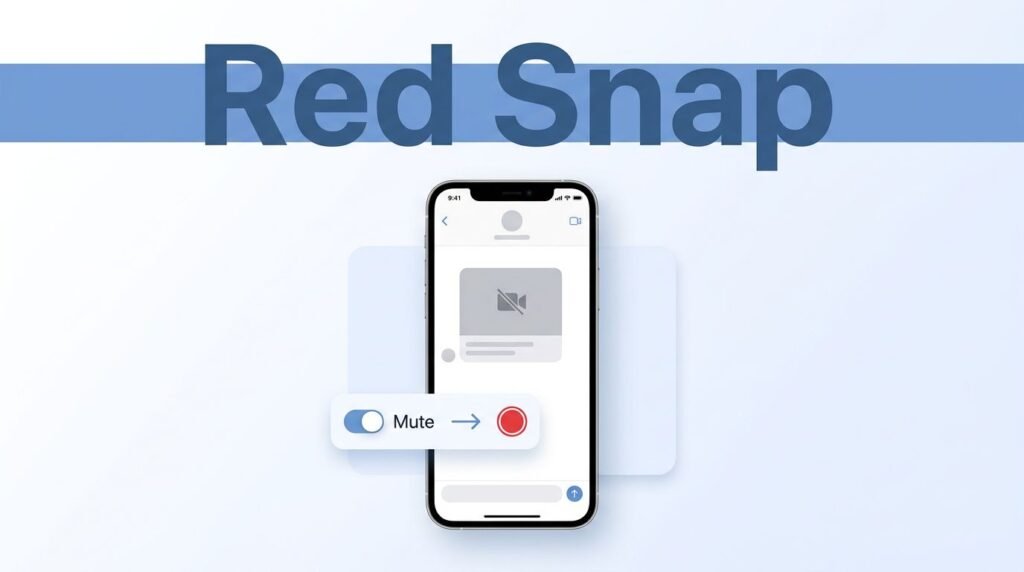
If you’re trying to figure out how to send red snaps on Snapchat, the trick is simple: your snap has to be silent. A photo already counts as silent, and a video only shows as a red snap after you mute its audio before sending.
That small color cue matters more than people think. If you leave the sound on, or add music, Snapchat treats it differently. This Snapchat red snap guide keeps it short because the process is short too.
What the red color on Snapchat is actually telling you
A red snap on Snapchat is a snap with no audio. That’s the red snap meaning on Snapchat, and it’s the part that trips people up. If the app detects sound, your video snap usually shows up as purple instead of red.
A lot of people search for a “red snap filter” on Snapchat, or try to figure out how to use a red snap filter. That isn’t really what’s happening here. There is no separate red snap filter Snapchat setting, and there isn’t some hidden Snapchat red filter you need to turn on. The red color comes from the type of snap you send, not from a lens, effect, or edit.
If you want a red snap, don’t look for a filter. Look for the speaker icon.
This works the same way on iPhone and Android in most recent versions of the app. The menu layout can shift a little, but the flow stays the same: take the snap, check the audio, then send it.
If you ever get confused by Snapchat snap colors meaning, the easy version is this:
So if you’ve been asking what is a red snap on Snapchat, or why you keep seeing the Snapchat red icon in chat, that’s the answer. Red means the snap was sent without sound.
How to send a red snap on Snapchat, step by step
If you want to send a red snap step by step, start from Snapchat’s main camera screen. Make sure you’re logged in, then decide whether you’re sending a photo or a video. A photo is the fastest option. A video works too, but you need one extra tap.
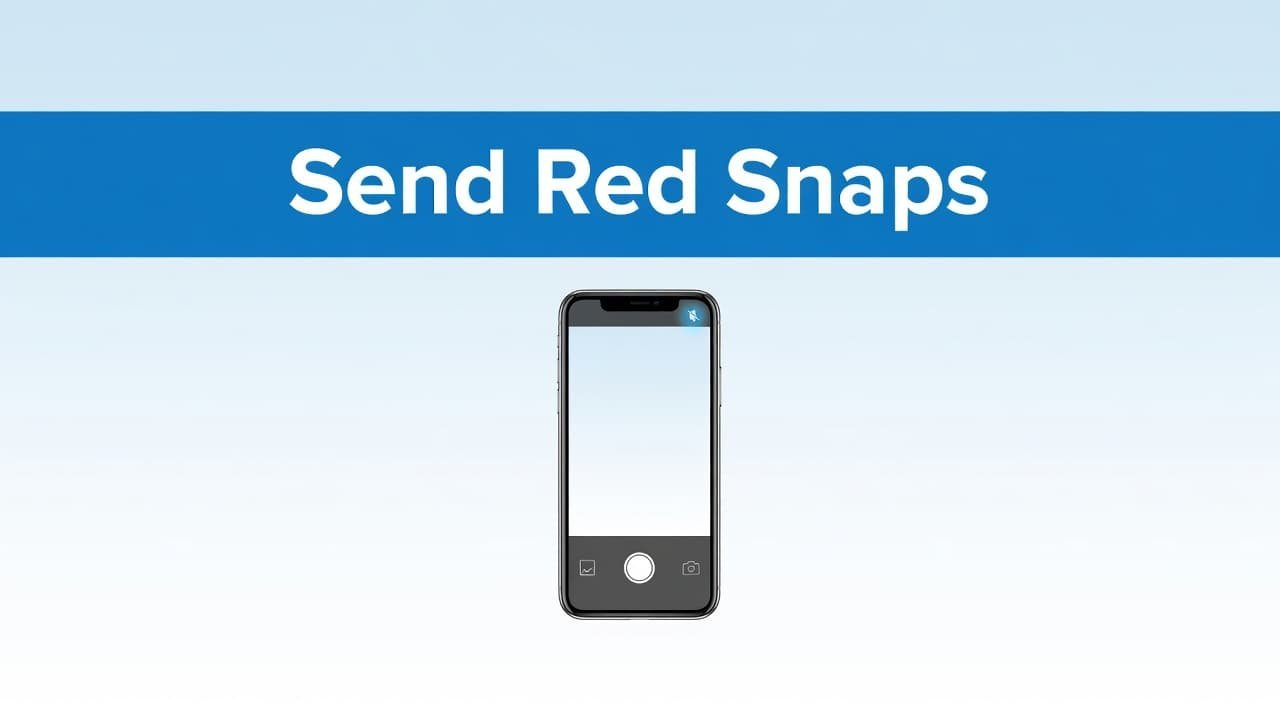
For most people, the easiest way to make a red snap on Snapchat is with a short video. Record it, mute it, and send it right away.
- Open Snapchat and stay on the camera screen.
- Take your snap. Tap once for a photo, or press and hold the capture button for a video.
- If you recorded a video, look on the right side of the screen for the speaker icon.
- Tap the speaker icon until it shows an X. That means the video is muted.
- Don’t add music or extra sound before sending. If audio is attached, it may not count as a red snap.
- Tap Send.
- Pick the person you want to send it to. If you want to test it first, you can send it to yourself.
- Tap the Send button in the bottom-right corner to finish.
That’s the whole method. That’s how to send a red snap, and it’s what every Snapchat red snap tutorial is pointing to. If you’re sending a photo, you can skip the mute step because photos don’t carry sound. If you’re sending a video, muting it is what decides whether you get the red label or not.
How to tell if it worked, and what to fix if it didn’t
After you send the snap, check the conversation or snap indicator. If it shows in red, your silent snap went through the right way. In some views, you may also see the label itself, such as “New Snap,” appear in red.
If you’re trying to keep a streak going, that’s usually the color you’re looking for. If you see purple instead of red, the app still thinks your snap has audio.
A few small things cause this most of the time:
- The speaker icon was never switched to the X state.
- Music got added before you sent the snap.
- You re-recorded or edited the clip and the audio came back on.
- Snapchat is outdated and the screen looks different from what you expected.
- Your connection is weak, and the snap isn’t sending cleanly.
The speaker icon is the first thing to check. If there is no X on it, the video isn’t muted yet. That’s the most common reason people miss the red result.
If Snapchat itself is the problem, not the snap type, that’s different. If you can’t send anything because of a bigger app or account issue, this guide to fixing a Snapchat device ban is the right next step.
Prefer Visual Help? Watch the Step-by-Step Video Guide!
Struggling with How to Send Red Snaps on Snapchat? Don’t worry—this video breaks it down step by step with clear, hands-on instructions. If you want the only working method that actually gets results, this video is for you!
Watch TutorialYou only need one setting
If you’re wondering how to send red snaps on Snapchat, it comes down to one thing: no audio. Take the photo, or record the video and tap the speaker icon until you see the X.
Once that mute step is in place, the snap should send with the red label instead of purple. Quick, simple, done.
Frequently Asked Questions
Here are a few common questions people ask when trying to send red snaps on Snapchat.
Want To Learn How to Unsave Pins on Pinterest and Remove Saved Pins. Here’s a Step-by-Step Guide Article on how to do so.