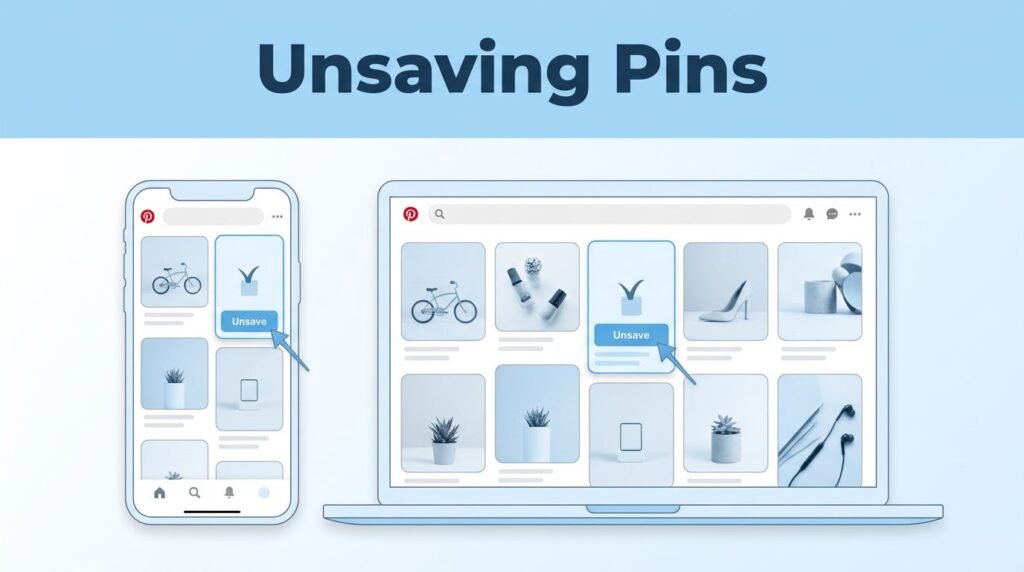
If you want to know how to unsave pins on Pinterest, the good news is that it only takes a few taps or clicks. You open the board where the pin is saved, open the pin itself, then choose Unsave or Remove from board.
That change only affects your account. The original pin stays on Pinterest for other people, which is exactly what you want when you’re cleaning up old ideas, fixing accidental saves, or trying to keep your boards from turning into a junk drawer.
What unsaving a pin on Pinterest actually does
A lot of people search for how to delete a saved pin on Pinterest, how to delete saved pins on Pinterest, or how to remove saved items on Pinterest, but Pinterest usually treats that action as unsaving the pin from your board.
That matters because you’re not usually deleting the pin from Pinterest itself. You’re removing your saved copy of it from one board. If you saved it to more than one board, it can still show up in the others until you remove it there too.
Unsaving a pin removes it from your boards, not from Pinterest for everyone else.
This is where people get tripped up. If you’re trying to unsave a Pinterest pin that you saved from someone else, the option you want is usually Unsave or Remove from board. If you’re trying to delete a pin on Pinterest that you created and published yourself, the menu can look different.
So if you’ve been wondering how to unsave on Pinterest, how to remove a pin on Pinterest, or how to remove a pin from a board on Pinterest, you’re in the right place. You’re not doing anything risky here. You’re simply cleaning up your own saved content.
How to unsave pins on Pinterest on the app or website
You can do this in the Pinterest app on iPhone or Android, or on pinterest.com in a browser. The steps are basically the same.
Here’s the main difference at a glance:
Where you’re using Pinterest | What to open first | What to look for | Mobile app | Your profile icon | The saved board, then the pin, then Save or the three dots | Desktop browser | Your profile on pinterest.com | The saved board, then the pin, then Save or the three dots
Once you’re signed in to the right account, do this:
- Open Pinterest and go to your profile.
On mobile, your profile icon is usually along the bottom or in a corner. On desktop, it’s in your account area after you sign in. - Open the board where the pin is saved.
This part matters. If you’re trying to figure out how to delete a saved pin on Pinterest, you need to start from the board that currently holds it. - Scroll until you find the pin you want to remove, then tap or click it.
Open it fully. You usually won’t see the right option from the small board preview. - Tap Save or the three dots menu.
Depending on the version of Pinterest you’re using, the remove option may sit under the Save button or inside the menu in the corner. - Choose Unsave or Remove from board.
As soon as you do that, the pin is removed from that board.
That’s the whole Pinterest unsave tutorial. If you’re searching for how to delete Pinterest pins, delete saved pin Pinterest, or remove saved pin Pinterest, this is the action you’re looking for in most cases.
If Pinterest changes the layout a bit, don’t overthink it. The path stays about the same: profile -> board -> pin -> Save or three dots -> Unsave.
If the pin is saved to more than one board
This is the part people miss. If the same pin is saved to multiple boards, removing it once doesn’t wipe it from every board at the same time. You have to repeat the same steps in each board where it’s saved.
So if you’re trying to figure out how to remove pins from a Pinterest board and the pin still seems to exist somewhere, that’s usually why. It may still be attached to another board you saved it to earlier.
This is also why unsaving is useful for quick cleanup. Maybe you saved something by mistake. Maybe a recipe looked good six months ago and now you never want to see it again. Maybe a board got messy because you saved the same type of idea in three different places. Unsaving fixes all of that fast.
A simple cleanup habit helps more than people think:
- Remove pins that no longer match the board.
- Fix accidental saves right away.
- Re-save good pins to the right board if they were filed in the wrong place.
If you want to keep the image before you remove it, you can also download high quality Pinterest images first, then clean up the board after.
A neat board is easier to use. You find ideas faster, your saved content stays relevant, and your profile looks more intentional instead of random.
When you can’t find the option to unsave or delete
If the option is missing, the first thing to check is simple: are you in the right board, and are you signed in to the right Pinterest account? A missing pin is often sitting in a different board, not gone for good.
Another common issue is opening the board but not opening the pin fully. The small board view doesn’t always show the removal controls. Tap the pin first, then look for Save or the three dots.
Pinterest also changes its interface from time to time. So if you’re trying to unsave pin Pinterest content and the wording looks different, look for similar labels such as Unsave, Remove from board, or a board management option inside the menu.
If you created the pin yourself
This is where the wording gets confusing. If you posted the pin, you may be looking for a true delete option, not an unsave option.
In that case, the steps can be different from removing a saved pin from a board. Pinterest keeps current instructions on its edit or delete a Pin help page.
That’s the main difference between “how to delete a pin on Pinterest” and “how to unsave pins on Pinterest.” One is about content you published. The other is about content you saved to your boards.
Prefer Visual Help? Watch the Step-by-Step Video Guide!
Struggling with How to Unsave Pins on Pinterest – Delete a Pin? Don’t worry—this video breaks it down step by step with clear, hands-on instructions. If you want the only working method that actually gets results, this video is for you!
Watch TutorialKeep your Pinterest boards clean without making it a project
You don’t need a giant weekend cleanup. The easiest way to manage saved pins is in short bursts.
If a pin no longer fits, remove it right then. If you save something to the wrong board, fix it right away. If one board starts feeling cluttered, scroll through for five minutes and trim the obvious stuff. That’s usually enough.
This keeps your profile neat, your ideas easier to find, and your boards closer to what you actually care about now, not what caught your attention months ago. Tastes change. Boards should too.
The best part is that unsaving is low-stakes. You’re not erasing the pin from Pinterest. You’re only removing it from your account, which makes this one of the fastest ways to keep your boards useful instead of bloated.
Frequently Asked Questions
Here are a few common questions people ask when unsaving pins or removing saved pins from Pinterest boards.
Want To Learn How to Get Telegram Chat ID. Here’s a Step-by-Step Guide Article on how to do so.