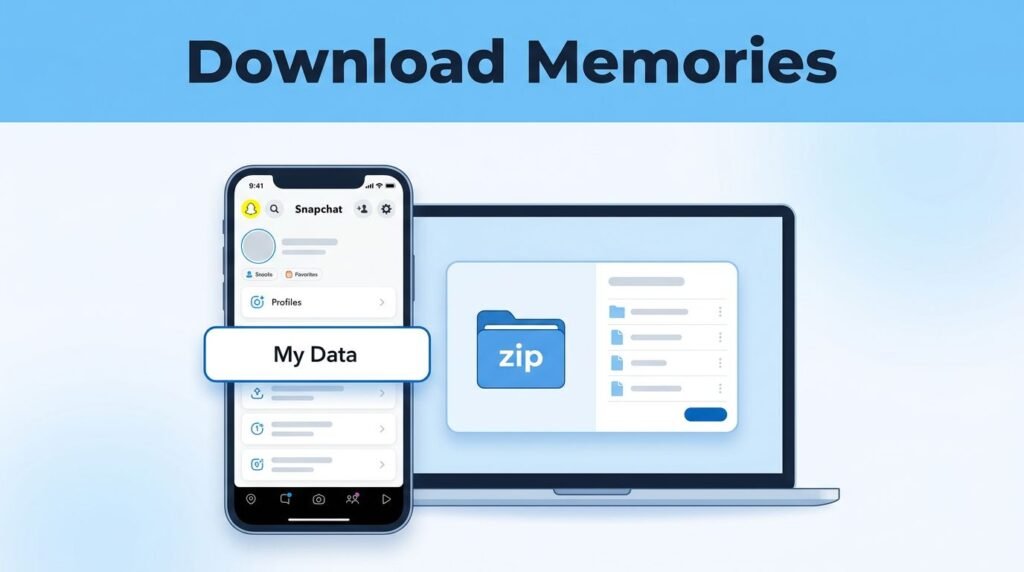
If you need to know how to download Snapchat memories to computer, the easiest path is through Snapchat’s built-in data request tool. It lets you download all Snapchat memories at once, instead of saving each photo or video by hand.
That matters if you want a real backup. Phones break, apps change, and scrolling through years of snaps on a small screen gets old fast. Once your export is ready, you can keep your Snapchat memories on computer, archive them, and look through them without using your phone.
What you need before you request your Snapchat export
This Snapchat memory export guide starts in the mobile app, not on your computer. You request the file from Snapchat on your phone, then you download the finished zip file from the email Snapchat sends to your account.
Here’s the short version: you’re asking Snapchat to package your account data, including your saved memories, chats, and stories, into one download. That’s why this method works when you want to save all memories from Snapchat or figure out how to export all Snapchat memories without doing it one by one.
Use this quick check before you start:
You won’t get the file instantly from the Memories tab. Snapchat has to prepare it first, then send you the download link by email.
If the menu wording looks a little different on your phone, don’t panic. App layouts move around sometimes. In most versions, you’re still looking for My Data under a privacy-related section, and Snapchat’s official data download instructions can help if the labels have changed.
How to export Snapchat memories from the app
If you’re trying to learn how to export Snapchat memories, the actual request takes only a minute or two. The slow part is waiting for Snapchat to finish building the file.
1. Open Snapchat on your phone and tap your profile icon. 2. Tap the gear icon in the top-right corner to open Settings. 3. Scroll down until you reach the Privacy area, then tap My Data. 4. Sign in again with your Snapchat login details if Snapchat asks you to verify your account. 5. On the data page, look for the option to request your information, then choose Submit Request. 6. Wait for Snapchat to process the request and send the download link to your email.
That request is the core of any Snapchat memory export. It’s also the cleanest answer to how to save all Snapchat memories to computer, how to save all Snapchat memories at once, and how to transfer Snapchat memories to computer without manually saving every snap.
A common mistake is thinking this only grabs photos. It can also include chats and stories. So if your goal is to download Snapchat memories, back up old chats, or save Snapchat stories on computer, this is the path you want.
If you don’t see My Data, check for an app update first. Sometimes the option is easy to miss because people stop scrolling too early, or they expect it to be inside Memories instead of the account settings area.
How to download Snapchat memories to PC or Mac after the email arrives
Once Snapchat finishes preparing the file, you’ll get an email with the download link. This part is better on a desktop or laptop, especially if you’re trying to download Snapchat memories to PC and keep everything in one place.
Open the email on your computer, then use the link from the official Snapchat message to start the download. If nothing shows up right away, check your spam, junk, or promotions folder. That’s a boring fix, but it solves this problem more often than people expect.
Only use the link from the email tied to your Snapchat request. If the link expires or won’t open, request the file again from My Data.
When the download starts, Snapchat will usually give you a zip file. Save it somewhere easy to find, like your Downloads folder or your desktop. If you have years of saved content, stay on a stable Wi-Fi connection and make sure your computer has enough space before the download finishes.
After that, unzip the file. On a Windows PC, right-click and choose Extract All. On a Mac, double-clicking the zip file usually unpacks it automatically. That’s how to download all Snapchat memories to computer and turn them into folders you can actually browse.
Inside the extracted folder, you’ll typically find:
- Saved snaps and memory files
- Chat-related data
- Story-related data
Once it’s unpacked, you can access Snapchat memories on PC without going back to the app every time. That’s handy if you want to sort older files, move them to another drive, or keep a second backup.
What your export can help with, and what it won’t fix
After you download all Snapchat memories, the biggest benefit is simple: you finally have a copy that doesn’t live only on your phone. That makes it easier to archive old snaps, free up phone storage, or move everything to an external drive for extra protection.
This also gives you a cleaner way to view your files. Looking through memories on a larger screen is easier than hunting around inside the app, especially if you’re trying to organize old photos and videos into folders by year or event.
Still, this export has limits. It doesn’t rebuild your Snapchat account, and it doesn’t restore people you’ve removed. If you’re also trying to track down someone you deleted while cleaning up your account, this guide on how to find deleted friends on Snapchat is the one you want.
It also isn’t a live sync. If you save new snaps next month, they won’t magically appear in the old folder on your computer. You’ll need to repeat the process if you want a fresh backup later. For a lot of people, doing that once or twice a year is enough.
If the email link doesn’t work, the usual fix is to submit a new request. If the file feels too large, let it finish downloading before opening anything, and don’t move the zip file while it’s still downloading.
Keep your backup somewhere safer
A downloaded folder is only useful if you keep it somewhere you can find later. After you save Snapchat memories to computer, move a second copy to an external hard drive, USB drive, or a cloud storage folder you trust. One backup is good. Two is better.
This matters even more if you’re using the export as your main archive. If your laptop dies and the only copy is sitting in the Downloads folder, you’re back where you started.
Once you’ve done it once, repeating the export later is easy. If you save new memories often, run another backup every few months so your computer copy doesn’t fall too far behind.
Prefer Visual Help? Watch the Step-by-Step Video Guide!
Struggling with How to Download Snapchat Memories to Computer? Don’t worry—this video breaks it down step by step with clear, hands-on instructions. If you want the only working method that actually gets results, this video is for you!
Watch TutorialYour memories are a lot safer off your phone
If you wanted to know how to export Snapchat memories, the part that matters most is this: request the file through My Data, wait for the email, then download and unzip it on your computer. That’s the simplest way to keep a real backup of your snaps, chats, and stories.
Once your files are sitting on your computer, you’re not stuck relying on the app alone. You can browse them, archive them, transfer them, and keep a second copy before anything gets lost.
Frequently Asked Questions
Here are a few common questions people ask when downloading Snapchat Memories to a computer.
Want To Learn How to See Followers on Snapchat. Here’s a Step-by-Step Guide Article on how to do so.