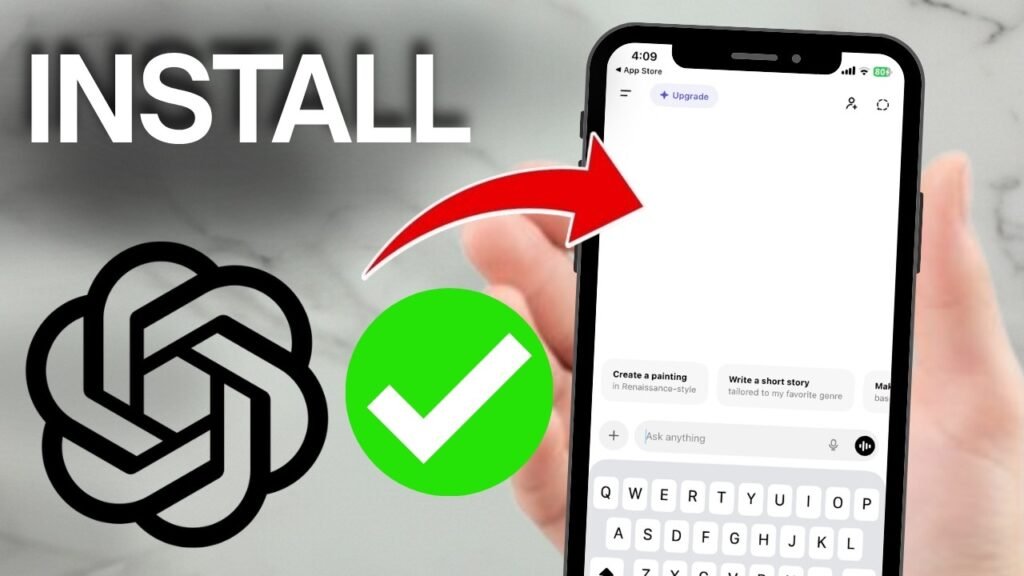
You don’t need to be techy to get ChatGPT on iPhone up and running. If you want an AI assistant on your phone for writing help, quick answers, schoolwork, or everyday tasks, the setup is pretty simple.
This ChatGPT app tutorial walks you through the full process, from the ChatGPT download on iPhone to signing in, starting your first chat, and changing a few settings so the app feels easier to use. You’ll also see a few common mistakes that trip people up, plus some ChatGPT tips for iOS that help you get better answers.
What You Need Before You Install ChatGPT on iPhone
Before you install ChatGPT on iOS, do a quick check so you don’t get stuck halfway through. You need an iPhone with internet access, enough free storage for a new app, and an Apple ID that works in the App Store. You’ll also want to know which sign-in method you plan to use, email, Google, or Apple ID.
Check your iPhone and App Store access
If your App Store isn’t working, the rest of the ChatGPT setup on iPhone won’t go far. Make sure you’re connected to Wi-Fi or mobile data, confirm the App Store opens normally, and check that your iPhone software is current enough for the app. The current App Store listing for ChatGPT shows the latest compatibility details.
Choose the right account for sign in
This part sounds small, but it matters later. If you already use ChatGPT somewhere else, log in with that same account so your access stays simple. If you’re brand new and want a clean ChatGPT beginners guide kind of setup, pick the sign-in option you’ll remember easily and keep using that one.
How to Install the Official ChatGPT App from the App Store
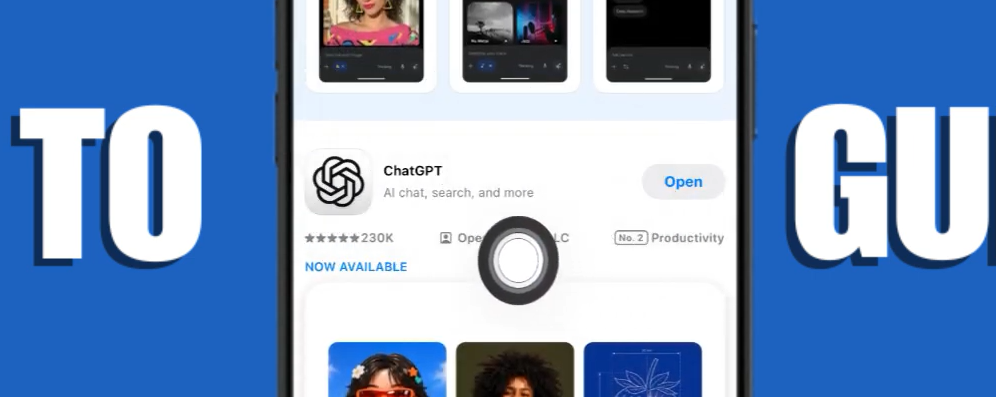
Getting the OpenAI ChatGPT mobile app onto your phone only takes a minute or two, but you do want to slow down long enough to grab the right app.
Search for ChatGPT and confirm it is the OpenAI app
Open the App Store, tap the search bar, and type “ChatGPT.” When the results show up, look at the developer name before you do anything else. The app you want is the one published by OpenAI.
Only download the app if the developer name matches OpenAI.
That one check saves you from copycat apps that look close enough to fool people scrolling fast. If you want an extra layer of confirmation, OpenAI has an official iOS app download guide.
Download, install, and open the app
Once you’ve found the official listing, tap “Get” and let the app install. After that, you can open it straight from the App Store or find it on your Home Screen.
The full ChatGPT installation guide on iPhone is basically this:
- Open the App Store.
- Search for “ChatGPT.”
- Confirm the app is by OpenAI.
- Tap “Get.”
- Wait for the install to finish, then open the app.
If the download feels slow or fails, check your connection, make sure you still have storage space, and try again. A quick iPhone restart can also help if the App Store hangs.
Set Up Your Account and Start Your First Chat
Once the app opens, you’re at the point where most people wonder, “Now what?” Good news, this part is simple.
Sign up or log in without confusion
You’ll see options to sign up or log in. If you already have an account, tap log in and use the same email, Google account, or Apple ID you used before. If this is your first time, pick whichever sign-in option feels fastest and easiest to keep track of.
After that, you’ll land on the main chat screen. That’s the whole point of this iOS ChatGPT guide, getting you to the place where you can type and get help right away.
Send your first prompt the smart way
The app works like a messaging window. You type a question, task, or request, then wait for the reply. That’s how to use ChatGPT on iPhone in the simplest terms.
Start with something clear, not vague. A few easy first prompts look like this:
- “Write a polite email asking for a meeting next week.”
- “Summarize this paragraph in simple words.”
- “Translate this sentence into Spanish.”
- “Give me step-by-step help with my homework topic.”
If your prompt is too broad, the answer usually gets broad too. Specific beats clever every time.
Use ChatGPT on iPhone for Daily Tasks and Better Results
Once the setup is done, this becomes one of the more useful AI tools on iPhone because it fits into small everyday moments. You’re waiting in line, fixing a message, trying to understand something fast, or getting ideas when your brain is blank.

Photo by Matheus Bertelli
Ask better questions to get better answers
If you want to use ChatGPT mobile well, add context. Tell it what you want, how long the answer should be, and what tone or format works best. That small change makes a big difference.
Try prompt patterns like these:
- Ask for a summary when you need the short version.
- Ask for a list when you want quick ideas.
- Ask for step-by-step instructions when you need a process.
- Ask for a rewrite when your wording feels clunky.
Follow-up questions help too. If the first answer misses the mark, ask it to shorten the response, explain it more simply, or focus on one part only.
Try common uses like writing, ideas, and translations
This artificial intelligence app on iPhone can help with more than random questions. You can draft texts, clean up emails, brainstorm captions, translate short passages, or turn a messy note into something readable.
It’s also useful for school and work when you need a quick explanation in plain English. Think of it as an AI assistant for iPhone that sits in your pocket and responds like a chat, not like a complicated program. That’s what makes a good ChatGPT iPhone workflow feel easy fast.
Customize ChatGPT Settings on iPhone So It Feels Easier to Use
A few small settings can make the app feel more natural. You don’t need to change everything. Pick what helps and leave the rest alone.
Adjust voice and history options
If you prefer speaking over typing, check the voice settings. That can make the app easier to use when you’re walking, multitasking, or tired of thumb-typing on a small screen.
History settings matter too. Saved chats can help if you want to go back and find older answers. If you don’t want that, look through the history options and set the app up the way you prefer.
Change preferences for a smoother experience
Preference settings can shape how the app feels day to day. If something about the experience feels off, this is where you make it fit you better.
Small changes, like choosing how you want to interact or trimming features you don’t care about, can make your ChatGPT setup on iPhone feel cleaner. You don’t need every option on. You need the ones you’ll use.
Common ChatGPT iPhone Problems and How to Fix Them Fast
Most setup problems are boring, not serious. That’s good news, because boring problems are usually easy to fix.
Fix app download and sign in issues
If you can’t find the app, double-check the App Store search and confirm you’re looking for the official OpenAI listing. If the app won’t download, check storage, internet access, and your Apple ID login. If sign-in fails, make sure you’re using the same email, Google account, or Apple ID tied to your account.
A restart can clear up a surprising number of App Store and login hiccups.
Improve weak answers by rewriting your prompt
Sometimes the issue isn’t the app. It’s the question. If the reply feels weak, ask one thing at a time and give more detail.
Instead of “Help me write something,” try “Write a short professional email asking for Friday off.” Better input usually gets you better output.
Getting Started Is the Hardest Part
Once you’ve installed the official app, signed in, and sent that first message, the rest feels pretty natural. That’s the real trick with ChatGPT on iPhone, the setup looks bigger than it is.
Your next step is simple: open the app and try one real task you already need today, an email, a summary, a rewrite, or a quick explanation. That’s when this ChatGPT iPhone setup starts feeling useful instead of theoretical.
Prefer Visual Help? Watch the Step-by-Step Video Guide!
Struggling with how to Install and Use ChatGPT on iPhone? Don’t worry—this video breaks it down step by step with clear, hands-on instructions. If you want the only working method that actually gets results, this video is for you!
▶ Watch TutorialFrequently Asked Questions
Want to learn how to use ChatGPT 5 for FREE? Here’s a Step-by-Step Guide Article on how to do so.