
If you want to know how to change voice in Google Meet in real time, the main thing to understand is that Google Meet does not include a built-in voice effect setting. This technique is becoming increasingly common for those looking to add a layer of creativity or anonymity to their virtual meetings within various Google Workspace environments.
Because the platform lacks native tools, the most reliable method involves using third party software to process your audio. You are not changing your voice inside Google Meet itself, but rather changing the microphone source that Google Meet hears by selecting the app’s virtual microphone.
Once you have correctly configured the software, the voice effect will process and apply live during your meeting.
Key Takeaways
- No Native Tools: Google Meet does not feature built-in voice modification settings; you must use third-party software to process your audio.
- Virtual Microphone: The process relies on installing external software that acts as a virtual microphone, which you must select within Google Meet’s audio settings.
- Desktop Only: This method is designed for desktop and laptop browsers; the mobile version of Google Meet does not support these external voice-changing configurations.
- Proper Configuration: Reliability depends on ensuring your voice changer software is running, granted microphone permissions, and properly selected as the input source in the Google Meet settings menu.
What you need before you start
A Google Meet voice changer works by processing your microphone audio before it reaches the meeting. Some apps call this a real-time voice changer, some call it a real-time voice filter, and others describe it as a live voice mod. The name changes, but the setup is the same.
While many video conferencing platforms now include native audio effects, Google Meet requires you to configure an external audio input device to process your audio before it enters the call. This method is specifically for Google Meet on a desktop or laptop browser. If you are looking for a way to change your microphone voice in the Google Meet app, or you need a voice changer for Google Meet mobile, please note that this guide does not cover the mobile method. The setup here relies on installing voice changing software on your computer and selecting a virtual microphone within the Google Meet web settings.
You also need to allow microphone access when the browser prompts you for permission. Without that access, the software cannot process your voice, and it will be unable to apply the desired effects.
Common voice effects usually include options like robot, big voice, female voice, or cartoon filters. If your goal is a funny effect, an anonymous sound, or a simple pitch shift, voice changers for Google Meet can handle those tasks effectively. For the best results, ensuring your software has background noise reduction enabled is highly recommended, as this helps maintain clarity and creates more natural-sounding voices when your chosen effects are applied.
Set up a real-time voice changer on your computer
To modify your audio during a call, you need a separate software application, as there is no native setting inside Google Meet. Modern tools often use artificial intelligence to provide advanced voice modulation, allowing you to sound completely different in real time. Popular options include Voicemod, Voice.ai, and MorphVOX Pro. For those seeking high-end voice cloning results, some advanced users even integrate the ElevenLabs API to achieve more realistic output.
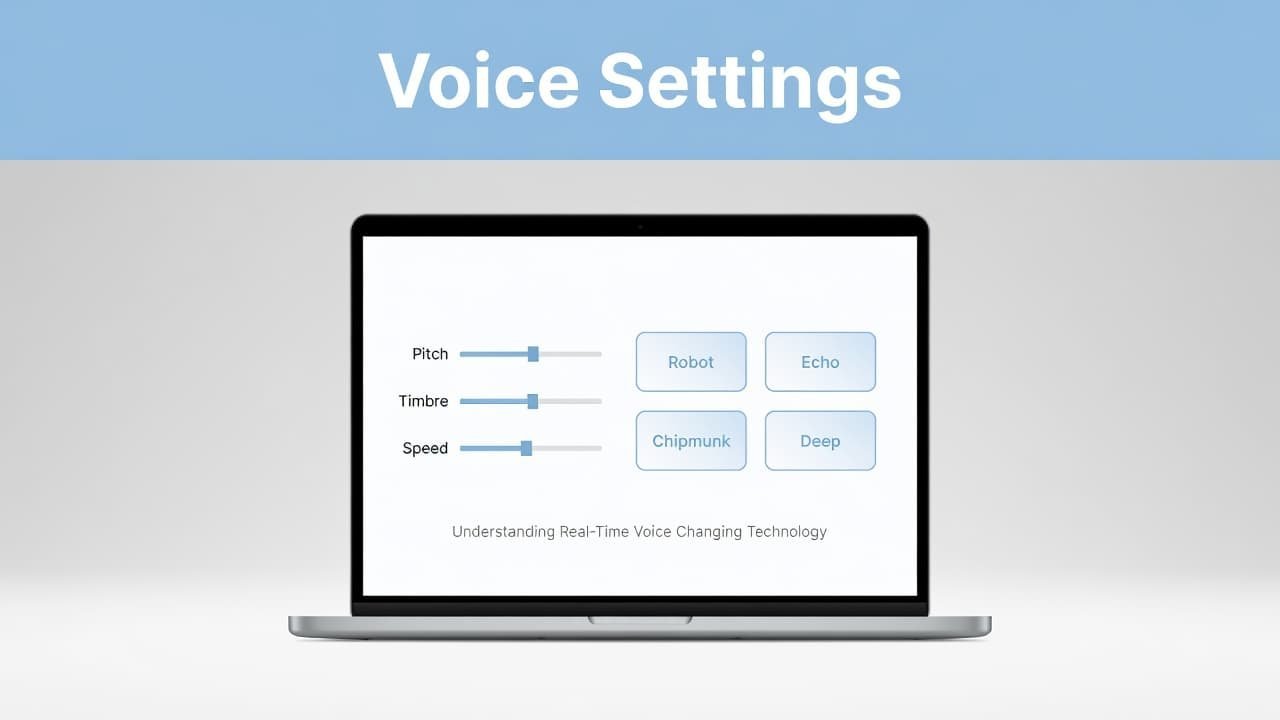
Whether you choose a free real-time voice changer or a premium tool, the basic setup process remains the same.
- Search for a voice changer app and install it.
Open your browser, search for your preferred software, download the installer, and complete the setup on your computer. Always stick to the official website to ensure you are downloading a safe and legitimate version of the software. - Open the app and allow microphone permissions.
When the app launches for the first time, it will ask for permission to access your hardware. You must approve these microphone requests, as the app cannot capture or process your audio otherwise. - Choose the voice effect you want.
Browse the library to select your desired effect, such as a robot, a deeper big voice, or a cartoon-style character. Most of these applications allow you to customize voice presets, giving you the ability to fine-tune the pitch and tone until the sound is exactly what you need. - Test your microphone inside the app.
Speak into your headset and check the input meter or the sound bar within the application. You should confirm that the app is successfully receiving and processing your voice before you attempt to connect it to your meeting.
After completing these steps, the software installs a virtual audio driver on your system. This driver acts as a virtual microphone, which is the essential bridge that allows you to route your modified audio into your Google Meet sessions.
Connect the voice changer to Google Meet
Once the voice changer is running, you can connect it to Google Meet in a minute or two. This method is much more reliable and robust than using simple browser extensions. This is the step that makes the live voice mod work in Google Meet web.
- Open Google Meet.
Join your meeting on a desktop or laptop, or open the meeting screen in your browser. - Click the three dots in the bottom-right corner.
This opens the more options menu. - Go to Settings, then Audio.
In most versions of Google Meet, the microphone settings are listed there. If the menu looks a little different, look for the audio or device section. - Change the microphone input.
Under Microphone, select the virtual microphone created by your voice changer app instead of your regular microphone.
The important step is choosing the virtual microphone, not your built-in mic or USB mic. If Google Meet stays on your normal microphone, your voice will sound exactly the same.
Once you switch the input, speak again. If everything is set up correctly, your voice should change in real time during the meeting.
That means other people in the call should hear the modified version of your voice, not the original one coming straight from your mic. If you were looking for a way to change microphone voice in Google Meet web, this is the part that does it. Google Meet is simply receiving audio from the voice-changing software as if it were a normal microphone.
This is also why a real time voice changer online is not built into Meet itself. The browser needs an outside app to process the sound first. It is worth noting that some high-end AI tools now offer real-time translation and speech translation alongside voice changes, which can help create more inclusive virtual meetings for diverse participants.
If the voice changer lags or does nothing
When a Google Meet voice changer is lagging, silent, or still sounds normal, the problem is usually simple. Most of the time, Meet is listening to the wrong microphone, the app never received proper permissions, or another program is already hogging your audio input.
Start with these checks:
- Restart your browser and reopen Google Meet.
- Make sure the voice changer app is still running.
- Go back to Settings > Audio in Meet and confirm the virtual mic is still selected.
- Close other apps that might be using your microphone, such as Zoom, Discord, or a recording app.
If the voice does not change at all, open the voice changer software and test the mic there again. When the app input meter is not moving, Google Meet is not the real issue. The voice changer app is not receiving your voice yet.
If the sound is delayed, keep the setup simple. Close extra programs and avoid running multiple communication apps at once, as advanced voice modulation or voice cloning software can be CPU intensive. Restarting the browser first often clears up these input glitches.
A common mistake is joining the call before checking the audio chain. A better routine is simple: open the voice changer, pick your effect, test the mic, then confirm Meet is set to the virtual microphone. That saves you from troubleshooting while people are waiting.
Audio quality also matters. Even the best voice changer for Google Meet will sound rough if your original microphone is noisy or the room is loud. For the best results, ensure background noise reduction is enabled in the microphone settings of your source app. This helps the software maintain a consistent pitch and tone for your chosen effect, giving the processor a cleaner signal to work with.
Frequently Asked Questions
Is it possible to use a voice changer on the Google Meet mobile app?
No, the method described in this guide is specifically for desktop and laptop browsers. Currently, there is no reliable way to use external voice-changing software with the Google Meet mobile application.
Why does my voice sound normal after applying an effect?
This usually happens because Google Meet is still set to use your default hardware microphone instead of the virtual microphone created by your software. Open the settings menu in Google Meet, navigate to the audio tab, and ensure you have selected the virtual driver as your primary input.
Will using a voice changer cause lag during my meeting?
Voice changing software can be resource-intensive, which may lead to latency depending on your computer’s processing power. To minimize lag, close unnecessary background applications and ensure your system meets the requirements for the software you are using.
Which voice changer software is best for Google Meet?
Popular options like Voicemod, Voice.ai, and MorphVOX Pro are widely used because they offer user-friendly interfaces and effective real-time processing. Choosing a reputable application from an official source ensures both software stability and better audio quality for your participants.
Prefer Visual Help? Watch the Step-by-Step Video Guide!
Struggling with How to Change Voice in Google Meet in Real Time? This video visually walks you through the steps so you can follow along more easily.
Watch TutorialThe step that makes this work
If you want to know how to change voice in Google Meet in real time, the primary solution is not found within the meeting settings themselves. Instead, the process involves using specialized voice-changing software on your computer and then configuring Google Meet to recognize that software as your virtual microphone.
When the connection is successful, the effect is instant. If you find that the audio is not changing, the first thing to check is the microphone selection in your Google Meet settings, as this is where most users encounter configuration errors.
This desktop approach is the most reliable method for those using Google Meet in a web browser on a PC or laptop. If you were searching for a way to use a voice changer for Google Meet on mobile or Android, please note that those platforms require a different setup than the browser-based method covered here. While Google Workspace may eventually introduce native audio effects, utilizing reliable third-party software remains the best way to achieve clear, natural-sounding voices during your video calls today.